
Purpose
In SureMDM, administrators and users can track changes made to Jobs or Profiles using the Revision History feature. To enhance traceability and collaboration, SureMDM allows users to add comments to specific revisions, helping teams document the purpose of modifications, reference tickets, or add contextual notes for future reference.
The purpose of this document explains the steps to add comments to Jobs or Profiles when they are modified in SureMDM.
Prerequisites
Comments can be added only to Jobs/Profiles that have a version number greater than 1.
Steps
- Log in to the SureMDM console.
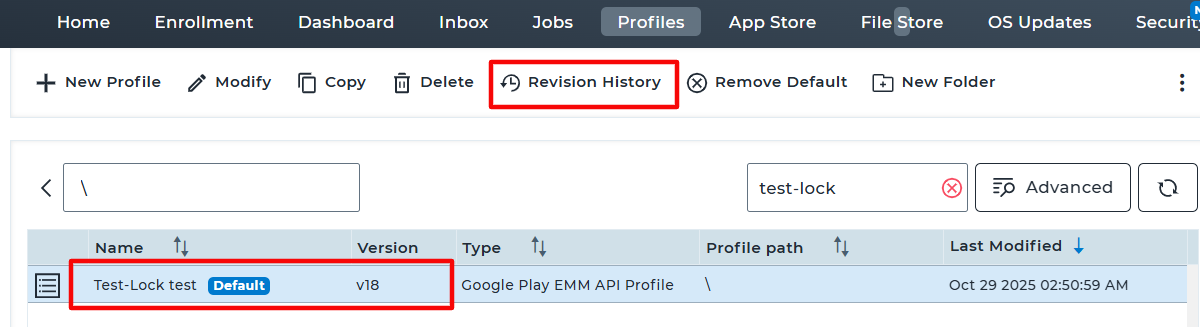
- Navigate to the Profile/Jobs section.
- Select the desired profile/Job and click on Revision History.
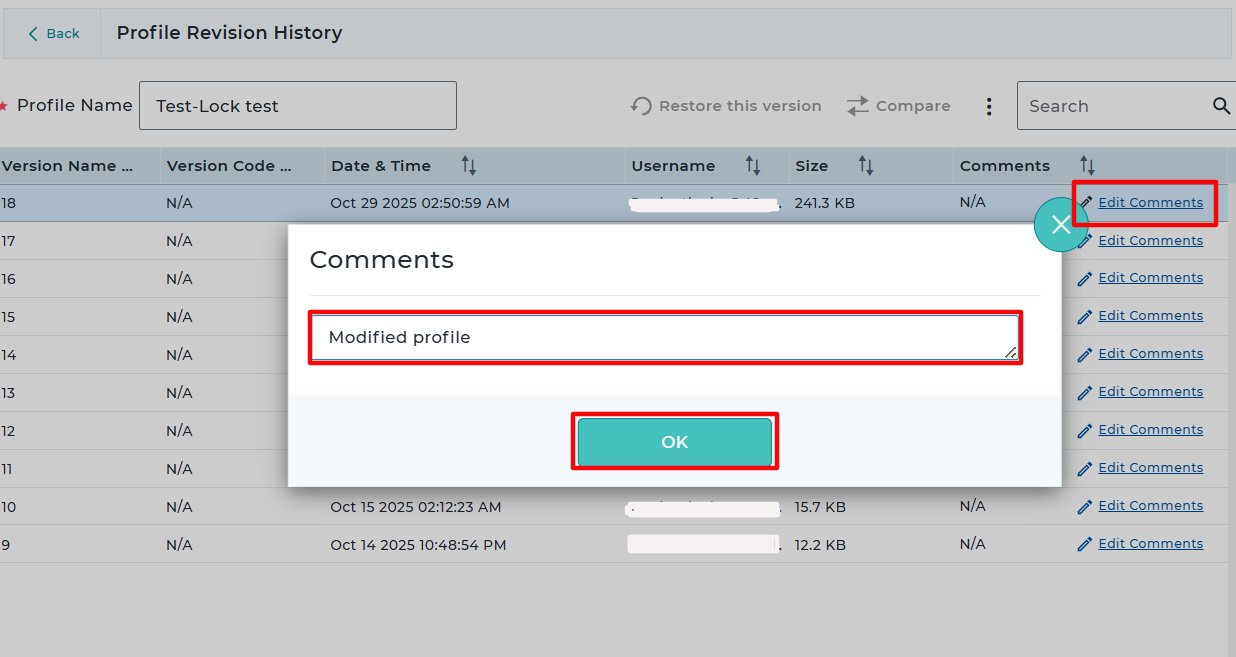
- Click Edit Comments, then add your comments based on your use case or reference details.
- Click OK to save the comments.
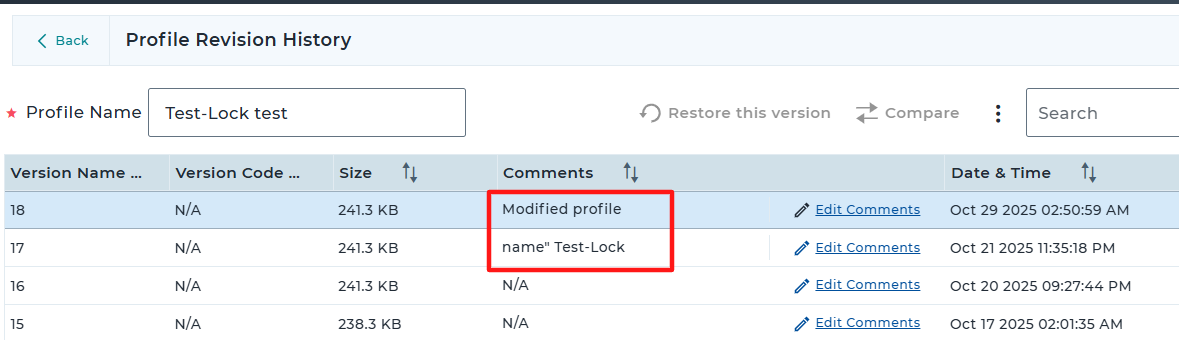
CONCLUSION:
The comments will now be saved and associated with the selected version. Administrators or users can add comments to all or specific versions of a Job/Profile as needed.
Need help?
CONTACT US
Was this helpful?
YesNo