
Purpose
This setting is used to control which applications can or cannot be installed on a device. By configuring the allowlist, only approved third-party applications (based on their package names) can be installed. This will ensure that administrators can securely manage the end users device by enforcing the app installation policy. Administrators can specify multiple apps using commas, wildcards, or regular expressions if any supported by the app provider.
NOTE:
If an app’s package name appears in both the blocklist and allowlist, the allowlist takes priority, ensuring that the application is permitted to install.
Prerequisites
This procedure will be performed on Knox-enabled Samsung devices.
Steps
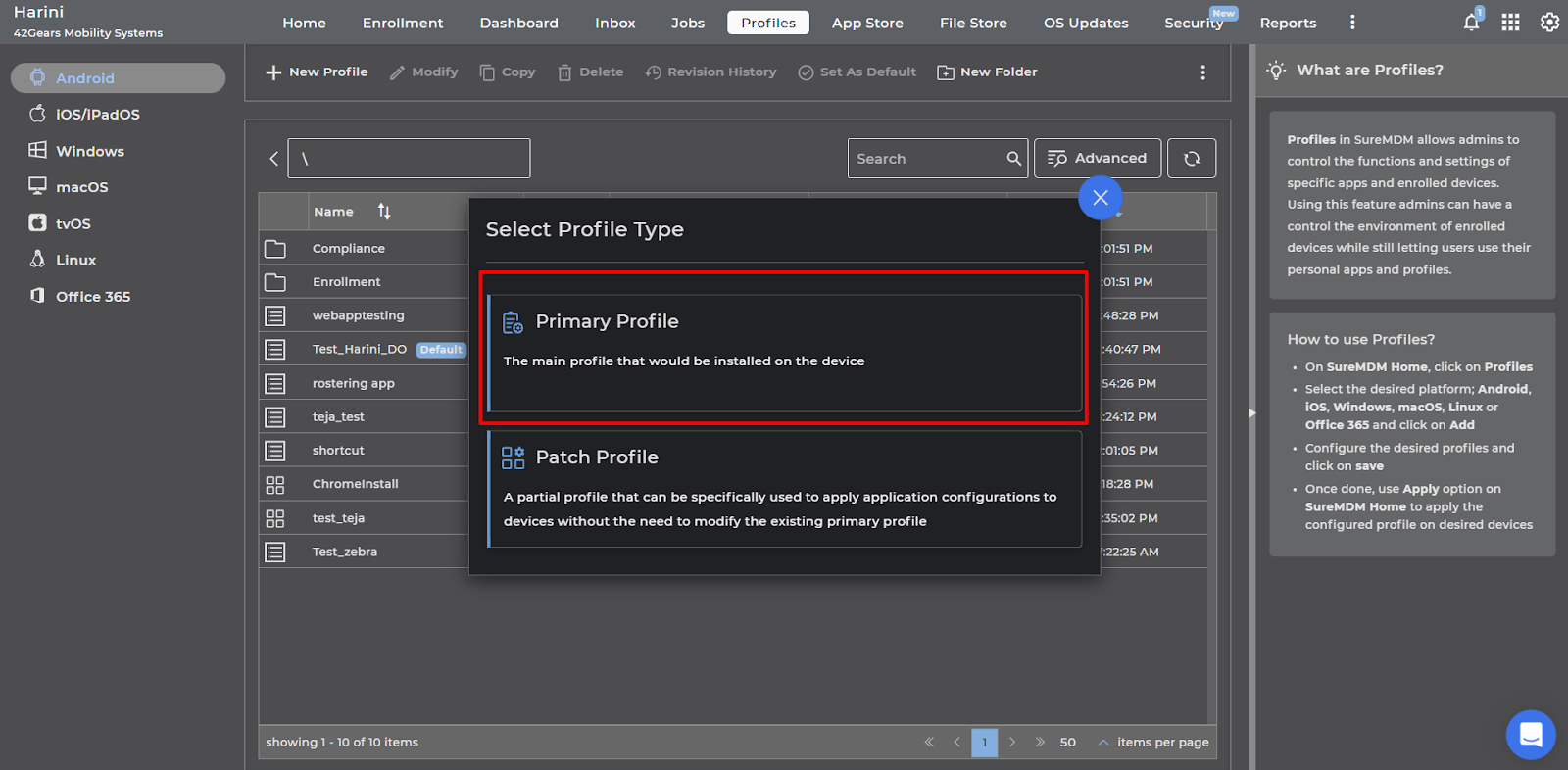
1. Login to the SureMDM console > Profiles > Android > New Profile > Select Profile Type as Primary Profile.
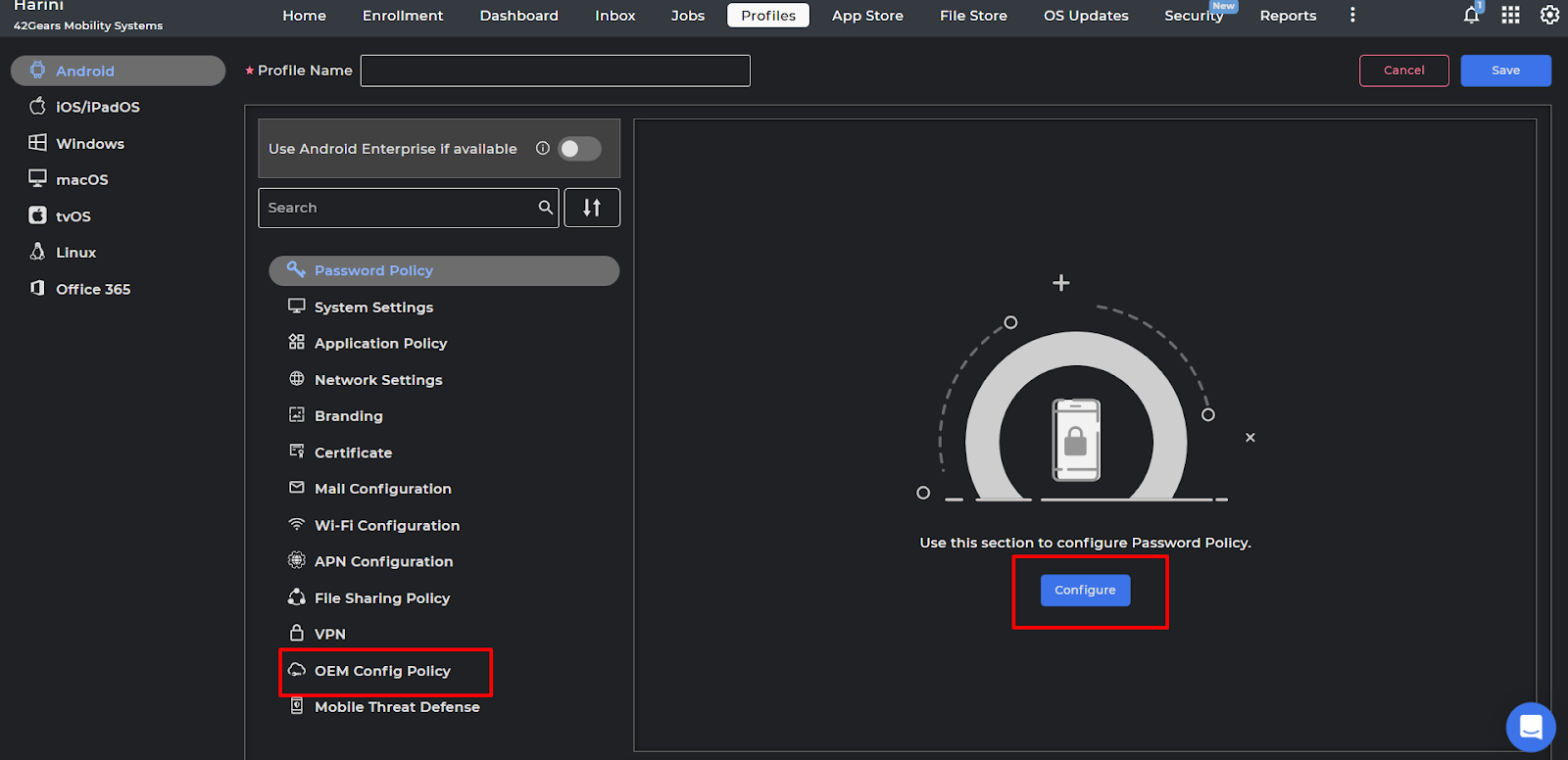
2. Search and select the OEM Configuration policy and click on Configure.
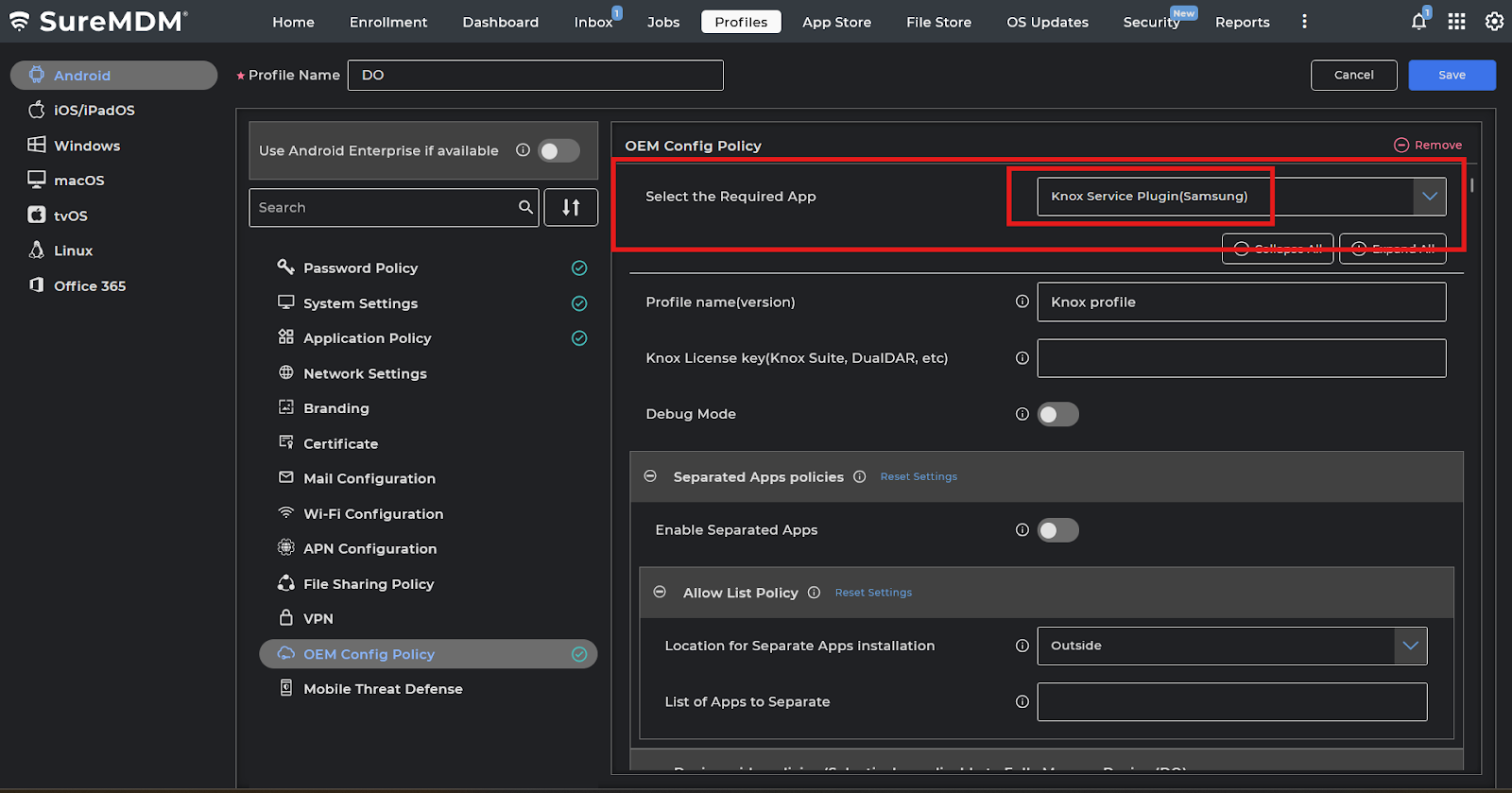
3. Select the app as Samsung OEM Config (Knox Service Plugin (Samsung)) from the drop down.
4. Click on Expand All and search for “Application Allowlist by Pkg Name” and “Application Blocklist by Pkg Name ” and configure them.
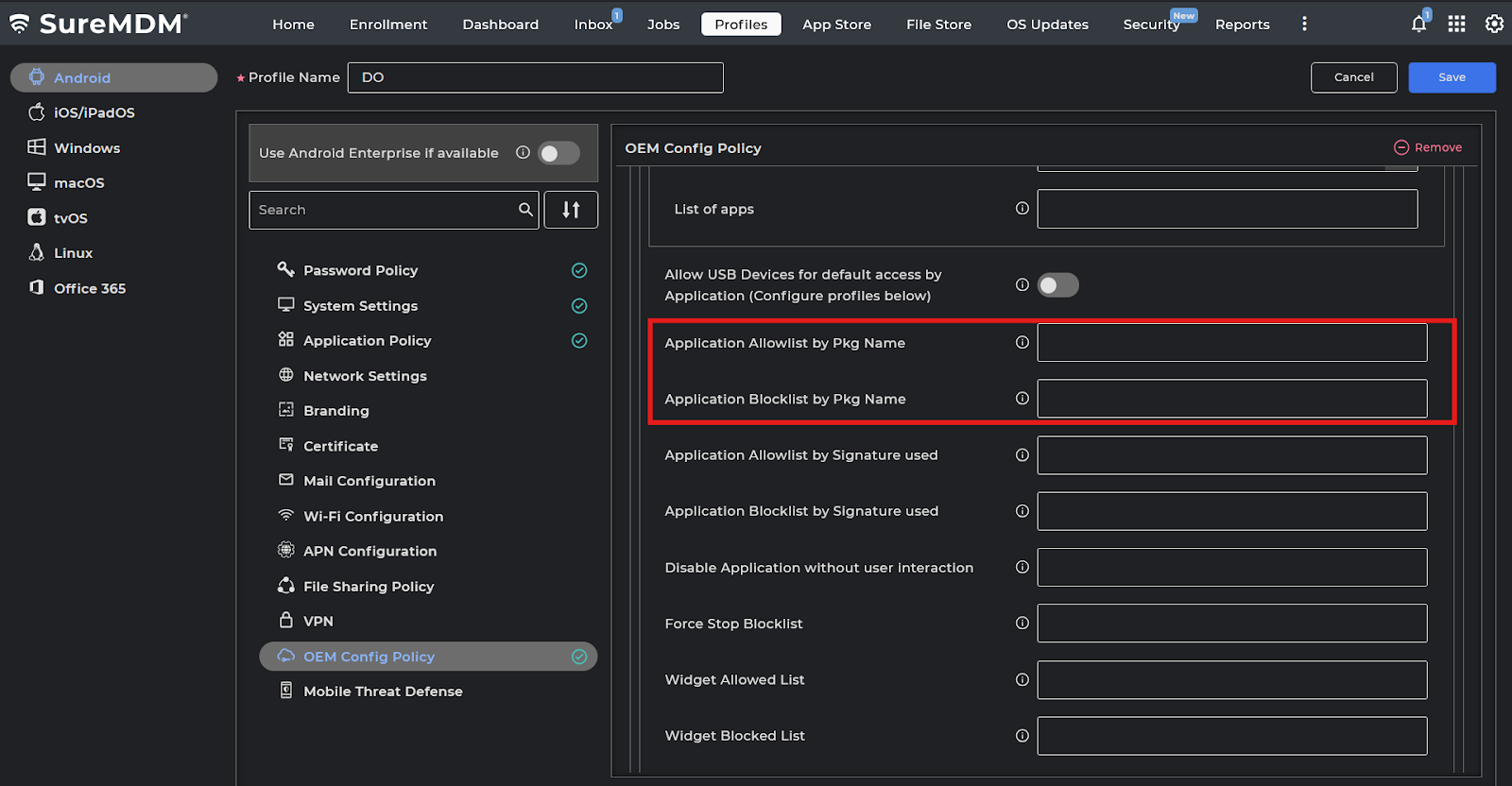
Save the profile and deploy it to the device. Based on the above configurations, applications will be either allowed or blocked during installation.
Need help?
CONTACT US