
Purpose
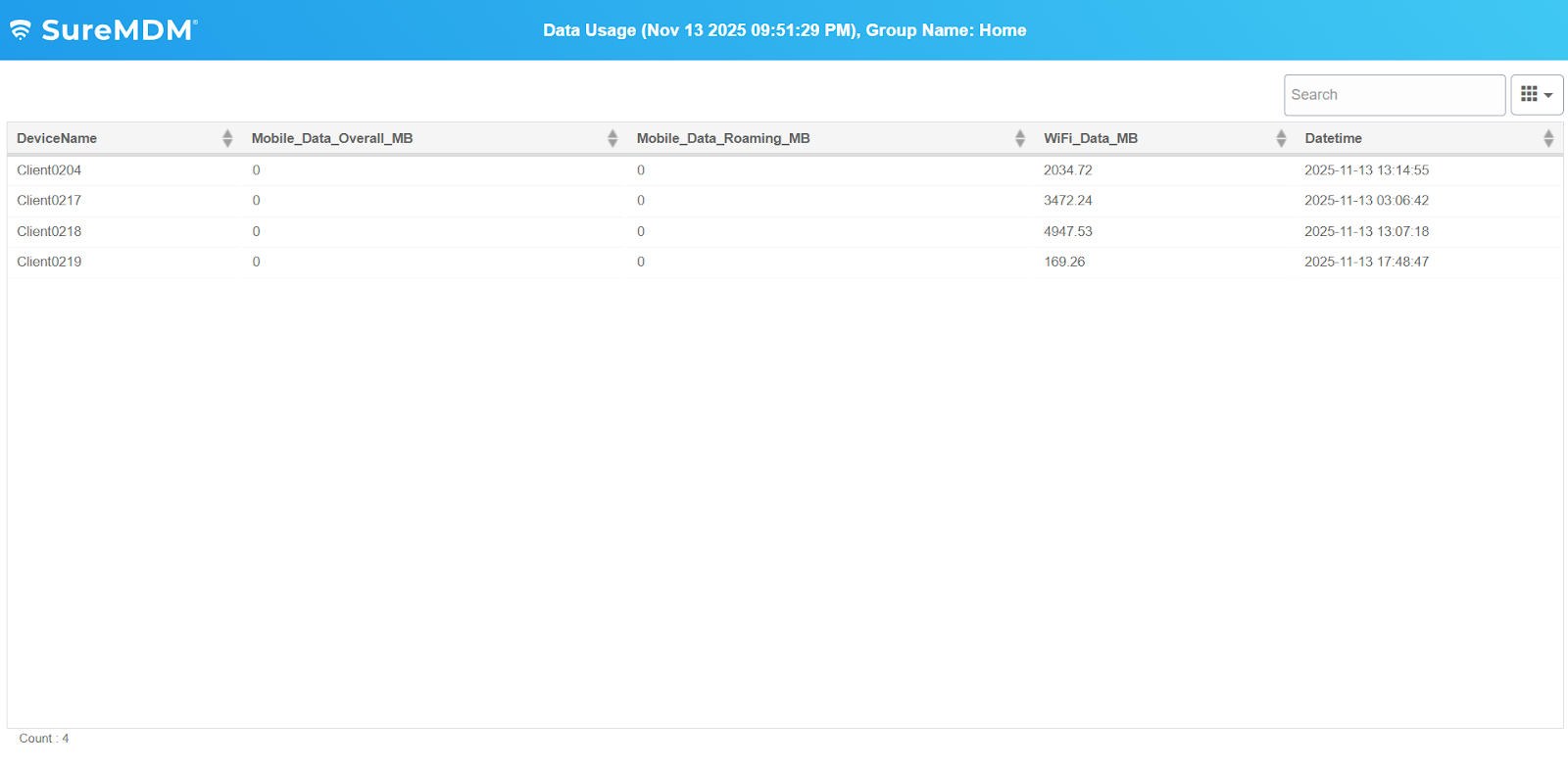
The purpose of this article is to guide users on how to generate and view reports for data usage across all devices. It helps administrators monitor network consumption with details such as Device Name, Mobile Data Overall (MB), Mobile Data Roaming (MB), Wi-Fi Data (MB), and Datetime, ensuring better tracking and management of data usage across the device fleet.
Prerequisites
The Custom Column Reports feature is available only for Premium and Enterprise subscriptions.
Steps
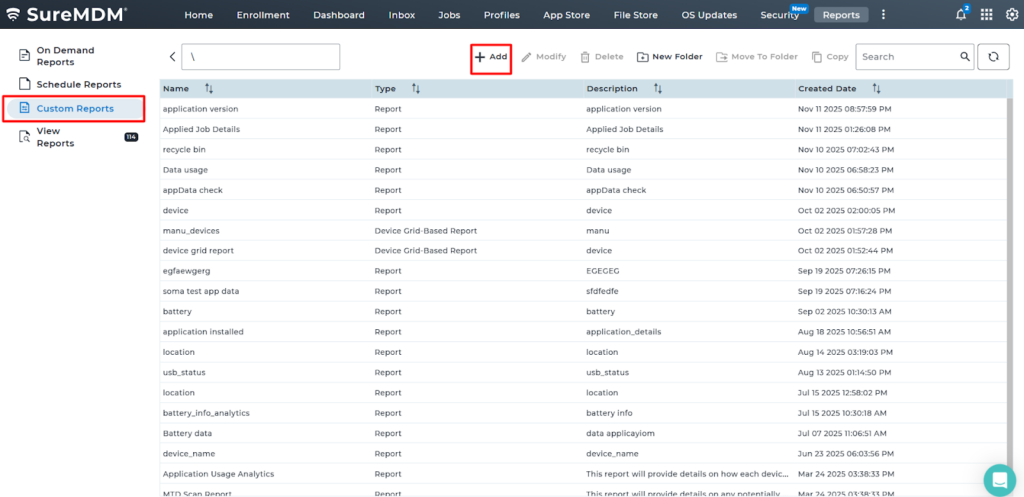
1. Login to the SureMDM console > Click on the Reports tab > Choose Custom Reports and click Add.
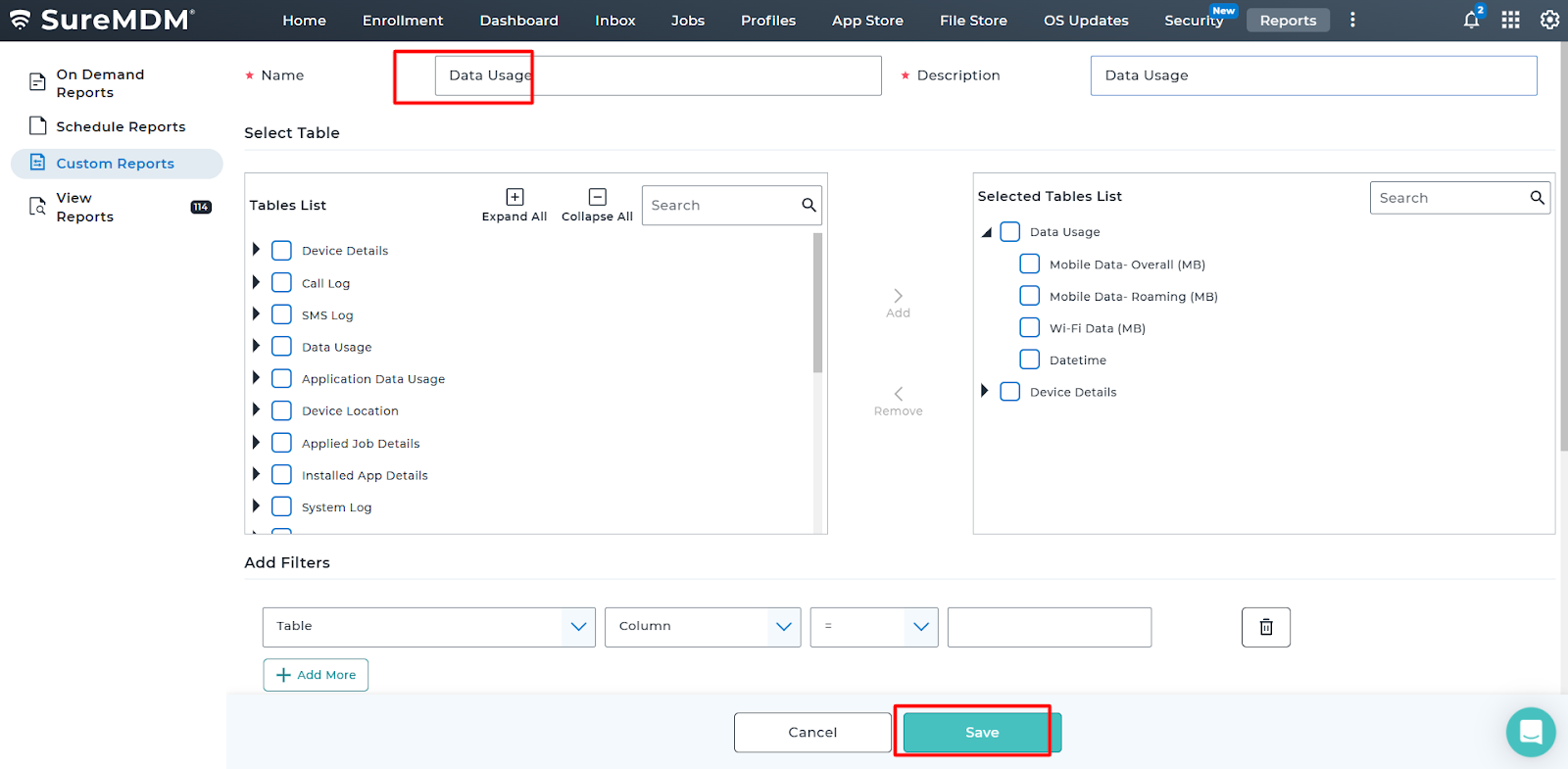
2. Search for Data Usage and add it to the Selected Table List.

3. Enter the Job Name and Description, then click Save.
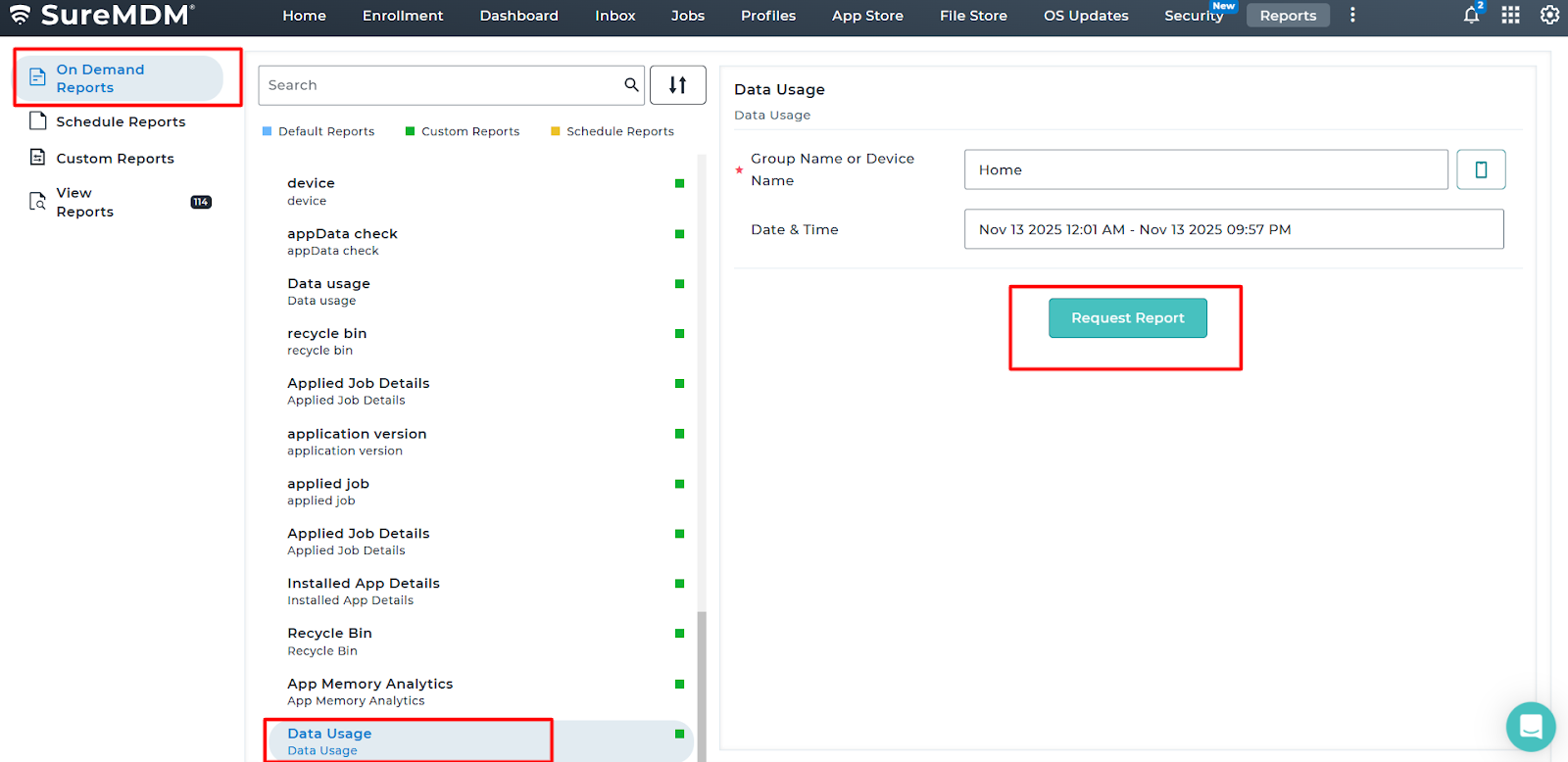
4. Navigate to On-Demand Reports and look for the job name Data Usage (or any name that you have given while creating a Custom Report) > Specify the Date & Time duration > click Request Report.
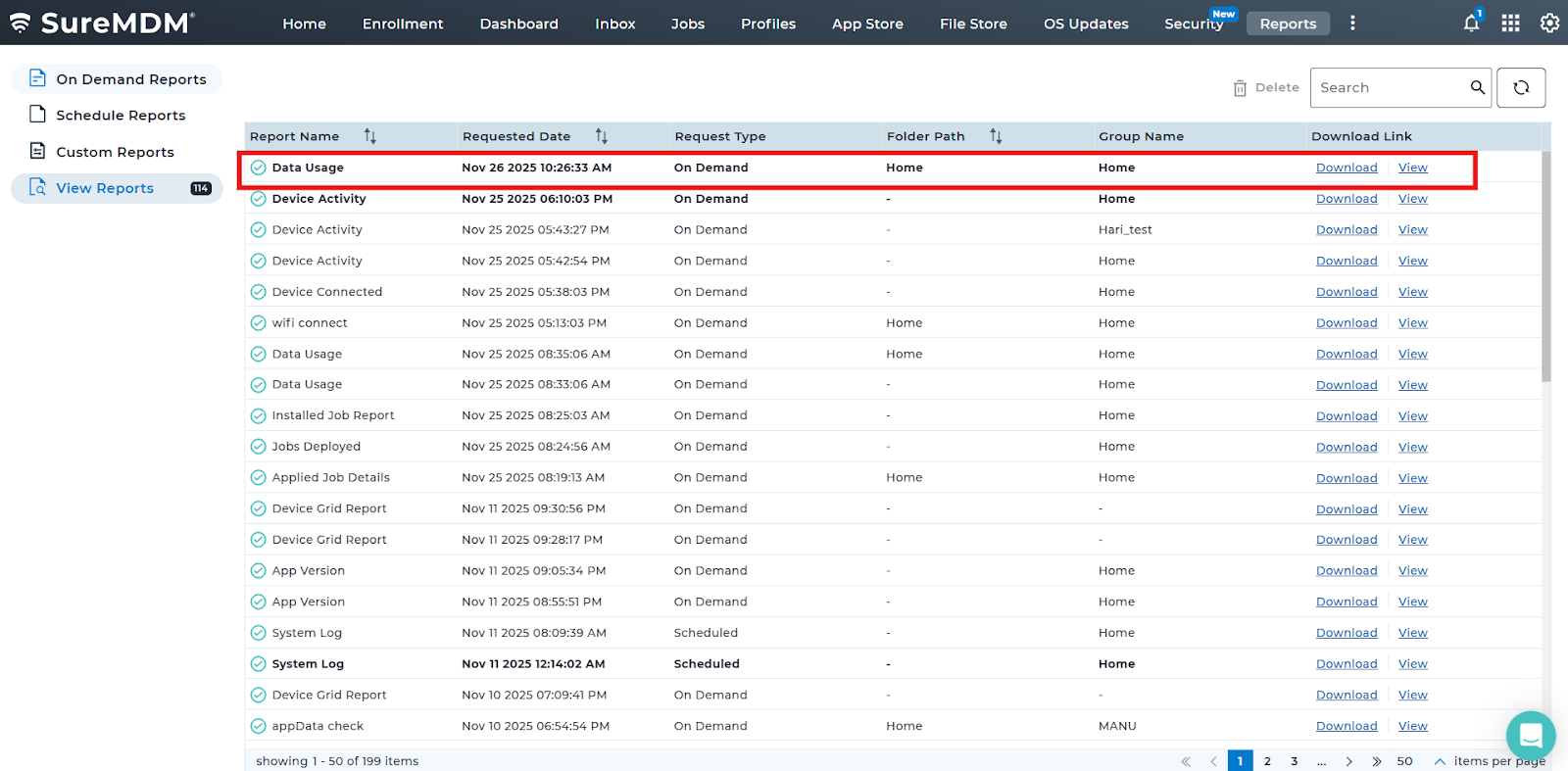
5.Go back to View Reports, the requested report will be generated.
Conclusion:
When there’s a requirement for the organisation to view the Data Usage consumption for a certain duration for specific date and time, this article will help in extracting the required report and would help in troubleshooting or for any sort of analysis caused with the high Data Usage.
The Extracted Report would look like the below output:
Need help?
CONTACT US