
Purpose
This guide explains how to run automated tests on Android devices using Playwright, ADB, and AstroFarm with support for parallel execution. For a complete automation script with Playwright + nodeJS use this link.
Prerequisites
Required Software
- Node.js (v14+)
- Playwright (with Android automation support)
- ADB (Android Debug Bridge) installed and added to system PATH
Installation
npm install playwright
npm install @playwright/test
Environment Setup
Verify ADB installation:
adb version
Enable the following Chrome flag on the device:Enable command line on non-rooted devices → chrome://flags
2. Key Functions
2.1 Device Readiness Check
Used to confirm whether a device is available for automation.
API:
GET api/v1/devices/{serial}
A successful response contains device metadata. The key fields are:
- present — Device is connected to AstroFarm
- ready — Device is available for use
Sample response:
{
“device”: {
“present”: true,
“ready”: true,
“serial”: “R9ZX8056D5L”,
“model”: “Samsung Galaxy S21”
}
}
If both present and ready are true, the device can be allocated.
2.2 Adding Device Under User Control
Used to reserve the device for your automation session.
API:
POST api/v1/user/devices
Sample payload:
{
“serial”: “R9ZX8056D5L”,
“timeout”: 480
}
Sample response:
{
“description”: “Device successfully added to your account”,
“status”: “success”
}
After success, the device becomes locked for your session and cannot be used by others.
2.3 Fetching Remote Connection Details
Retrieves the endpoints required to connect via ADB and Appium.
API:
POST api/v1/user/devices/{serial}/remoteConnect
Sample response:
{
“remoteConnectUrl”: “192.168.1.100:5555”,
“remoteAutomationUrl”: “http://192.168.1.100:4723/wd/hub”
}
- remoteConnectUrl → used for ADB
remoteAutomationUrl → used for Appium (optional)
3. Device Connectivity and Test Execution
3.1 Connecting the Device via ADB
Run:
adb connect <remoteConnectUrl>
Once connected, the device becomes available for automation through Playwright
3.2 Execute Test Cases Using Playwright
After ADB connection, bind the device to Playwright and perform required actions:
Examples:
- Launch mobile Chrome
- Navigate to test URLs
- Perform UI validations
- Collect logs and screenshots
- Run tests in parallel (via Playwright Test Parallelism)
Implementation varies based on your Playwright automation framework.
4. Post-Execution Steps
4.1 Disconnect Device from ADB
After test completion:
adb disconnect <remoteConnectUrl>
4.2 Release the Device in AstroFarm
Used to return the device to the AstroFarm pool.API:
DELETE api/v1/user/devices/{serial}
Sample response:
{
“message”: “Device released successfully”,
“status”: “success”
}
Once released, the device becomes available for other users
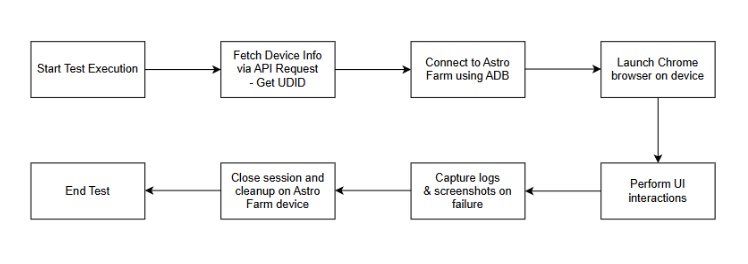
Flow Diagram – Playwright + AstroFarm Device Lab
Need help? CONTACT US