
Purpose
Samsung Knox devices offer IT admins the ability to manage device features and settings remotely through SureMDM. One such feature is Battery protection. On Samsung Knox devices this feature is designed to extend the lifespan and health of the device’s battery by preventing it from charging to 100% continuously. It extends battery life, reduces overheating, prevents battery swelling, and keeps devices stable—especially kiosks, POS systems, or always-on enterprise devices.
The purpose of this article is to guide administrators on how to remotely Enable battery protection ON or OFF on Samsung Knox devices using the OEM Config Profile (Knox Service Plugin) in SureMDM.
Prerequisites
- The device must be a Samsung Knox-supported device.
- Devices must be enrolled in SureMDM with Android Enterprise.
- The Knox Service Plugin (KSP) app must be installed and set up on the device.
- Admin must have OEM Config policy permissions enabled in the SureMDM console.
Steps
1. Log in to the SureMDM console.
2. Navigate to Profiles > Android > New Profile > Primary Profile > OEM Config Policy > Configure.
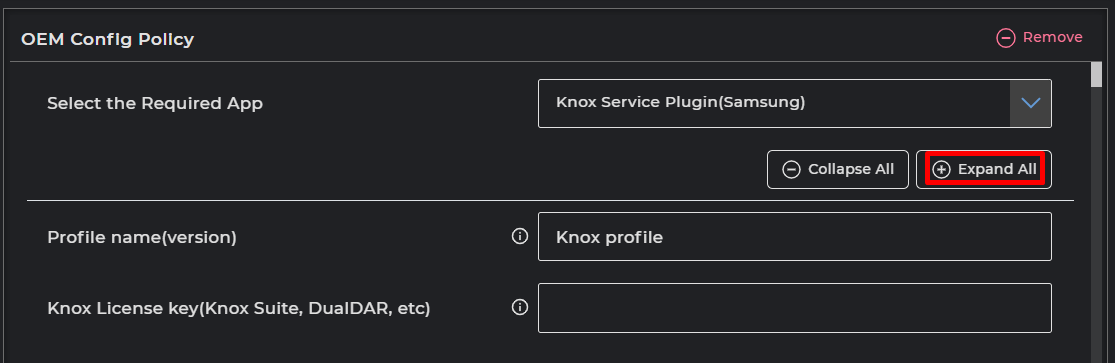
3. Under Select the Required App, choose Knox Service Plugin (Samsung) from the dropdown and tap on Expand All.
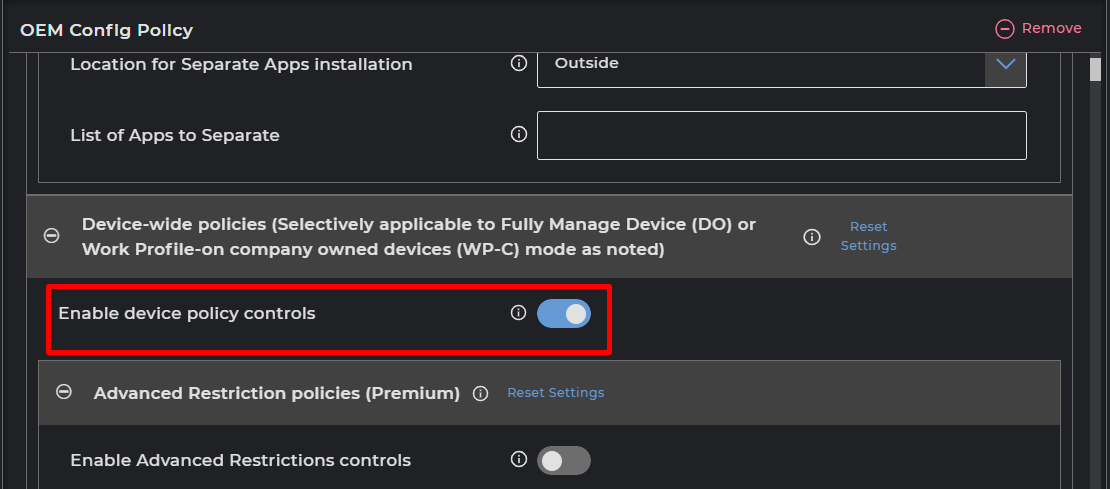
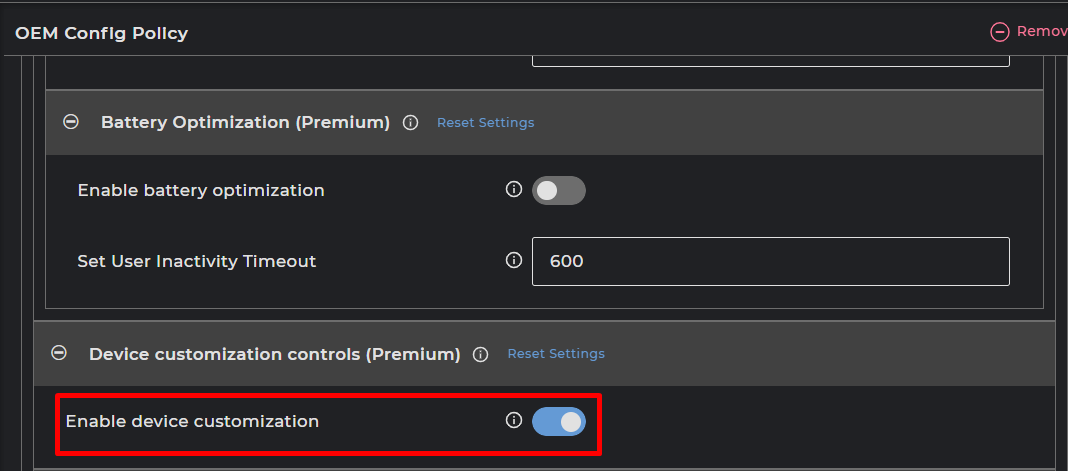
4. Enable the following settings: Enable device policy controls > Enable device customization.
5. Look for the keyword “battery protection” using the normal search. Toggle the Enable battery protection setting option as required:
- Enable → Battery protection will be turned on.
- Disable → Battery protection will be turned off.
- Save the profile and apply it to the target Samsung Knox device(s) or group(s).
Note:
Some devices require reboot in order to reflect the applied restriction. Battery protection is used here as an example. Other input restrictions can also be managed via the Knox Service Plugin using the same profile method.
Conclusion:
Once the profile is applied and the device syncs with SureMDM, the Battery protection will be updated automatically. The outcome will be reflected in the device’s Battery settings screen.

Need help?
CONTACT US