
On Samsung devices running Android 15 or later, Samsung has introduced enhanced security restrictions to protect sensitive information. As a result, when a password screen (app login page, website login, system password prompt, etc.) is displayed, third-party remote control or screen-sharing tools may show a blank screen along with a message stating:
However, Samsung provides an option to disable Screen Share Protection, which allows administrators to view the device remotely even when a password screen is present.
This article provides a step-by-step guide to disable this protection on Samsung devices running on Android 15 and above
Purpose
This article provides a step-by-step guide to disable this protection on Samsung devices running on Android 15 and above
Prerequisites
Physical access to the device is required to enable Developer Options.
Steps
Step 1: Enabling Developer Options on the Device
- Open the Settings app on the device.
- Navigate to About device / About tablet.
- Tap Software information.
- Locate Build number and tap it five (5) times.
- A message will appear: “You are now a developer.”
- Developer Options will now be enabled.
Enable Developer option via SureMDM
- Log in to the SureMDM Web Console.
- Go to the Profiles section.
- Select the Android tab.
- Click System Settings, then select Configure.
- Under the Sync and Storage category, enable USB Debugging.
- Save the profile.
- Deploy the profile to the target device.
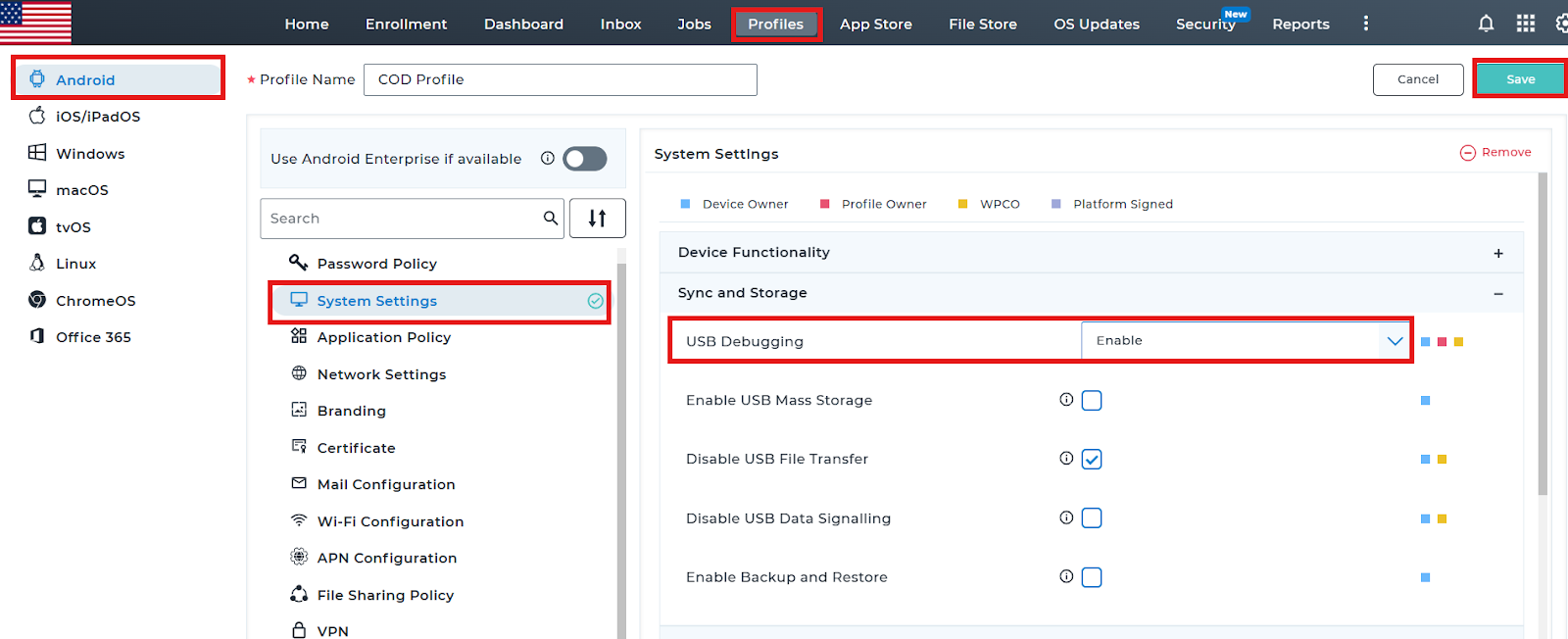
Once the profile is deployed, the Developer option will be enabled on the device.
Step 2: Disable Screen Share Protection on the Device
- On the device, open Settings.
- Navigate to Developer options.
- Scroll down or use the search bar to find:
“Disable screen share protection” - Enable the toggle.
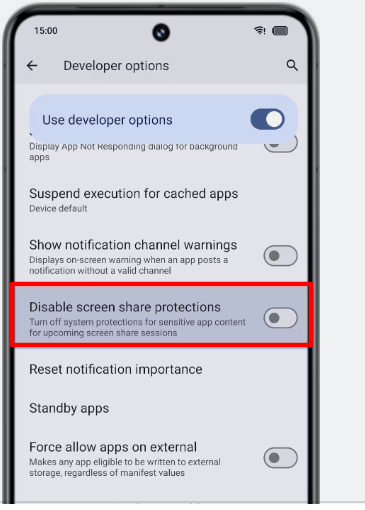
This disables the restriction and allows remote screen sharing even when password or login pages are displayed.
Conclusion:
After Enabling the “Disable screen share protection” the Admin can able to view the remote screen via any third party application even when the device is in Login page of any website or App.
Need help?
CONTACT US