
Purpose
This article explains how to configure SureLock to notify the SureMDM console whenever there is a failed login attempt to the SureLock Admin Settings. Enabling this feature allows administrators to monitor unauthorized access attempts and take timely action to protect managed devices.
Prerequisites
- SureMDM account access.
- SureLock is installed and configured on the Android device.
- The device is enrolled in SureMDM and is online.
- Administrative access to SureLock settings.
Steps
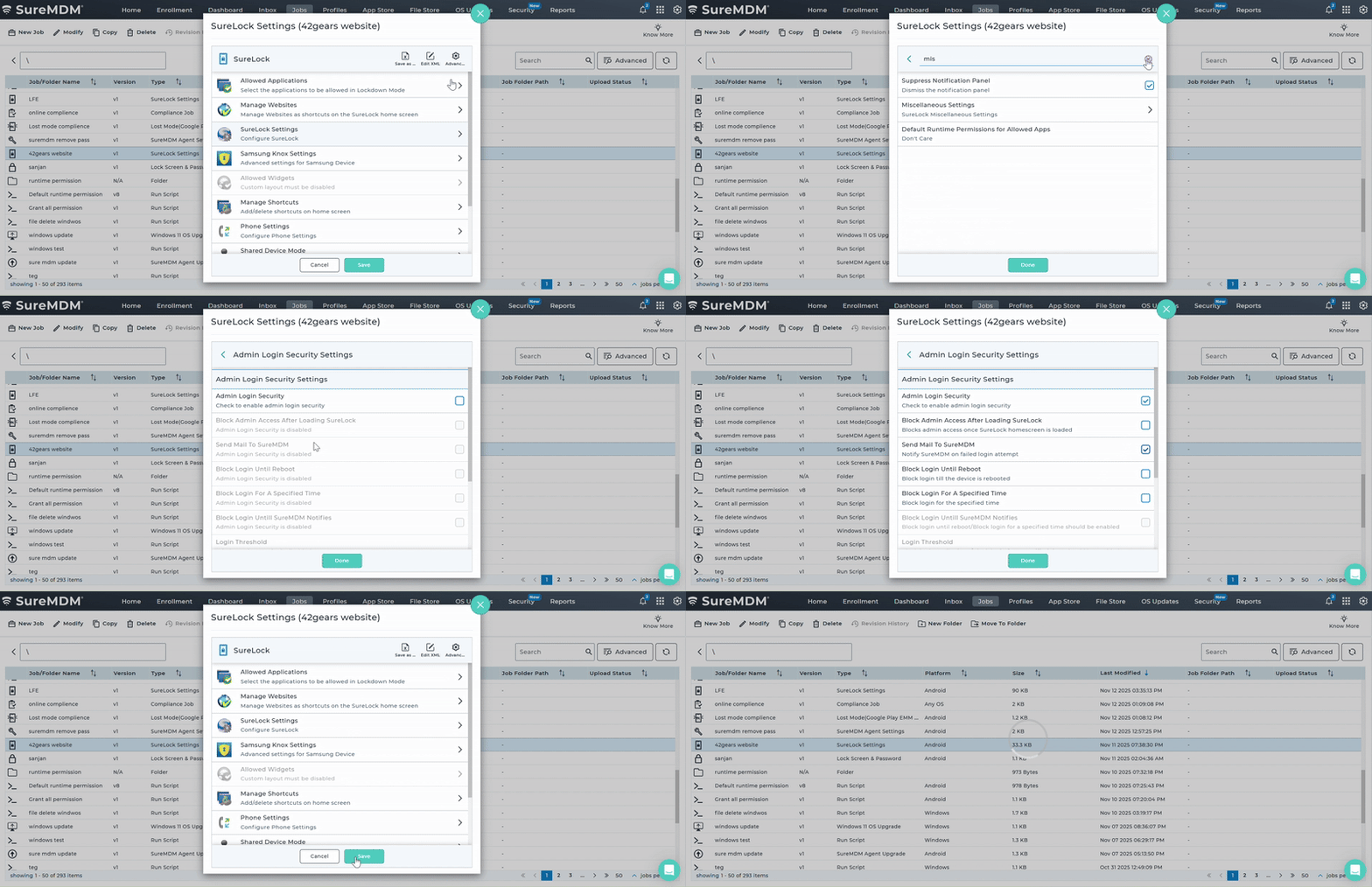
- Log in to the SureMDM Web Console.
- Navigate to Jobs and create a new SureLock Job, or edit an existing one.
- In the SureLock configuration settings, go to Miscellaneous Settings.
- Tap on Admin Login Security Setting.
- Enable Admin Login Security.
- Enable the option Send mail to SureMDM (Notify to SureMDM on failed login attempt).
- Save the job and push it to the target device or device group.
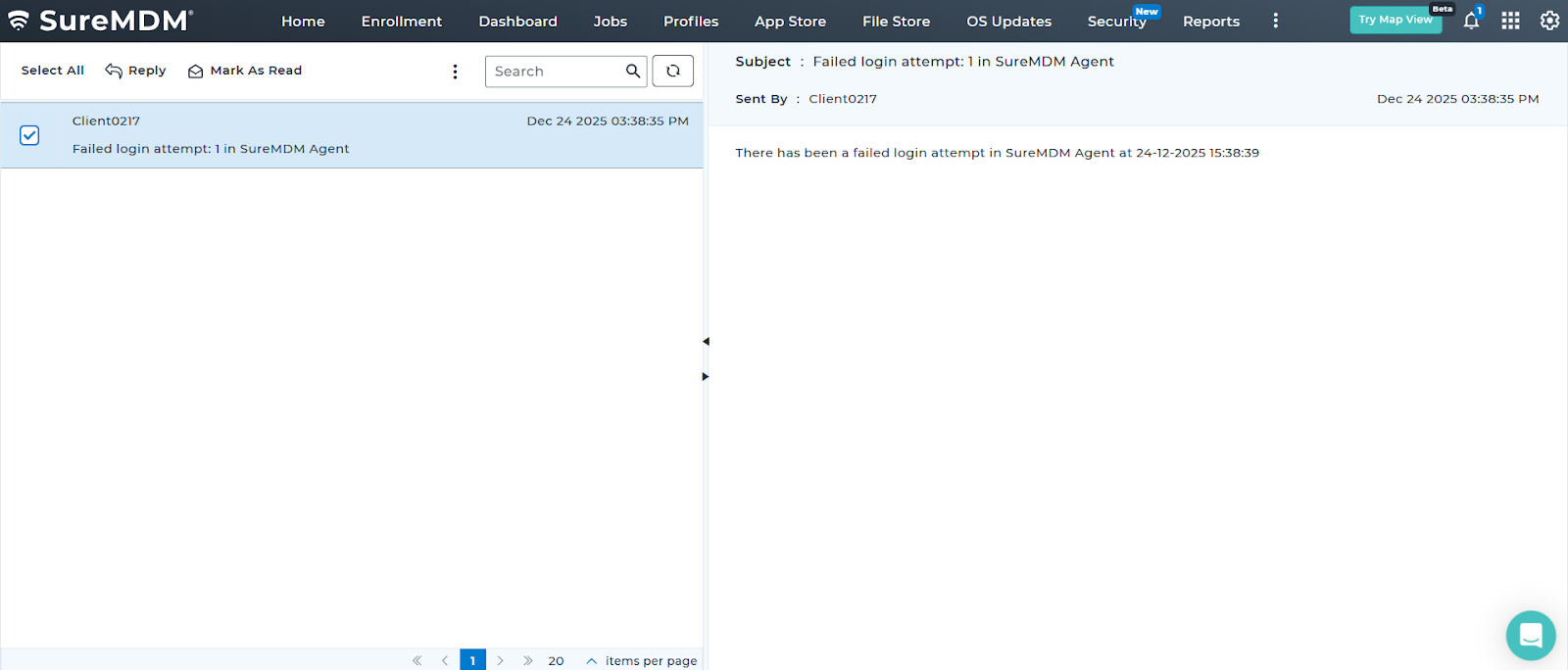
- Once applied, the device will send an email alert whenever a user exits or accesses SureLock settings.
Result:
Conclusion
By enabling notifications for failed SureLock admin login attempts, administrators can receive real-time alerts in the SureMDM console about potential unauthorized access. This proactive monitoring enhances device security, helps detect suspicious activity early, and ensures better control over managed Android devices.
Need more help? Here’s how to get help from our experts.
Was this helpful?
YesNo