
Purpose
This article explains how to enable and display an organization’s logo on the macOS login screen using a configuration profile. This feature helps organizations apply consistent branding, improve device identification, enhance security awareness, and provide a professional appearance during system startup and user authentication.
Prerequisites
MacOS device enrolled to SureMDM Console
Steps
1. Login to the SureMDM console > Click on the Profile tab > select MacOS > click on new profile .
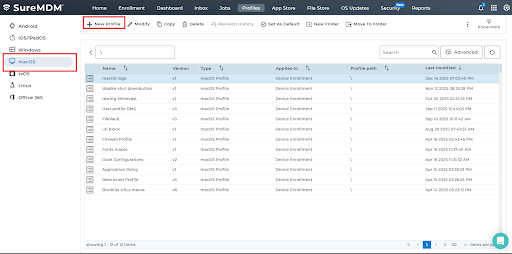
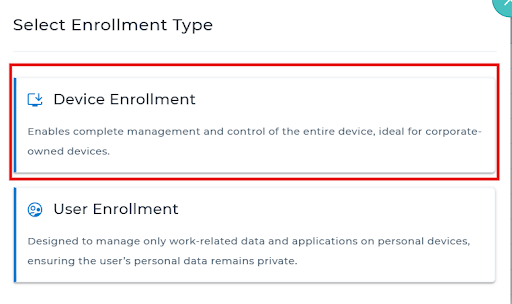
2 . Select Device Enrollment >Choose OS Login and click Configure.
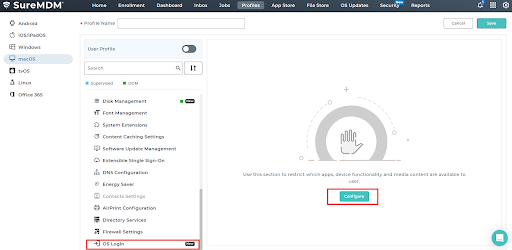
3. Check the option for “Enable Logo” option, then upload the image in the “Upload Logo” like .jpg, .png, .jpeg and restart the device and the logo should be displayed when the device starts.
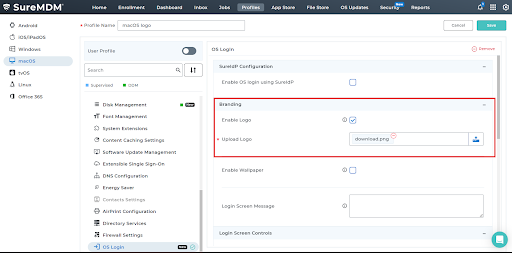
4. Save the profile and deploy it to the device. When the device is shut down and restarted, the organization logo will appear on the login screen

Conclusion
Configuring an organization logo on the macOS login screen allows administrators to personalize devices, reinforce corporate identity, and enhance visual recognition. This setup delivers a consistent startup experience, supports professional presentation, and helps users easily identify managed devices during system boot and login processes.
Need more help? Here’s how to get help from our experts.