
Purpose
Managing application runtime permissions is a common requirement in enterprise mobility environments, especially when permissions may have been modified over time. Manually restoring these permissions on individual devices can be inefficient and error-prone.
The purpose of this article is to explain how to revert an application’s runtime permissions back to their default state when permissions have been modified earlier. SureMDM provides this capability using a Run Script command, allowing administrators to reset all runtime permissions for a specific application efficiently.
Prerequisites
- Device enrolled in Fully Managed or Work Profile mode.
- Package name of the target application
- Android device that supports runtime permissions
Steps
- Log in to the SureMDM Console.
- Navigate to Jobs -> New Job -> Android -> Run Script
- Enter the Job Name and Enter the below Script
!#suremdm
setDefaultRuntimePermission(Package name,*)
- Package name: Replace this with the full package name of the application (e.g., com.example.app).
- * : This wildcard signifies that all runtime permissions for the specified package will be reset to their default state.
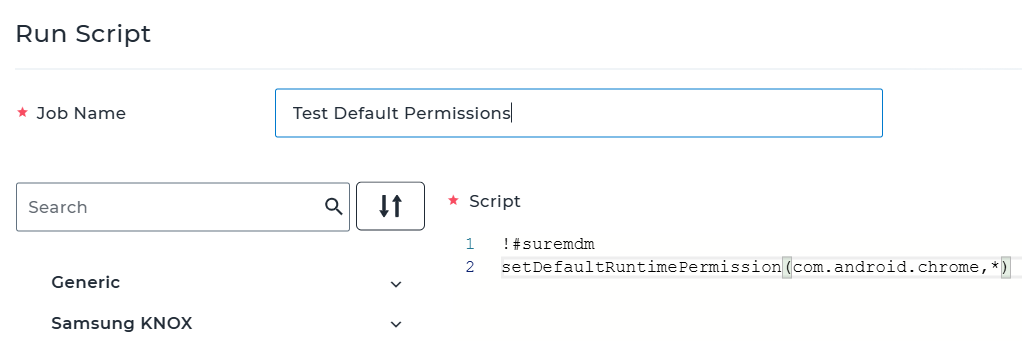
- Click on Save to create the job.
Note: This functionality is supported on devices enrolled in Fully Managed and Work profile mode.
Expected Results
- All runtime permissions for the specified application are reset to their default system-defined state.
- Any previously granted or denied runtime permissions are reverted.
- The job executes successfully on devices enrolled in Fully Managed or Work Profile mode.
Conclusion
Reverting runtime permissions to their default state helps administrators maintain consistent permission behavior across managed devices. Using the Run Script command in SureMDM provides a simple and effective way to reset all runtime permissions for an application when required.
Need more help? Here’s how to get help from our experts.