
Purpose
When system settings are restricted on Android devices managed using SureMDM, end users may be unable to access Wi-Fi settings directly. This article explains how to provide controlled access to Android Wi-Fi Settings by creating a Run Script job and deploying it as a job shortcut using an Application Policy.
Prerequisites
- The device must be enrolled in SureMDM.
- The device must be managed in Android Enterprise / Device Owner mode.
- Administrator access to the SureMDM Web Console.
Steps
Step 1: Create a Run Script Job
- On the SureMDM Web Console -> Navigate to Jobs > New Job > Android > Run Script.
- Enter a Job name and in the Script prompt, enter the following command:
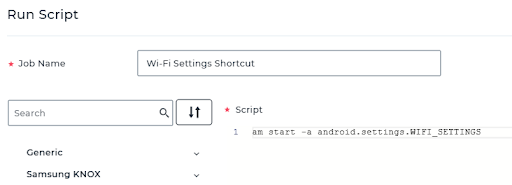
am start -a android.settings.WIFI_SETTINGS
- Click Save to create the job.
Step 2: Create a Job Shortcut Using Application Policy via Profile
- Navigate to Profiles > Android and click + New Profile
- Create a new Profile or edit an Existing Profile.
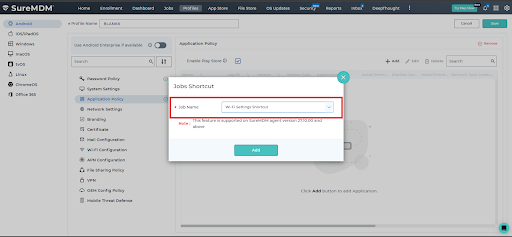
- Go to Application Policy -> Configure -> Add (+).
- Select Jobs Shortcut.
- From the drop-down list, select the job created in Step 1 and save the Profile.
Step 3: Push the Profile to Devices
- Assign the configured profile to the required devices or device groups.
- Push the profile and wait for the deployment to complete.
Step 4: Launch Wi-Fi Settings on the Device
- On the managed device, open the SureMDM App Store.
- Navigate to the Job Shortcut section.
- Locate and launch the created job.

- The Wi-Fi Settings screen opens directly on the device. So that we can Turn ON/OFF WI-FI
Expected Results
- A job shortcut is available on the managed device.
- Launching the shortcut opens the Android Wi-Fi Settings screen, even when system settings are otherwise restricted.
Conclusion
By using a Run Script job combined with a job shortcut in an Application Policy, administrators can safely provide access to Android Wi-Fi Settings without fully unlocking system settings on managed devices.
Need more help? Here’s how to get help from our experts.
Was this helpful?
YesNo