
Purpose
On SureMDM-managed Android devices where system settings access is restricted, users may not be able to open Location settings directly. This article explains how administrators can provide controlled access to the Android Location Settings screen by creating a Run Script job and deploying it as a job shortcut using an Application Policy.
Prerequisites
- The device must be enrolled in SureMDM.
- The device must be managed in Android Enterprise / Device Owner mode.
- Administrator access to the SureMDM Web Console.
Steps
Step 1: Create a Run Script Job
- On the SureMDM Web Console -> Navigate to Jobs > New Job > Android > Run Script.
- Enter a Job name and in the Script prompt, enter the following command:
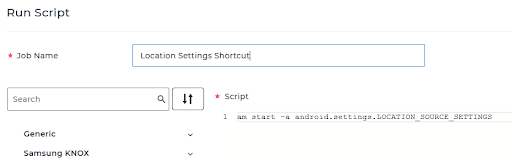
am start -a android.settings.LOCATION_SOURCE_SETTINGS
- Click Save to create the job.
Step 2: Create a Job Shortcut Using Application Policy
- Navigate to Profiles > Android and click + New Profile
- Create a new Profile or edit an Existing Profile.
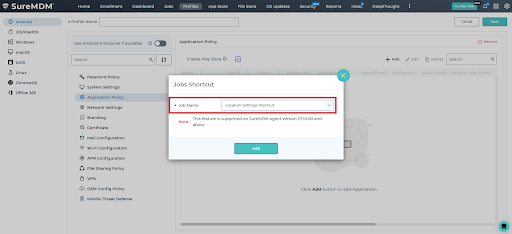
- Go to Application Policy -> Configure -> Add (+).
- Select Jobs Shortcut.
- From the drop-down list, select the job created in Step 1 and Save the Profile.
Step 3: Push the Profile to Devices
- Assign the configured profile to the required devices or device groups.
- Push the profile and wait for the deployment to complete.
Step 4: Launch Location Settings on the Device
- On the managed device, open the SureMDM App Store.
- Navigate to the Job Shortcut section.
- Locate and launch the created job.
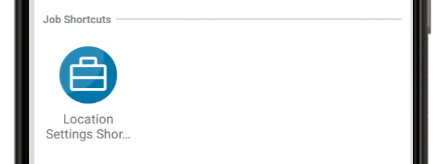
- The Location Settings screen opens directly on the device. So that we can Turn ON/OFF Location
Expected Results
- A job shortcut is available on the managed device.
- Launching the shortcut opens the Android Location Settings screen, even when system settings are otherwise restricted.
Conclusion
By using a Run Script job combined with a job shortcut in an Application Policy, administrators can provide access to Android Location Settings without removing existing system restrictions on managed devices.
Need more help? Here’s how to get help from our experts
Was this helpful?
YesNo