
Maintaining strong password policies on Windows devices is a critical part of ensuring security and regulatory compliance across your organization. SureMDM allows administrators to verify and monitor key security configurations, such as the minimum device password length, directly from the device grid using Custom Device Properties. By leveraging a simple PowerShell script, you can dynamically retrieve the configured minimum password length from Windows endpoints and display it within the SureMDM console, enabling better visibility and faster audits.
Purpose
This Article provides a step-by-step guide onHow to verify the minimum password length set on Windows via the profile form Password policy using Custom Properties via SureMDM.
Prerequists
This feature is supported on Windows devices with SureMDM Agent version >= v5.19.0
Steps
- Log in to the SureMDM console.
- Navigate to the Settings > Account Settings > Device Properties > Properties > Custom Device Properties.
- Click on Add.
- Select the Platform as Windows, enter the Key, and select the DataType as String.
- Enable the option Retrieve Value Using Script.
- Paste the Below PowerShell script in the script box.
(Get-ItemProperty -Path “HKLM:\SOFTWARE\Microsoft\PolicyManager\current\Device\DeviceLock” -Name “MinDevicePasswordLength”).MinDevicePasswordLength
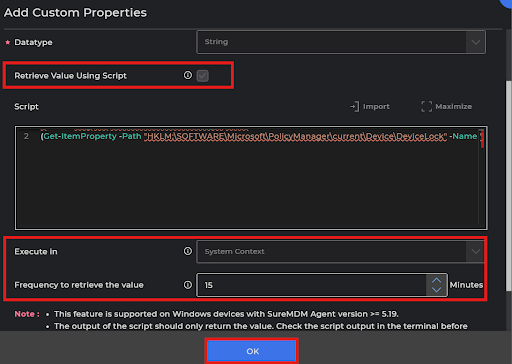
Note: The option Retrieve Value Using Script will dynamically retrieve the property value using a script. Once enabled, script/commands will be run on the device to update the custom properties
- Select the System Context/Current Logged In user in the Execute In section
- Select the Frequency to retrieve the value. This will run the script on the devices with the frequency of the selected time interval and will display the value on the device grid.
- Click on Okay.
Conclusion
Once the Custom property has been created, you can navigate to the Grid column and enable the created Custom property, which will create a column on the device grid with the given key and will show the minimum password length configured on the device by executing the script on the devices.

Need more help? Here’s how to get help from our experts.