
Purpose
This knowledge base article explains how to use the Run Script with default settings to reset application runtime permissions on managed devices. When deployed, all previously granted permissions for the specified application are reverted to their default state. This ensures consistent permission control, improved security, and standardized behavior across Fully Managed and Work Profile–enrolled devices.
Prerequisites
NA*
Steps
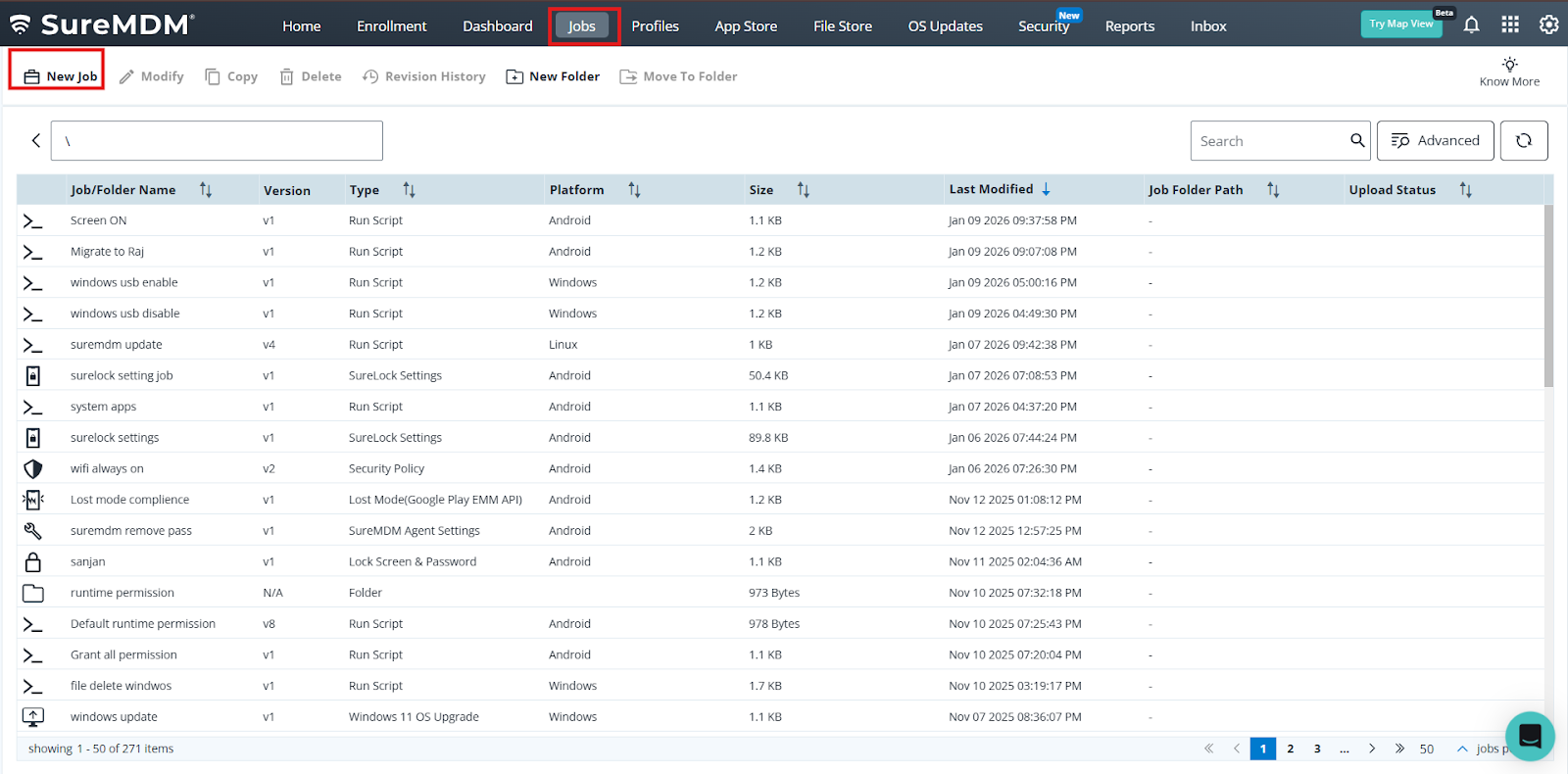
1. Login to the SureMDM console > Click on the Job tab > select new Job .
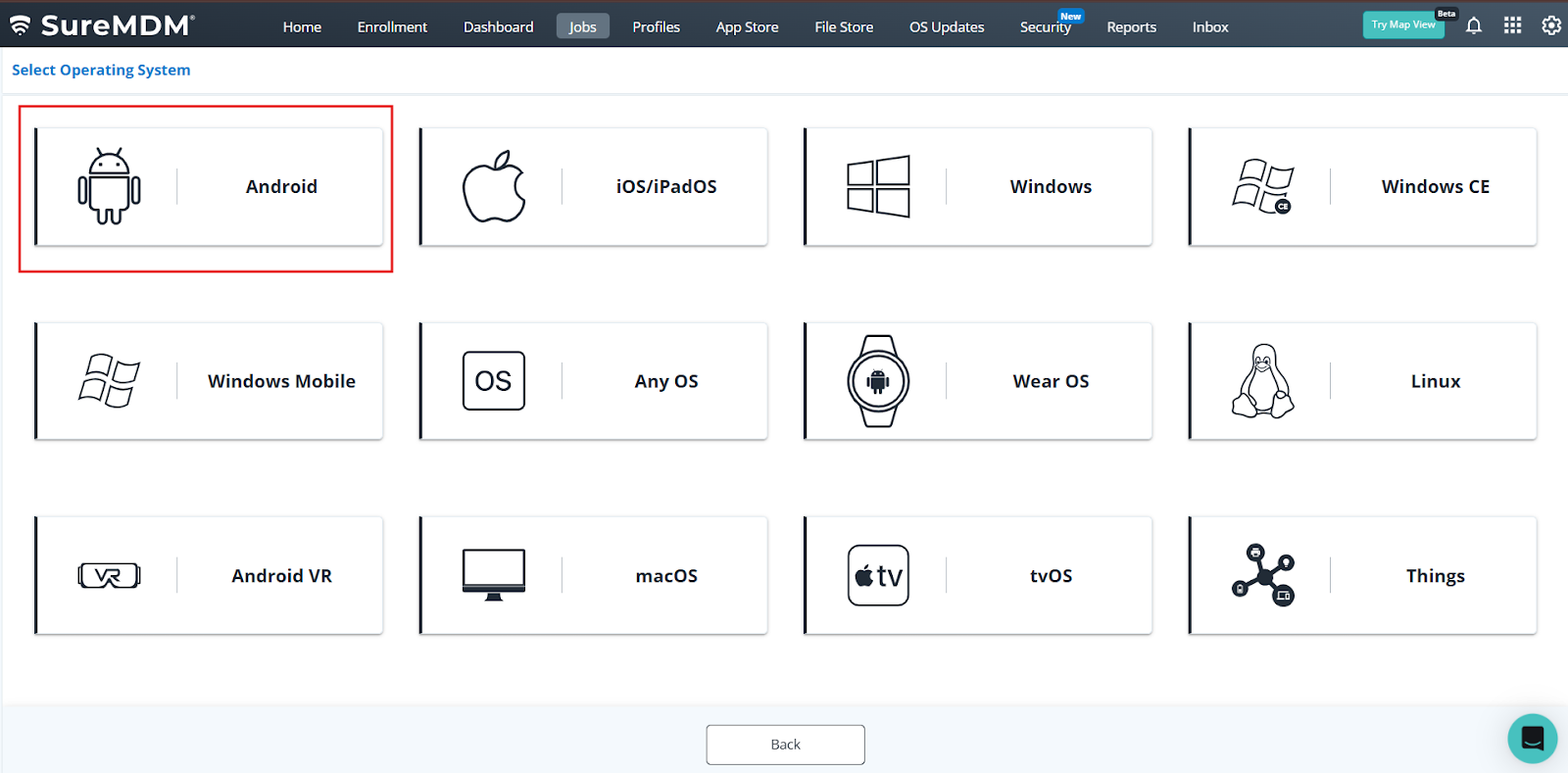
2 . Select Android Operating system >Choose Runscript .
3 .Under Run script paste the below script and save the job and deploy at the device end .
Runscript:-
!#suremdm
setDefaultRuntimePermission(Package name,*).
Package name: Replace this with the full package name of the application (e.g., com.example.app). *:
This wildcard signifies that all runtime permissions for the specified package will be reset to their default state
Conclusion
By using the Run Script deployment in SureMDM, administrators can efficiently reset application runtime permissions to their default state. This method helps maintain uniform security policies, minimizes permission misconfigurations, and ensures reliable application behavior across all managed Android devices.
Need more help? Here’s how to get help from our experts.