
Purpose
The purpose of this article is to provide a guide on how to fetch the volume level from an Android device using custom properties on the SureMDM console. The device’s current volume level can be retrieved on the console using a custom property. The values range from 1 to 15, and the corresponding level will be displayed on the console. Admins can monitor the Volume level set on the device through the console.
Pre-requisites
- Supported on Android SureMDM agent greater than v27.42.00
- Requires: SureMDM (Premium and Enterprise tiers.)
Steps
- Login to the SureMDM console
- Select the Settings gear icon which is located at the top right corner and click on Account Settings.
- Go to Device Properties and navigate to Custom Properties > click on Add.

4. Select platform as Android and Datatype as number and enter the Key accordingly(Example: Volume level) and Enable Retrieve Value Using Script.
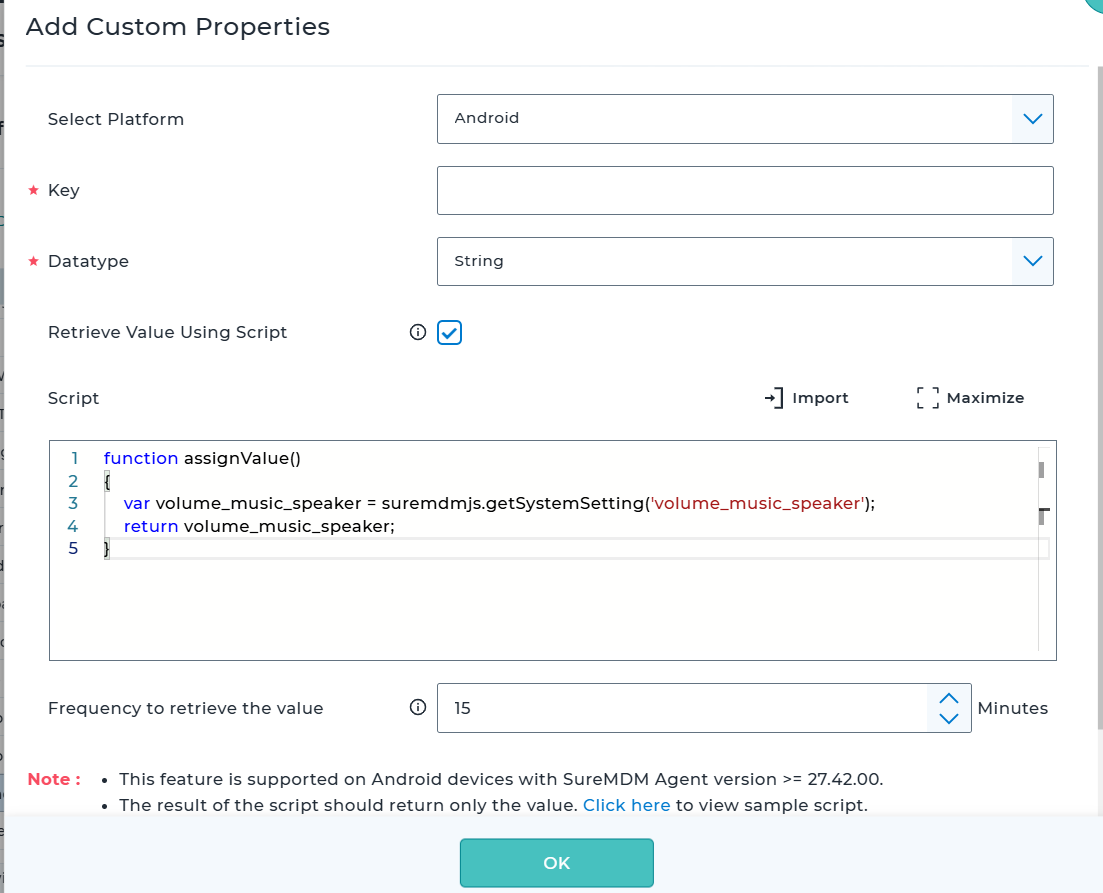
- Copy paste the below script and also change the Frequency to retrieve the value as per your use case. (Minimum is 15minutes).
function assignValue()
{
var volume_music_speaker = suremdmjs.getSystemSetting(‘volume_music_speaker’);
return volume_music_speaker;
}
- Once the details are updated, select OK.
- Now navigate to Home and go to grid columns – > Custom Property and Enable the Key.
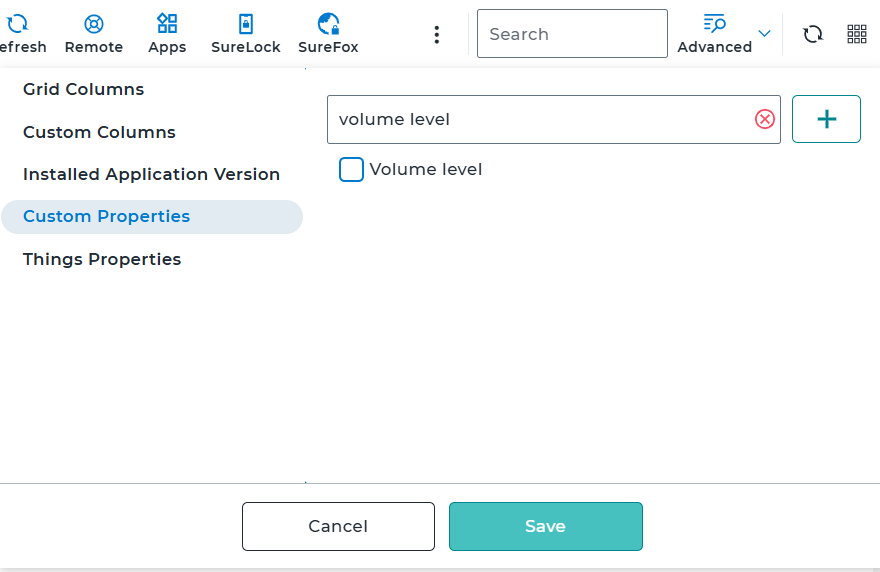
- The values will be fetched as per the frequency set on the console.
Conclusion:
The admins can now check the Volume level set on the device using the custom property and monitor the same.
Need more help? Here’s how to get help from our experts.