
Purpose
We can verify all the parameters related to the Windows device password policy and determine whether each device is compliant. This helps organizations easily track which devices are adhering to the configured password requirements. By monitoring compliance, administrators can proactively identify non-compliant devices, address potential security risks, and ensure that all endpoints meet the organization’s security standards.
The purpose of this article is to provide a guide on how to enforce compliance on windows devices for password policy.
Pre- requisites: Windows – Password policy should be configured using profile, SureMDM.
Steps:
- Login to SureMDM console.
- Navigate to Jobs and click on New Jobs.
- Select Windows as the operating system.
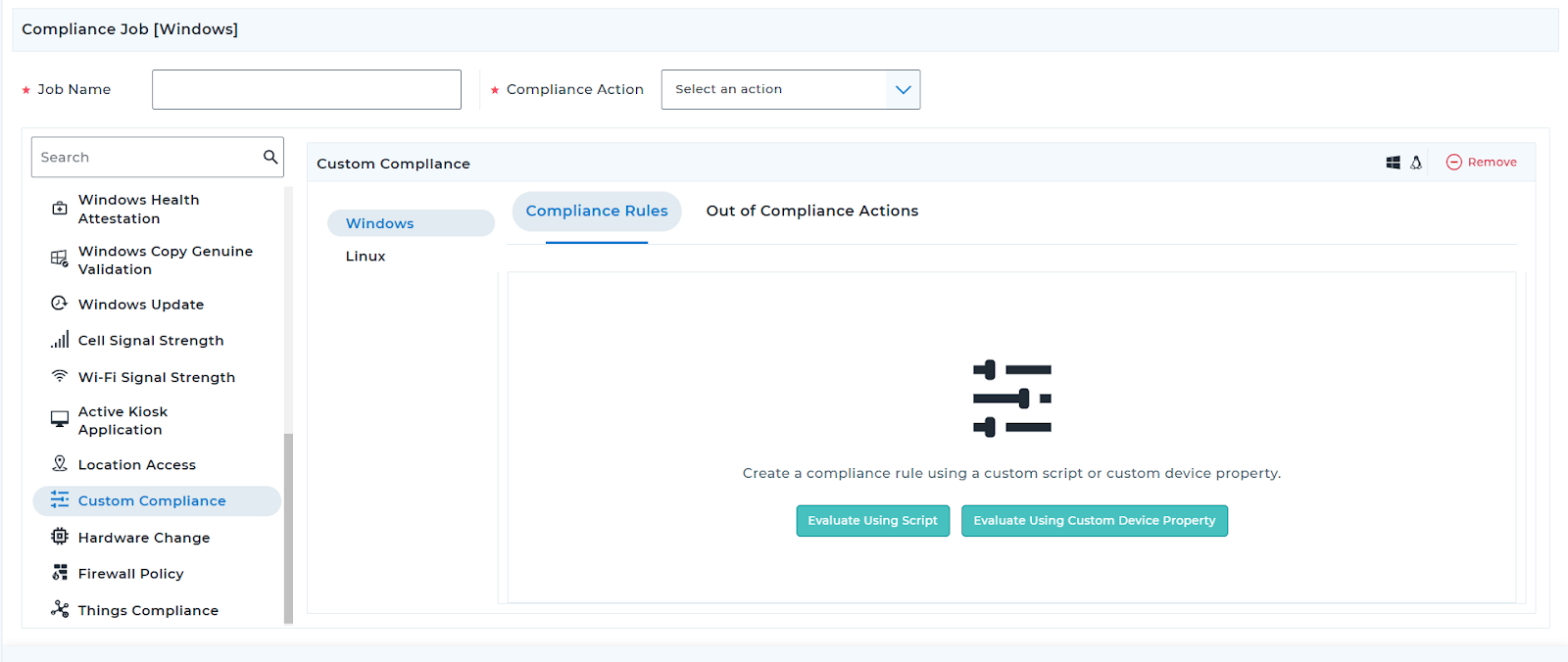
- Create a Compliance Job and configure custom compliance
- Select Evaluate using script
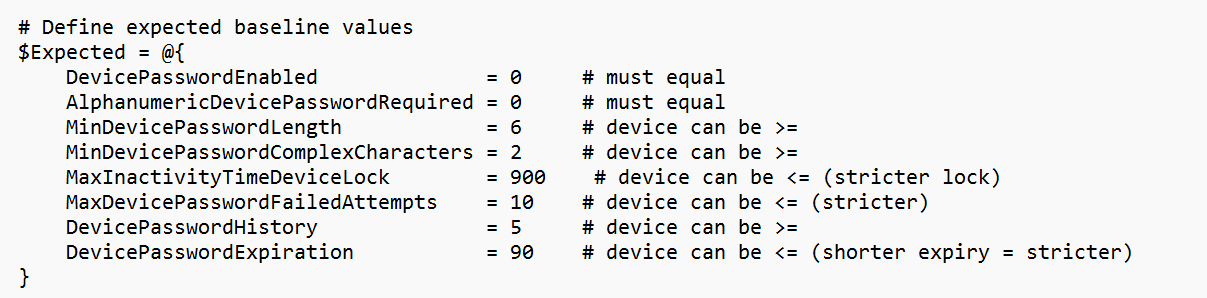
- Download the file below and import the file,
- Make the changes in the script for the Password policy parameters as per the profile(The profile where the password policy is configured).
- Now add the Compliance Evaluation Rule as below,
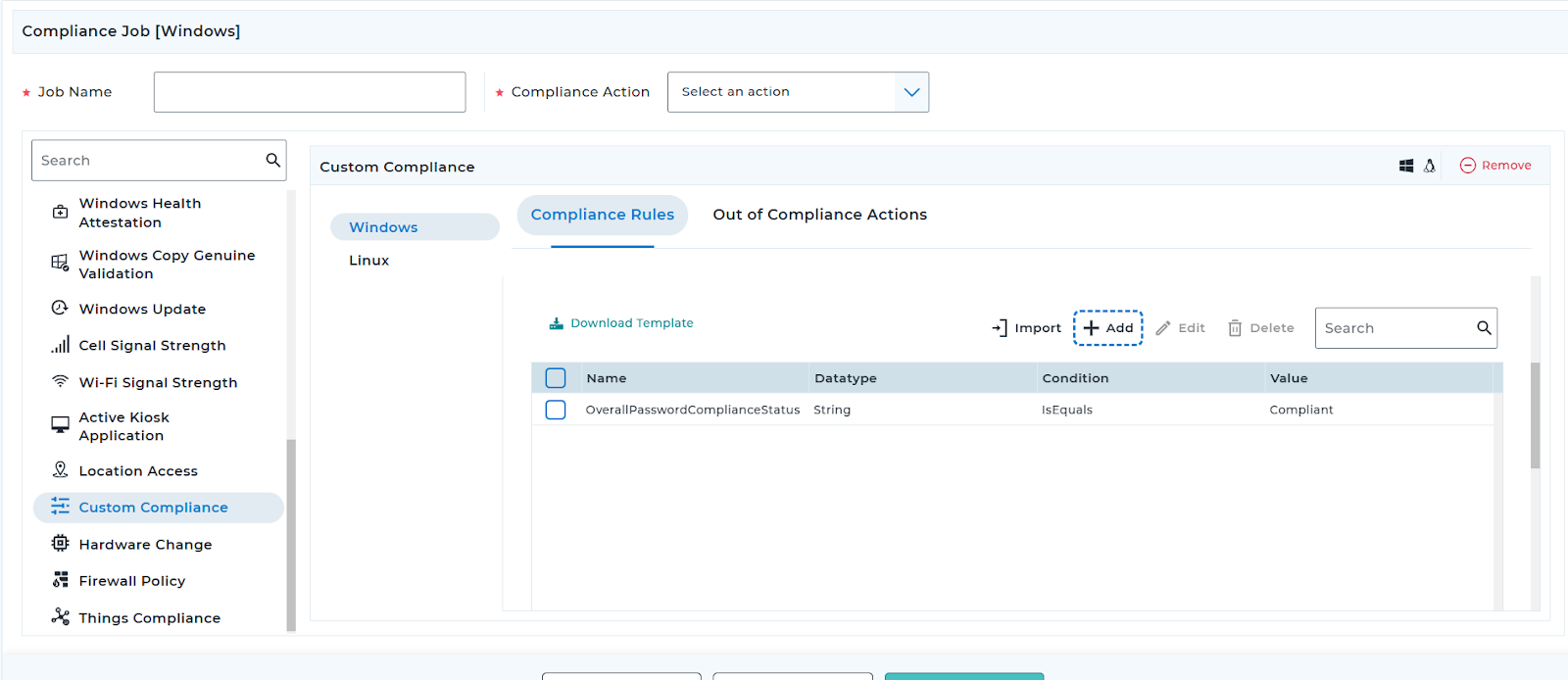
Name: OverallPasswordComplianceStatus
Datatype: String
Condition: IsEquals
Value: Compliant
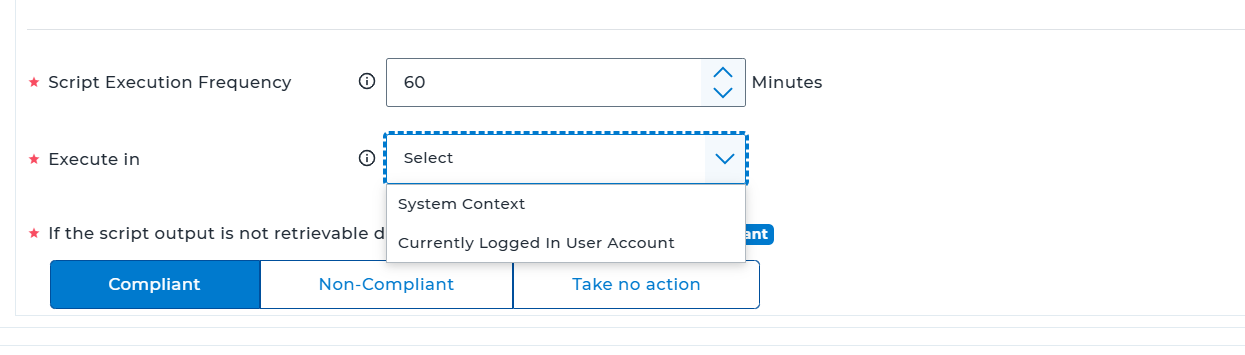
- Script execution frequency and execution can be selected,
- Click OK and configure the Out of Compliance action based on your organization’s standards.
- Save the job and deploy it to the device.
- If the password policy values on the device do not meet the configured criteria, the device will be marked as Non-compliant.
Conclusion:
Admins can now monitor the Password Policy using the compliance and check whether the device meets the password policy requirements defined in the profile and enforced.
Need more help? Here’s how to get help from our experts.