
Purpose
For administrators, it is often necessary to audit and manage devices based on specific criteria such as application version, online/offline status, platform type, device name, and more. To efficiently retrieve such information, SureMDM provides an Advanced Query (Advanced filter) feature that allows precise filtering of devices based on multiple parameters.
This feature helps administrators quickly identify and manage devices that match specific conditions.
Prerequisites
- Access to SureMDM Console and Advanced filter.
Steps
- Log in to the SureMDM Console.
- Navigate to:
Advanced next to the Search bar -> Click on Advanced Query
- Select the required parameter/columns
- Type any of the below operator and hit enter:
=(is or equals),
>(greater than),
< (lesser than),
!= (not equal),
<= (lesser than or equal to),
>= (greater than or equal to),
!|-|(not between),
|-|(between)
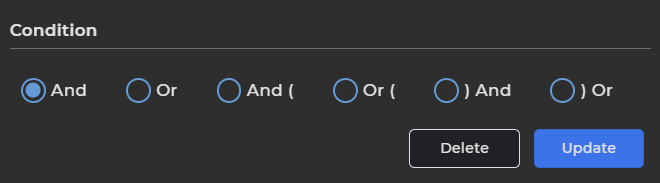
- Condition can either be AND/OR and select the other parameter/column.
- Enter the desired value
- Click on Search
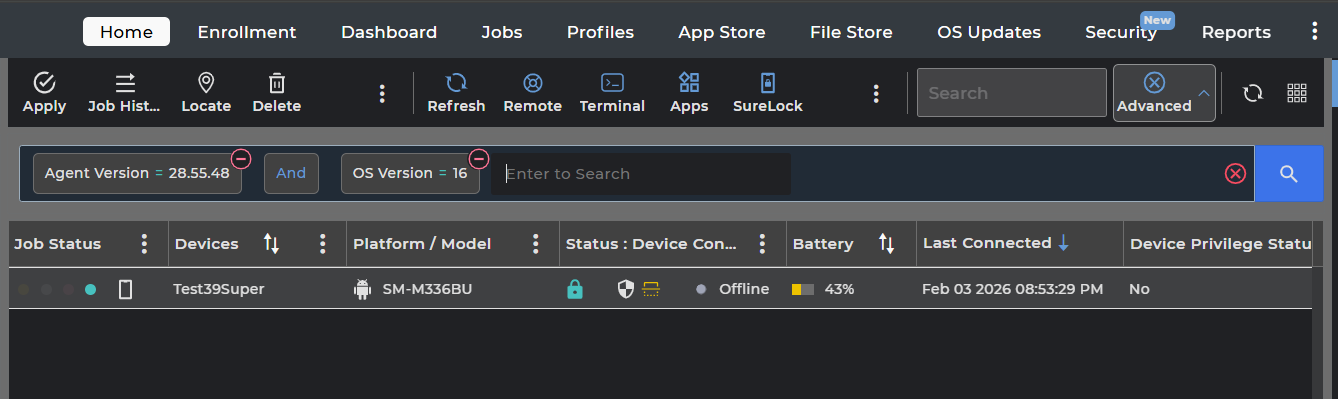
- The list of devices matching the given criteria is displayed.
Conclusion
Once the required filters are applied, the search results accurately display devices that match the selected criteria.
This feature helps streamline device monitoring and simplifies administrative tasks, especially when managing a large number of devices across different platforms.
Need more help? Here’s how to get help from our experts.