
Purpose
This article explains how to create a device filter in the SureMDM console based on Wi-Fi signal strength (dBm) using the Advanced Query option.This allows administrators to easily identify, group, and manage devices with weak or strong Wi-Fi connectivity.
Prerequisites
- Access to the SureMDM web console.
- Devices are enrolled in SureMDM and connected to Wi-Fi.
- Devices are reporting Wi-Fi signal strength information to the console.
- Administrator privileges to create and manage device filters.
Steps
- Log in to the SureMDM Web Console.
- Click on Filters and select Create Filter.
- Choose Advanced Query as the filter type.
- Provide a name and condition for the filter.
- Please enter by the below format
- Enter the field as wifisignalstrength and operator as ( < ) for weaker signal, ( > ) for stronger signal.
- Enter the Wi-Fi signal strength value (in dBm)
Example 1: Filter devices with weak signal
wifisignalstrength < -70
This example will filter devices with Wi-Fi signal strength lower than -70 dBm (weak signal).
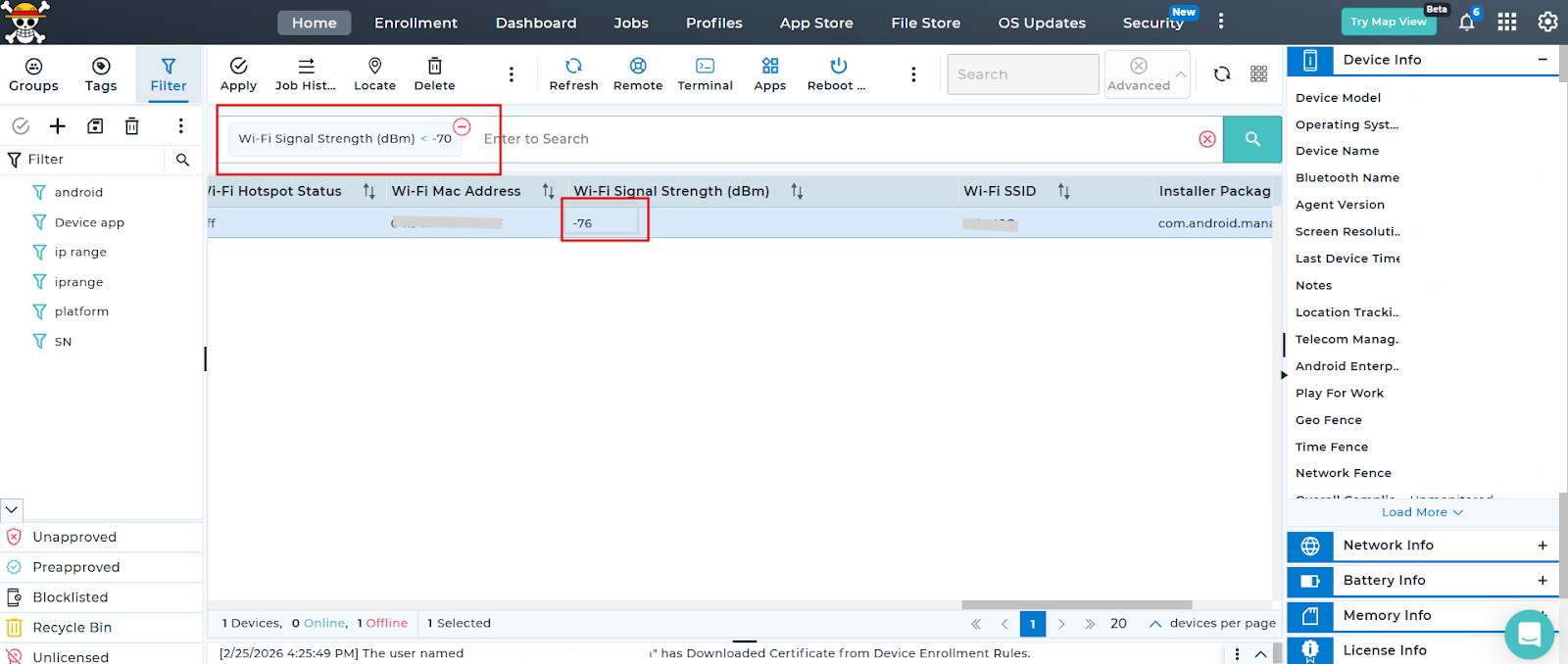
Example 2: Filter devices with good signal
WiFiSignalStrength > -60
This will display devices with strong Wi-Fi signals.
Conclusion
Using the Advanced Query feature in SureMDM, administrators can efficiently filter devices based on Wi-Fi signal strength (dBm). This enables proactive network management and ensures better device connectivity across deployments.Regular monitoring of signal strength helps maintain optimal device performance and reduces connectivity-related issues.
Need more help? Here’s how to get help from our experts.