
Purpose:
This article explains how to restrict or control access to specific websites on Windows devices by configuring the URL Block List in Microsoft Edge using the SureMDM Console.
Steps:
- Log in to the SureMDM Console → Navigate to Profiles → Select Windows as the platform → Click New Profile → Choose Browser Management (or modify an existing profile).
- Under Browser Management, click Configure for Microsoft Edge.
- Click on Expand All → Select Microsoft Edge and search for URL (Ctrl + F).
- Choose “Block access to a list of URLs”or “Define a list of allowed URLs” → Enter the full URL → Click the “+” icon to add the URL to the Block List/ Allow List, as required.
- To block the entire browser, add “*” to the Block List.
Example value:
contoso.com
hosting.com/bad_path
.exact.hostname.com
custom_scheme:*
*
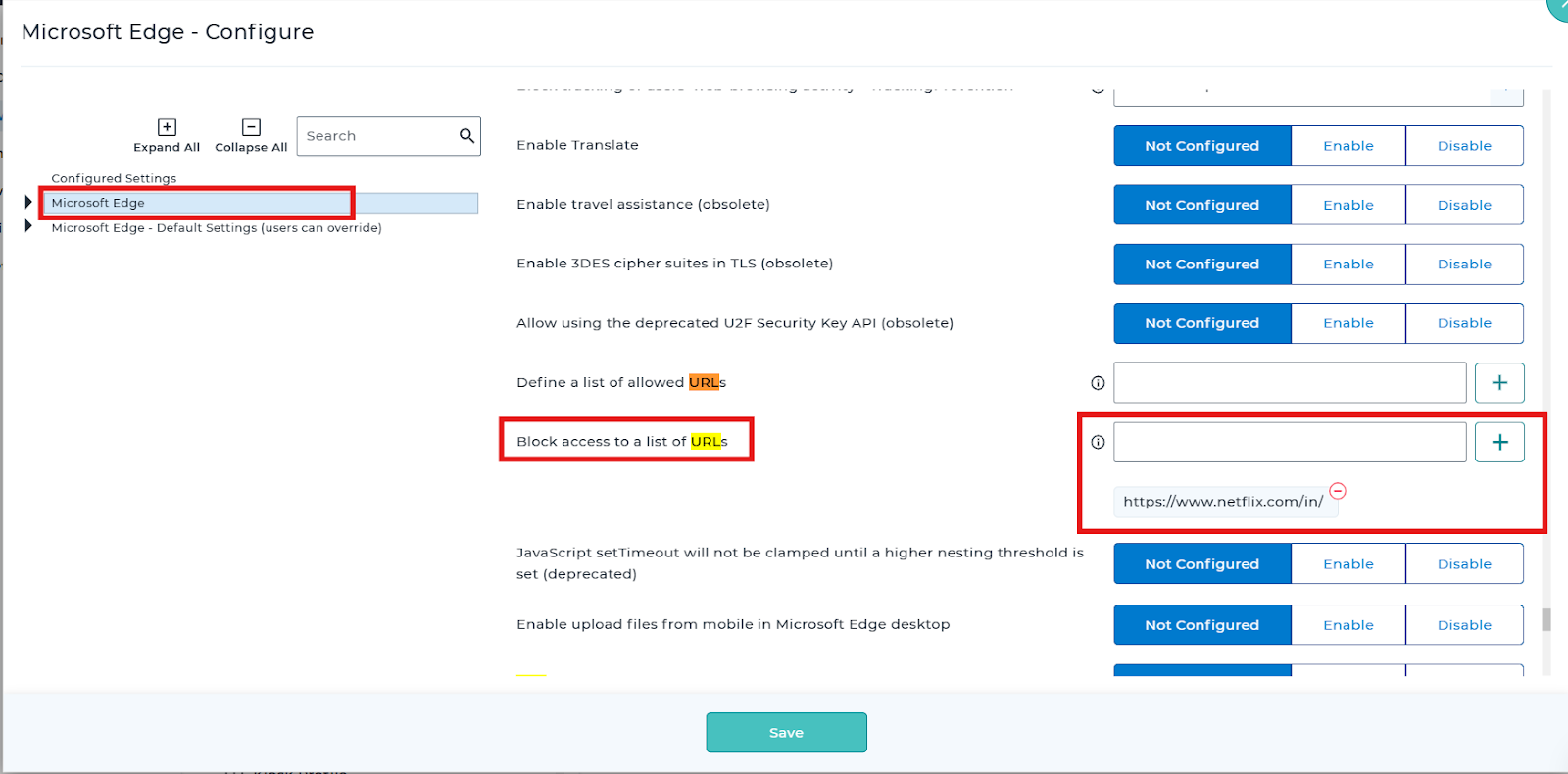
Save the configuration and deploy it to the desired devices.
Conclusion:
The configured URL restrictions will be applied to the targeted Windows devices, and Microsoft Edge will block or allow website access according to the defined policy.
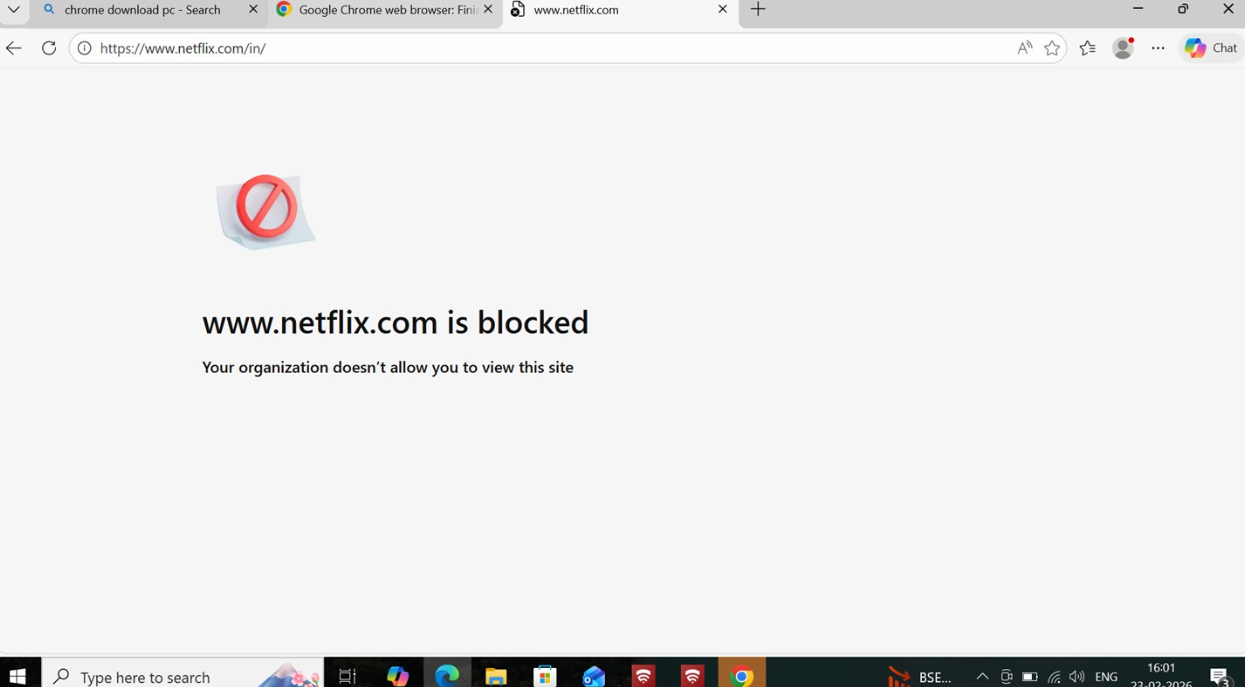
Implementing URL restrictions in Microsoft Edge via SureMDM allows organizations to centrally enforce browsing policies on Windows devices, reducing security risks and ensuring controlled, compliant internet usage across all managed systems.
Need more help? Here’s how to get help from our experts.