
Overview
This article explains how to configure the “Import bookmarks from default browser on first run” setting in Google Chrome on Windows devices using SureMDM.
This setting allows administrators to automatically import bookmarks from the user’s existing default browser when Chrome is launched for the first time.
Purpose
Enabling this configuration ensures:
- Smooth transition to Chrome for end users
- Automatic bookmark migration from the existing default browser
- Reduced manual setup effort
- Improved user onboarding experience
Prerequisites
Before configuring the setting, ensure:
- Google Chrome is installed on the Windows device.
- The device is enrolled in SureMDM.
- The device is online and synced with the SureMDM console.
- Chrome has not been launched previously on the device.
- Scope -:
- Platform: Windows 10 / Windows 11
- Browser: Google Chrome (Managed)
- Deployment Method: SureMDM Managed Browser Configuration
- Applies only during the first launch of Chrome
Policy Details
Policy Name: Import bookmarks from default browser on first run
Chrome Policy Name: ImportBookmarks
Supported Platform: Windows
| Configuration Value | |
| Value | Description |
| TRUE | Automatically imports bookmarks on first run |
| FALSE | Does not import bookmarks |
Steps
Step 1: Login to SureMDM Console
- Login to the SureMDM web console.
- Navigate to Profiles.
Step 2: Create / Modify Windows Profile
- Click Add Profile.
- Select Windows as the platform.
- Choose the appropriate profile type that supports Chrome configuration.
- Provide a name for the profile.
- Click Next.
Step 3: Configure Chrome Managed Browser Policy
- Navigate to the Managed Browser Configuration section.
- Select Google Chrome.
- In the search bar, search for:
“Import bookmarks from default browser on first run” - Select the policy from the search results.
- You will see the following configuration options:
- Enable – Automatically imports bookmarks from the default browser during Chrome’s first launch.
- Disable – Prevents automatic bookmark import.
- Not Configured – Allows users to manually import bookmarks.
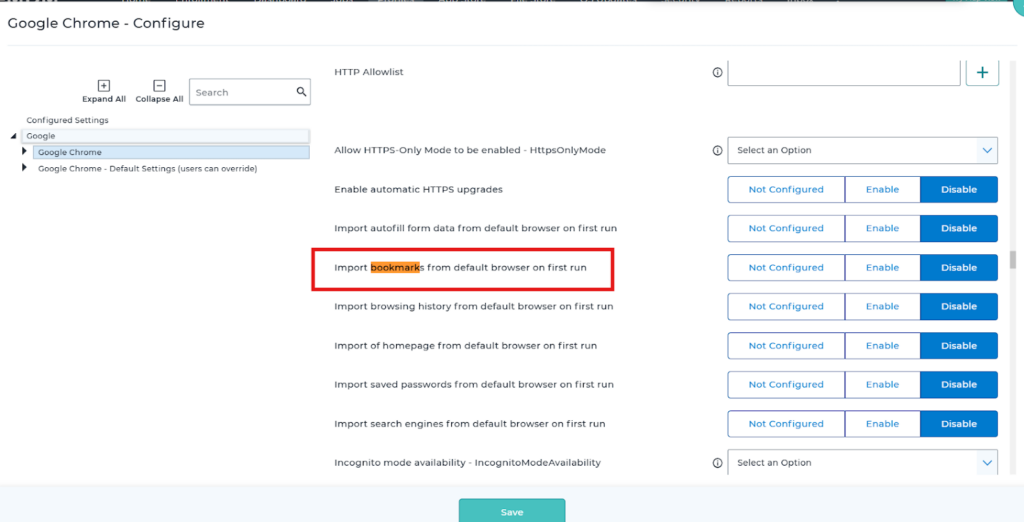
- Select the required option as per your deployment requirement (recommended: Enable for migration scenarios).
- Click Save.
Step 4: Publish the Profile
- Click Save.
- Apply the profile to the required device(s) or device group.
- Trigger device sync if required.
Validation Steps
After deployment:
- Sync the device from SureMDM.
- Ensure Chrome has not been previously opened.
- Launch Chrome for the first time.
- Verify that bookmarks from the default browser are automatically imported.
- Optionally, verify policy application by navigating to:
chrome://policy - Confirm ImportBookmarks shows as true.
Note:
- This setting works only on the first run of Chrome.
- If Chrome was already launched, the bookmarks will not be imported automatically.
- Policy must be applied before Chrome’s first launch.
- The default browser must contain existing bookmarks.
Conclusion
In conclusion, configuring the “Import bookmarks from default browser on first run” setting in Google Chrome through SureMDM helps streamline the user transition to Chrome by automatically bringing existing bookmarks into the new browser. This ensures a smoother onboarding experience and reduces the need for manual bookmark migration.
Need more help? Here’s how to get help from our experts.