
Purpose
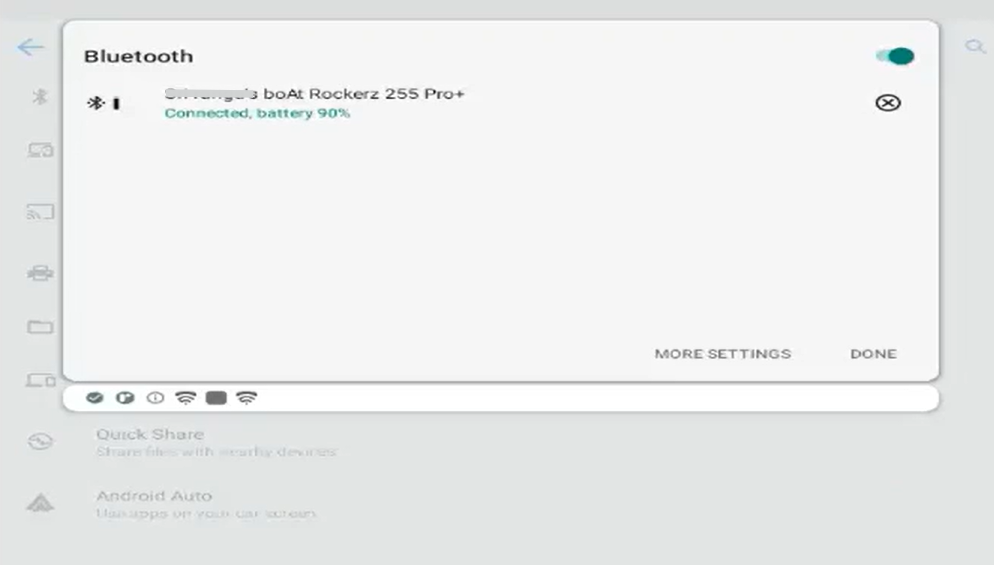
This article explains how to automatically pair a Bluetooth device on an Enterprise Android (EA) installed device using RunScript in SureMDM. Using RunScript allows administrators to remotely pair Bluetooth devices without manual interaction on the device.
Prerequisites
- Administrator access to the SureMDM Console.
- The target Bluetooth device is powered on and discoverable.
- EA is installed on the device
- The EA version 4.99 and above.
Steps:
- Log in to SureMDM Console
- Navigate to Jobs → Create New Job → Android.
- Select the RunScript job.
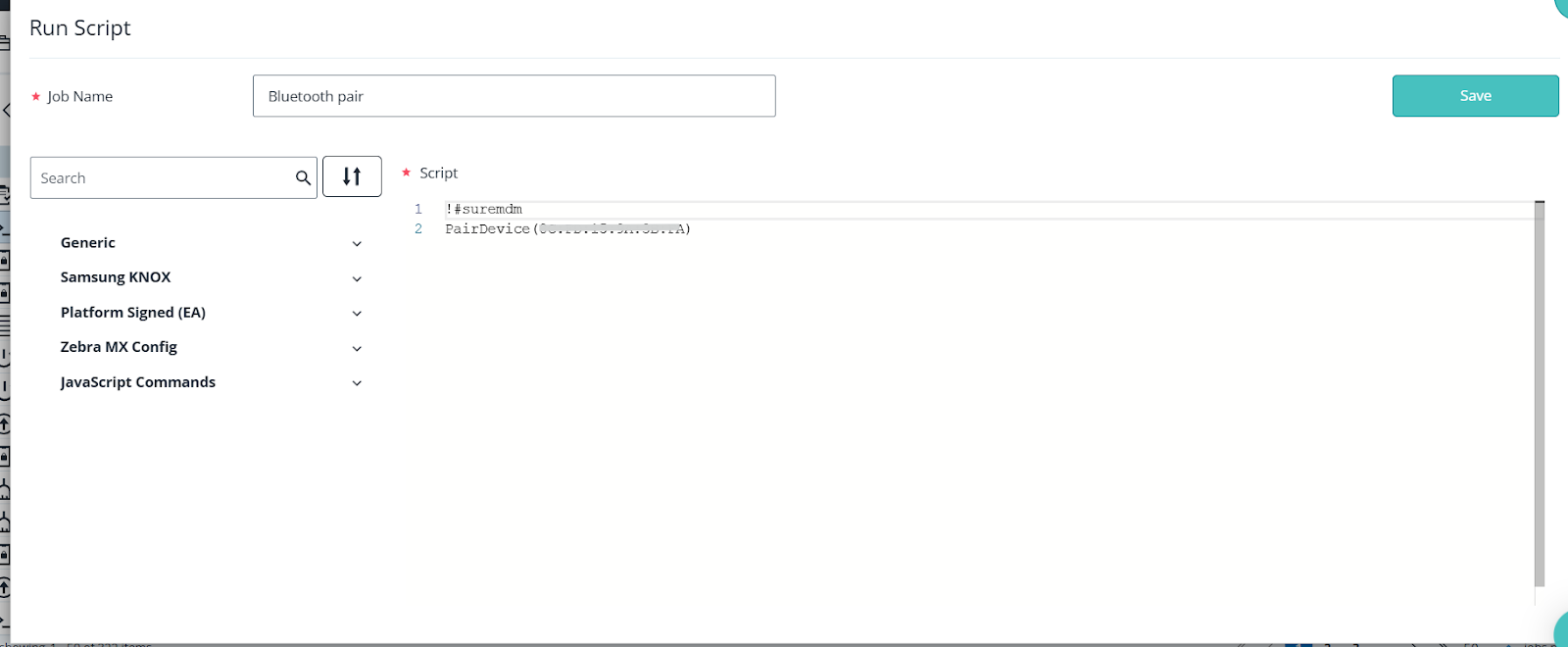
- In the RunScript field, enter the following command:
!#suremdm
PairDevice(<Bluetooth MAC Address>)
Replace <Bluetooth MAC Address> with the actual MAC address of the Bluetooth device you want to pair.
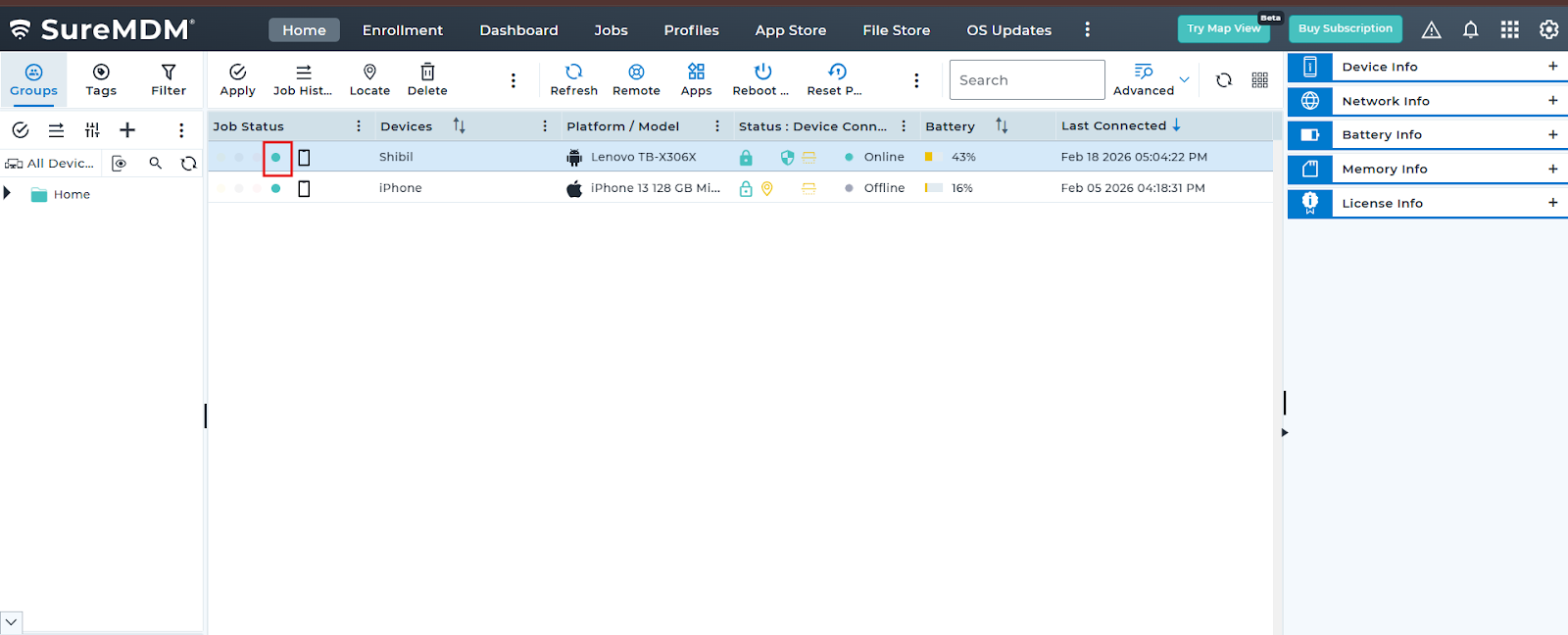
5. Save the Job and Deploy it on EA devices.
Conclusion
Using RunScript in SureMDM to pair a Bluetooth device on EA devices simplifies remote device management and eliminates the need for manual pairing. This method is particularly useful for large-scale deployments or devices in restricted environments.
Need more help? Here’s how to get help from our experts.