
Purpose
This article explains how to create and schedule a Reboot or Shutdown job for Windows devices using the SureMDM console.
Prerequisites
- Access to the SureMDM console.
- Administrative privileges in the console.
- Device is online and actively communicating with SureMDM
Steps:
Part 1: Create a Reboot or Shutdown Job
- Log in to SureMDM Console.
- Go to Jobs.
- Click on New Job.
- Navigate to Windows.
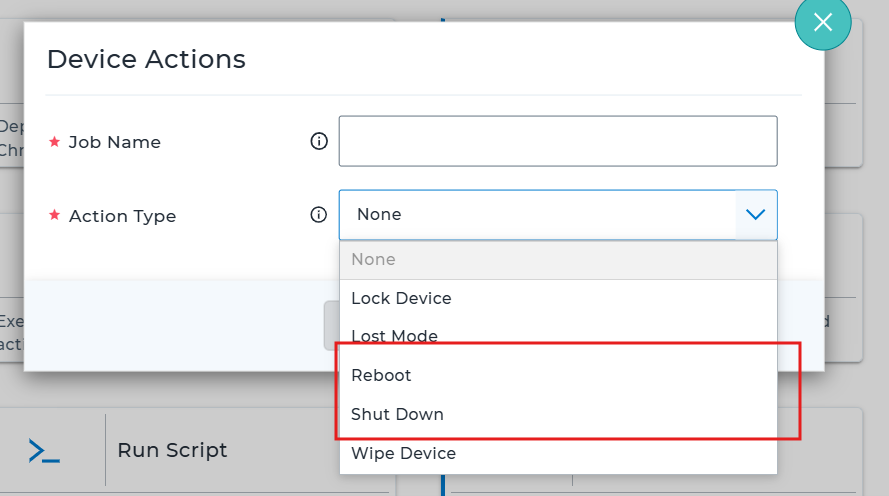
- Click on Device Actions.
- Select the Action type as Shutdown or Reboot.
- Enter the Job name and click Save.
Part 2: Schedule the Job on a Device
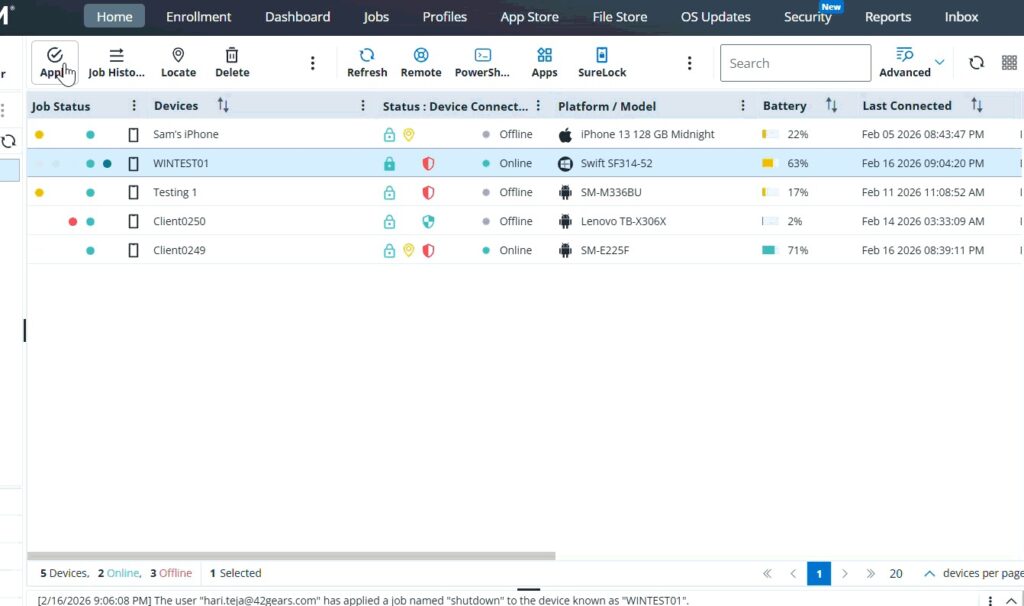
- Go to the Home tab.
- Select the target device.
- Click on Apply.
- Click on Configure Schedule Time.
- Select the desired day(s) and time.
- Choose the created Reboot or Shutdown job.
- Click Apply.
The device will reboot or shut down at the scheduled date and time.
Conclusion:
By creating and scheduling a Reboot or Shutdown job in the SureMDM console, administrators can automate device maintenance and ensure Windows systems restart or power off at designated times without manual intervention.
Need more help? Here’s how to get help from our experts.
Was this helpful?
YesNo