
To investigate issues on a customer’s device, the Tech Support Team may require temporary access to the SureMDM console. Customers can authorize this access through the user interface, after which support personnel are provided with temporary login credentials.
While granting access, customers may optionally restrict permissions to specific device groups or tags and define a time limit (for example, 24 hours). In such cases, the Tech Support Team will only be able to access the explicitly permitted devices and resources within the customer’s account.
Purpose
The purpose of this knowledge article is to provide step-by-step guidance on granting secure, controlled access to the Tech Support Team using Tags and Roles in SureMDM.
Prerequisites
System Administrators can control what the Tech Support Team can and cannot access in SureMDM based on the following criteria:
- Device Groups (by adding devices to the 42Gears Troubleshooting devices tag)
- Roles
- Jobs/Profiles folder access
- Custom Reports folder access
Steps
Step 1: Grant Access to the Tech Support Team for Specific Devices
- Log in to the SureMDM Console and select the device(s) that require troubleshooting.
- Right-click the selected device(s), choose Add Tag, select 42Gears Troubleshooting devices, and click Save.
- Once the devices are tagged, navigate to Settings (gear icon) in the top-right corner of the console.
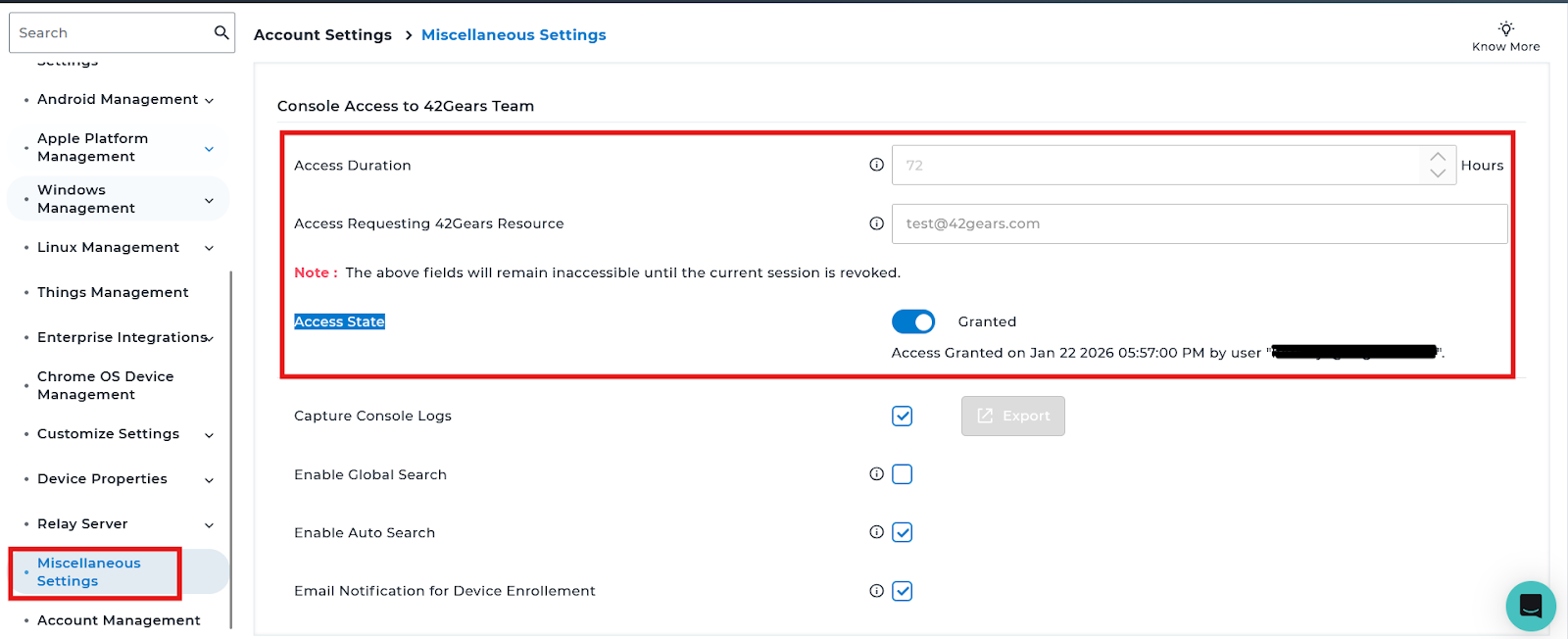
- Select Account Settings and open Miscellaneous Settings.
- Enter the Access Duration (for example, 24 hours).
- Enter the support engineer’s email address in the “Access Requesting 42Gears Resource” field.
(Note: Don’t use the techsupport@42gears.com) - Click Access State.

- Under Permissions, enable “Allow access to the devices under the 42Gears Troubleshooting devices tag”.
- Modify the roles and SureMDM functions that the Support Team needs access to, then click Save.
- Read the Remote Access Liability EULA and Accept.
Notes
- Customers must specify the role each time access is granted to the console.
- Access should be revoked immediately after the support session by disabling the Access State option.
Conclusion
Granting access to the Tech Support Team through tags, roles, and time-bound permissions ensures secure and controlled troubleshooting within SureMDM. This approach allows customers to limit access to only the required devices and resources, protecting their environment while enabling efficient issue resolution. Properly revoking access after the support session further enhances security and administrative control.
Need more help? Here’s how to get help from our experts.