
Purpose
This article explains how to assign a Job to one or more device groups in SureMDM using the Assignments option. It also describes how administrators can optionally apply predefined filters to target specific devices within a group and choose whether the Job should be applied to existing devices. This helps ensure Jobs are deployed accurately and efficiently based on organizational requirements.
Prerequisites
- Access to the SureMDM Web Console
- A Job already created
- At least one Device Group available
Steps
- On the SureMDM Console Navigate to Jobs.
- Select the required Job(Example: Test JOB) and Click on Assignments option.
- The Assignments – <Job Name> window opens.
- Click Add to create a new assignment.
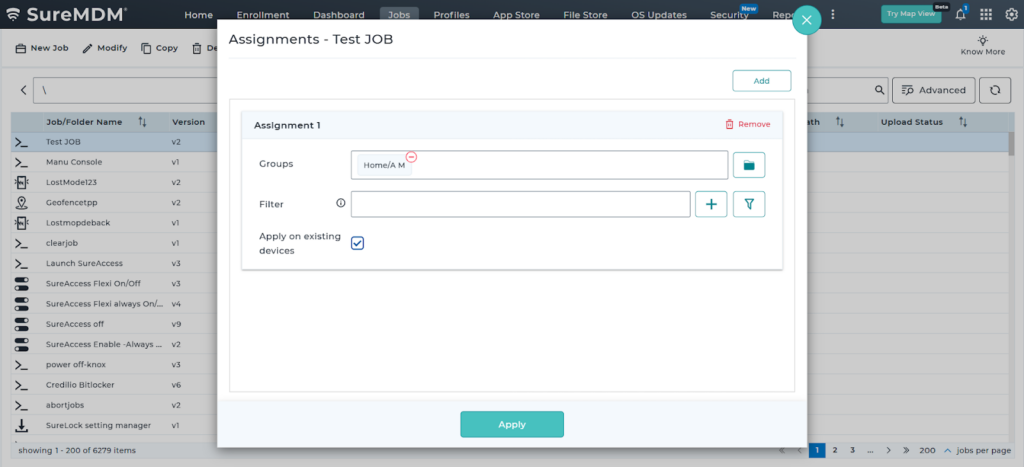
- Under Assignment 1, select the required Group(s) (for example, A M).
- Add a filter (Optional) : Click +Add under Filter
- Enter a Filter Name (for example, Filter 1).
- In Query, select a predefined parameter (such as Agent Version, Device Manufacturer, IMEI, IP Address, etc.).
- Click Save.
Note: Selecting a filter is not mandatory. Once a filter is selected or added, it cannot be edited or deleted.
- Enable Apply on existing devices if the Job should also apply to devices already present in the selected group.
- Click Apply.
Expected Result
After clicking Apply, a confirmation message is displayed: “Job assigned to Group(s) successfully.” The Job is now assigned to the selected group(s) and will be applied based on the configured assignment settings.
Conclusion
Using the Assignments option, administrators can easily assign Jobs to specific device groups in SureMDM. Optional filters provide additional control over device targeting, while the Apply on existing devices option ensures immediate execution on already enrolled devices.
Need more help? Here’s how to get help from our experts.