
Purpose
This article explains how to configure Compliance Rules in SureMDM using Mobile Country Code (MCC) and Mobile Network Code (MNC). These rules help administrators enforce security or trigger configuration actions when a device connects to a network that does not comply with the defined policy.
Prerequisites
- SureMDM Console access with administrative privileges
- Enrolled Android devices
- Devices reporting MCC and MNC details correctly
- Android devices with active SIM/network connectivity
Note: This compliance rule is supported on devices running SureMDM Agent v18.08 onwards.
Steps
- Log in to the SureMDM Console.
- Navigate to the Job section.
- Click on New Job and select Android Compliance Job.
- Provide a name for the compliance Job.
- Enable Compliance Job.
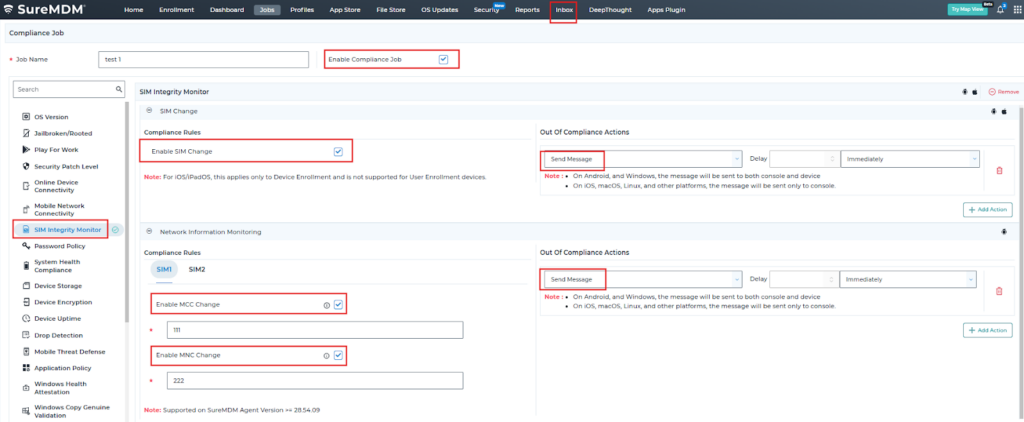
- Select SIM Integrity Monitor → Configure
- Expand Network Information Monitoring.
- Configure the rule using MCC (Mobile Country Code) and MNC (Mobile Network Code) values:
- Enter the allowed or restricted MCC values
- Enter the allowed or restricted MNC values
- Select the action type to be taken when the device runs Out Of Compliance Actions.
- Save the Job.
- Apply the compliance rule to the required device(s) or group(s).
Example / Validation
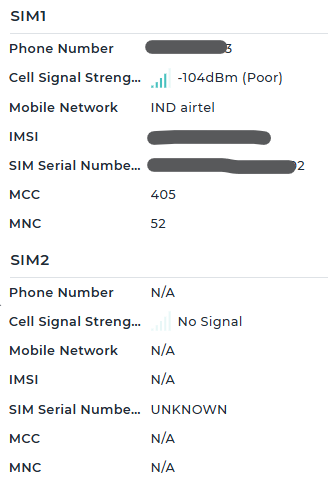
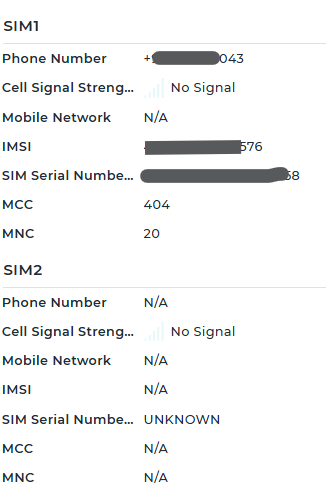
You can verify the MCC and MNC values directly from the SureMDM console under device details.
As shown in the screenshot:
- MCC: 404
- MNC: 20
If these values change (for example, due to a SIM change or roaming), the configured compliance rule will automatically detect the variation and trigger the defined action; in this case, a notification message will be received in the inbox.
Conclusion:
Once the compliance rule is applied:
- SureMDM continuously monitors the device’s network details (MCC & MNC).
- If the device connects to a network that does not match the configured values, the defined compliance action is triggered automatically.
- This ensures better control, security, and policy enforcement based on network conditions.
Need more help? Here’s how to get help from our experts.