
Purpose
This article describes how to configure and manage display power settings (Stay Awake, Timeout, Mode, and Brightness) on Zebra Android devices using OEMConfig policy via SureMDM. This ensures consistent power management and optimized device performance.
Prerequisites:
Platform – Android(Zebra), Zebra OEMConfig app
Steps:
- Log in to SureMDM and navigate to Profiles.
- Click Android as OS → New Profile → Google Play EMM API → Primary Profile → OEM Config Policy (or modify an existing Profile).
- Select Zebra OEMConfig Powered by MX (Zebra) as Required App
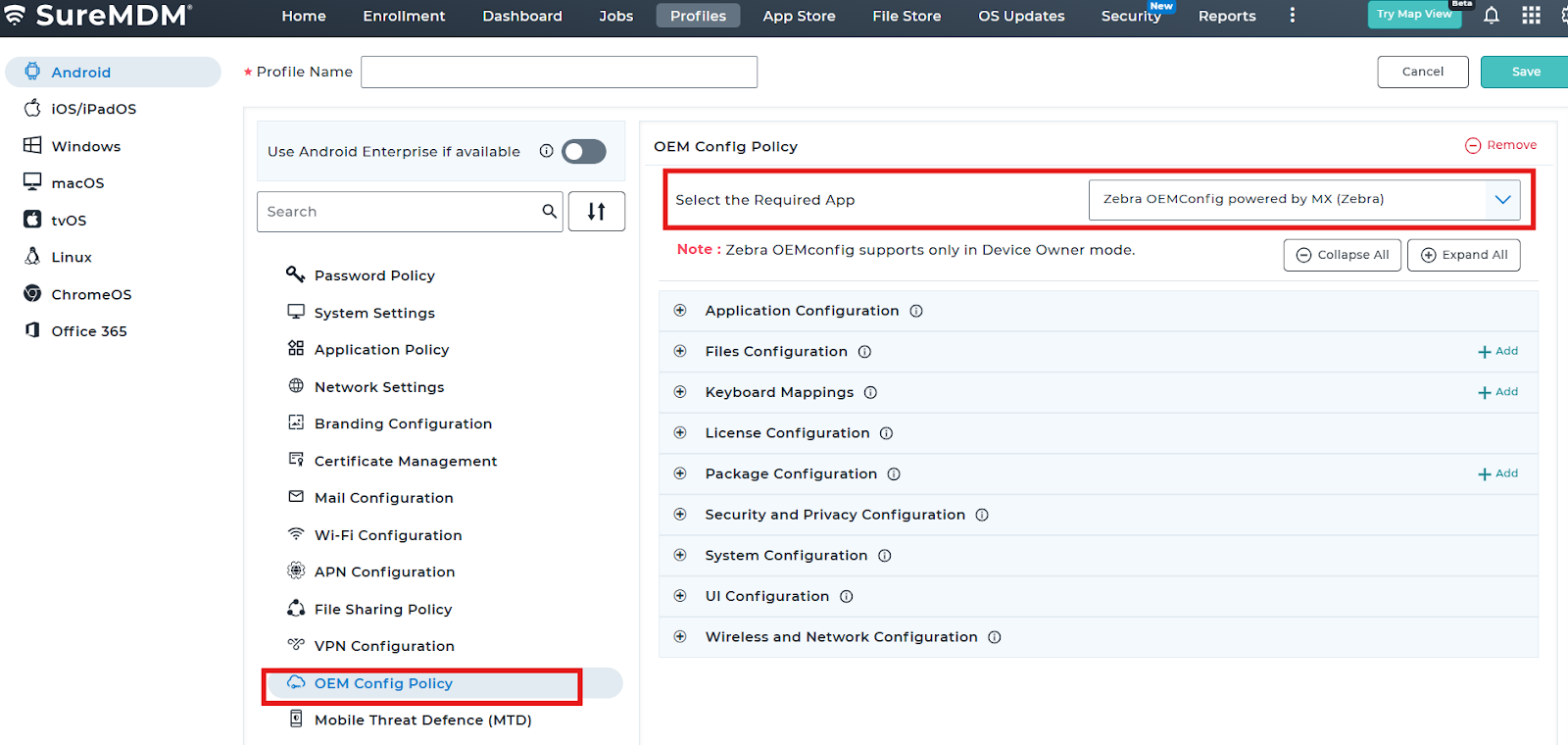
- Tap on Expand all and search(Ctrl+F) for Power Configuration. Here you can configure Stay Awake, Timeout, Mode, and Brightness.
- Stay Awake: Select whether the display power state should remain forced On whenever the device is connected to external power.
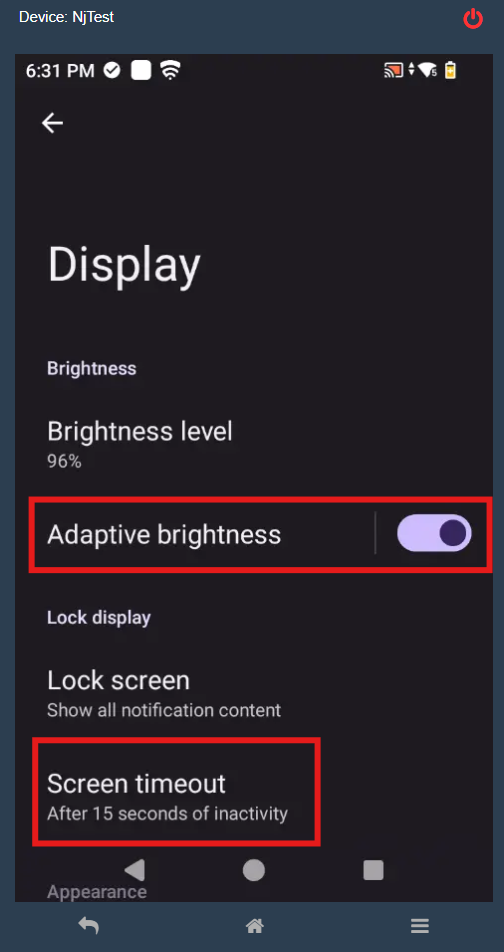
Not supported on devices: TC20 and TC25. Supported from: MX 7.2+ - Timeout: Enter the duration of inactivity (in seconds) after which the display power state will automatically turn Off. Supported from: MX 4.3+
- Mode: Select how the display backlight power state will be controlled.
Supported from: MX 10.2+ - Brightness: Enter the display brightness value to be applied when the display brightness mode is set to Manual, or enter -1 to leave the setting unchanged.
Supported from: MX 10.2+
- Stay Awake: Select whether the display power state should remain forced On whenever the device is connected to external power.
- Then Save, and deploy the profile to the desired devices.
Conclusion:
By configuring the Power Configuration settings through Zebra OEMConfig in SureMDM, administrators can centrally control and enforce display power behavior across managed devices. This ensures standardized power management, improved operational efficiency, and consistent device performance in alignment with organizational policies.
Need more help? Here’s how to get help from our experts.
Was this helpful?
YesNo