
When importing cloud settings into SureFox, users may occasionally encounter prompts for human verification or security checks. These interruptions can hinder automated deployments and disrupt the user experience, especially in managed environments. To maintain a seamless configuration process and ensure uninterrupted functionality, administrators need to know how to prevent these prompts. This guide explains the steps required to disable or bypass human verification and security checks after importing cloud settings in SureFox.
Purpose
This functionality ensures a smoother and more secure configuration process by preventing human verification and security check prompts after importing cloud settings into SureFox. It helps administrators maintain control over device setup, supports unattended deployments, and eliminates interruptions that could affect the user experience.
Prerequisites
- Access to SureFox Pro settings on the device.
- SureFox version >= 14.23.07
Steps
Steps to Prevent Human Verification and Security Check Prompts in SureFox
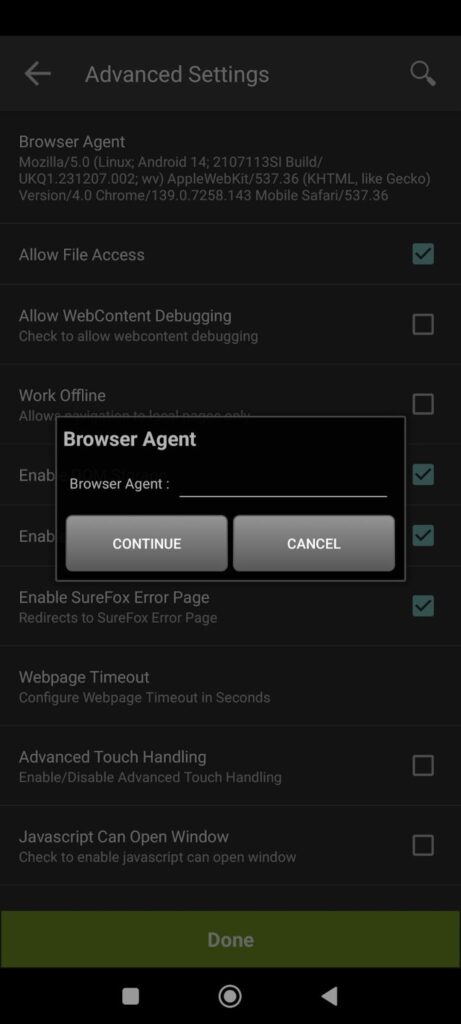
To resolve the issue of human verification and security checks appearing after importing Cloud Settings, follow these steps to update the browser agent in SureFox:
- Identify Your User Agent:
- Open any browser on your device.
- Search for “What is my user agent?” using Google or another search engine.
- Copy the full user agent string displayed in the search result.
- Open SureFox and Access Advanced Settings
- Launch the SureFox application.
- Navigate to Advanced Settings.
- Go to Browser Preferences.
- Update the Browser Agent:
- In Advanced Settings, locate the option labeled Browser Agent.
- Select Other from the available options.
- Clear any previously entered value.
- Paste the copied user agent string into the field.
- Verify the Configuration:
- Relaunch the website that previously showed human verification or security checks.
The prompt should no longer appear.
Need more help? Here’s how to get help from our experts.