
Purpose
The purpose of this article explains how to use Patch Profile and install the required applications on the Device without modifying the existing Primary Profile configuration.
Prerequisites
Primary Profile must be deployed on the device already.
Steps
1. Log in to the SureMDM Console > click on Profiles.
2. Click on New Profile > Select Google Play EMM API > choose Patch Profile.
3. Enter the Profile Name > click on Configure.
4.Check the Enable Play Store box, click on +Add and select SureMDM App Store
Installing Applications using play store.
5. Click on the Playstore and it will redirect to the Play store application lists.
6.On the new window search for the apps from the Google Play Store and click on the Select button.
7. Now, select the below options as required and click on Next, grant the necessary permissions and click on Finish.
- Pinning App: Select this option to lock down the device with a single or specified application.
- Install Silently: Select this option to install the application silently with no user intervention required.
- Allow in Kiosk Mode: Select this option to allow in kiosk mode.
App Update Mode:
- Default Mode – The app is updated when the device is connected to WiFi, is charging, and is not actively used.
- High Priority Mode – The app is updated as soon as a new version is published to the Play Store.
- Postpone Mode – The app update is postponed for up to 90 days after a new version is available.
8. Clicking on Next will open the App Permission prompt, Grant, Deny or set the permission as Default and click on Finish.
9.. Click on the Save button to save the profile. Once done, navigate to the SureMDM Home and Apply the Profile to the selected Device(s) or Group(s).
Installing Applications using SureMDM App Store.
Please refer the below link to add apk in SureMDM app store:- https://docs.42gears.com/suremdm/android-enterprise/android-enterprise/managed-device-config/upload-apk-to-app-store
10. Click on the SureMDM app store and it will navigate to the App store in the SureMDM console.
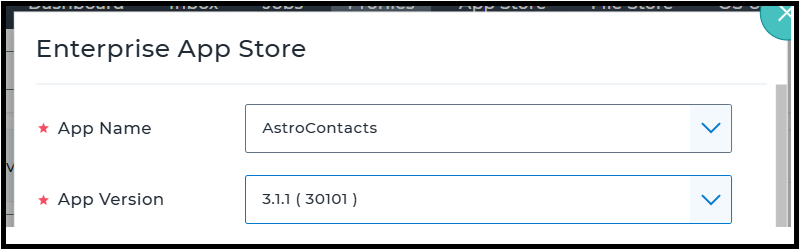
11. On the Enterprise App Store, select the App Name from the drop-down menu, enter the App Version, and click Add
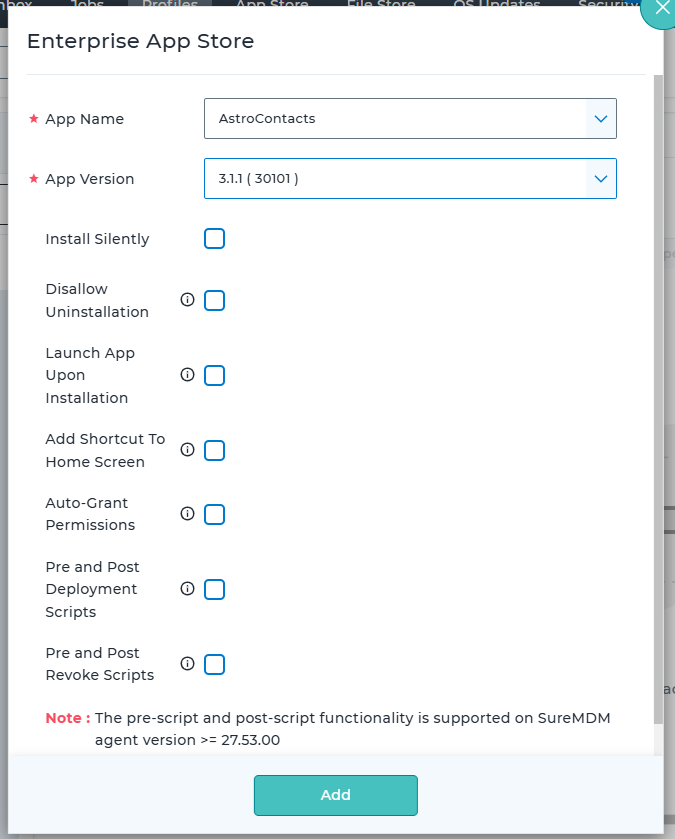
6. Follow the same process to add more apps from the App Store and click Save.
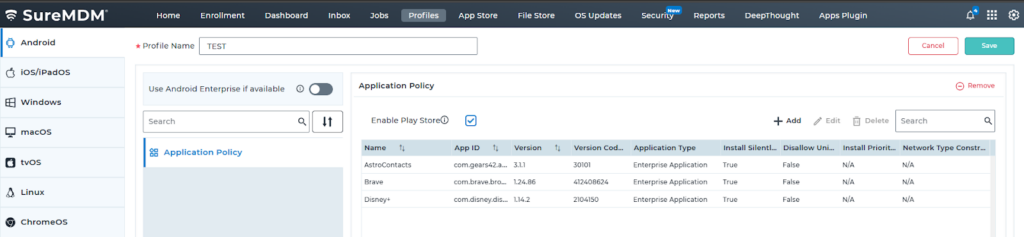
7. Once done, navigate to the SureMDM Home and Apply the Profile to the selected Device(s) or Group(s).
Need more help? Here’s how to get help from our experts.