
Purpose
The purpose of this knowledge article is to guide administrators on enabling microphone access for a specific allowed website in SureFox. This ensures that web applications requiring audio input (such as video conferencing, voice recording, or communication tools) function seamlessly on managed devices.
Prerequisites
- Access to SureFox Admin settings.
- Access to the SureMDM console with administrator privileges
Steps
FROM SUREFOX APP:
- Navigate to SureFox Admin settings.
- Click on Browser Preferences.
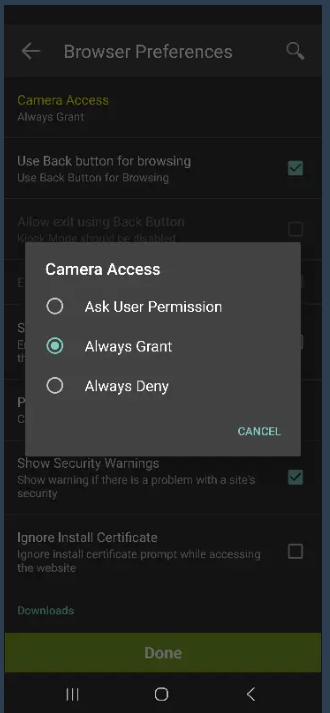
- Search for Camera Access
- Select the required option from the following:
1. Ask User Permission.
2. Always Grant
3. Always Deny
- Click on Done to save the changes.
FROM SUREMDM CONSOLE:
- Login to SureMDM Console.
- Navigate to the SureFox Settings Job if it is already available.
- If not, Click on Jobs -> New Job -> Android -> SureFox settings -> Add the allowed website
- Go to Browser Preferences within SureFox admin settings
- Search for Camera Access
- Select the required option from the list as below:
1. Ask User Permission.
2. Always Grant
3. Always Deny
- Click on Done
- Click on Save
Note: Camera and Microphone both can be handled by CameraAccessState tag, which by default will be “Always deny”.
Conclusion
By configuring this setting through SureFox, administrators can efficiently manage permissions across all devices, ensuring consistency and reducing manual effort, ensuring that web applications requiring audio input (such as video conferencing, voice recording, or communication tools) function seamlessly on managed devices.
Need more help? Here’s how to get help from our experts.