
Purpose
Administrators can now enable App Usage Analytics for Windows devices without SureLock installed. The latest version of SureMDM agent(v6.26) will now collect application usage analytics for each user on a specific device, which is available via the Application Usage Report.
The report typically includes:
- Application usage data, such as how long specific applications were used.
- Application launch and close events.
- User interaction timelines for each app.
- Device details, such as device name, serial number, group, and OS version.
- Date-wise activity logs that show how the device was used on specific days
Prerequisites
N/A
Steps
To enable analytics:
- Settings > Account Settings > Data Analytics > SureLock / App Usage Analytics > Enable.
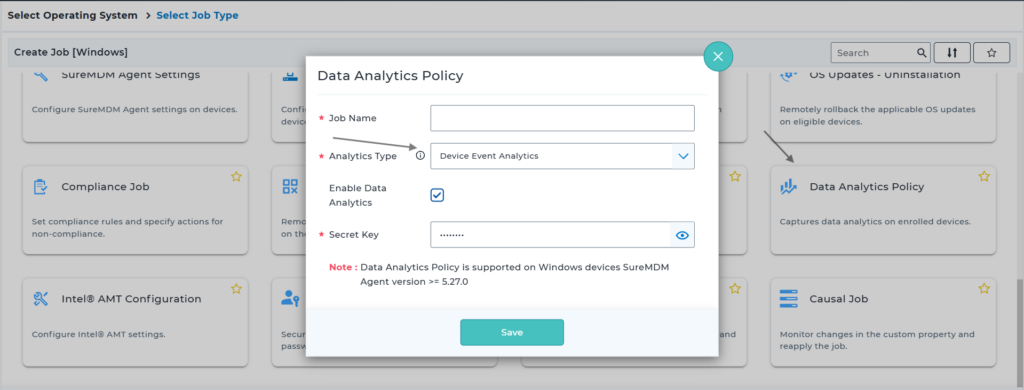
- a. Go To Jobs > New Job > Windows > Data Analytics Policy
b. Select App Usage Analytics from the Dropdown of Analytics Type, Enable Data Analytics and Enter the Secret Key(The secret key can be found from Step 1, where the App Usage Analytics was configured)
Fetch the Application usage details via Reports:
- Go to Reports > SureLock and Application Usage Report > Select the preferred Date and time for which you wish to fetch the data > Request Report
- Go to View Reports and view or download the report
Note: This report is applicable for devices with SureMDM agent v6.26 and above and is expected to provide the data after 24 hours if enabled for the first time.
Conclusion:
SureMDM’s App Usage Analytics feature for Windows devices provides administrators with detailed insights into how applications are being used across managed endpoints, even without SureLock installed. By enabling App Usage Analytics in Account Settings and deploying the Data Analytics Policy with the correct secret key, organizations can efficiently track application activity, user interaction timelines, launch and close events, and device-specific usage details.
Need more help? Here’s how to get help from our experts.