
Purpose
To automatically install and deploy the latest stable version of Google Chrome on Windows devices using SureMDM, ensuring that devices always receive the most up-to-date browser without requiring manual downloads, version tracking, or administrative intervention.
Prerequisites
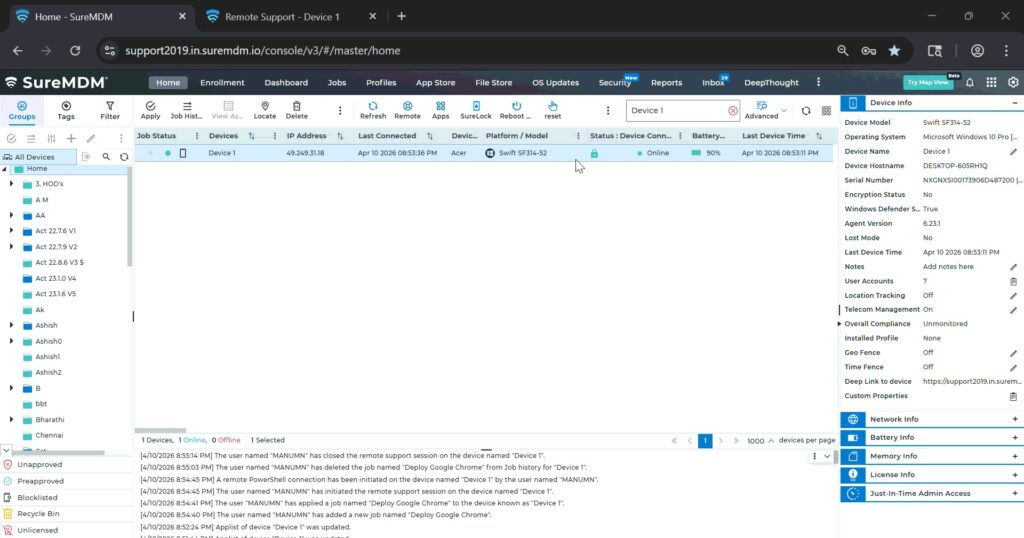
- Windows device enrolled in SureMDM and should be Online.
- SureMDM console access with required permissions
Steps
- On the SureMDM Console -> select the required Windows device and click on the three dots (More Options)
- Select Deploy Google Chrome -> Click Yes to confirm the installation
Expected Results
The latest stable version of Google Chrome will be automatically downloaded and installed on the selected Windows device.
Conclusion
Using the Deploy Google Chrome option in SureMDM simplifies application management by ensuring that devices always receive the most up-to-date and stable version without manual intervention.
Need more help? Here’s how to get help from our experts.
Was this helpful?
YesNo