
Purpose
The purpose of this knowledge article is to guide administrators on restricting end users from adding or managing user accounts on Windows devices using SureMDM. This helps organizations maintain device security, prevent unauthorized account creation, and ensure devices remain compliant with company policies.
Prerequisites
- Access to the SureMDM console with administrator privileges
- Windows devices enrolled in SureMDM.
Steps
- Login to SureMDM Console
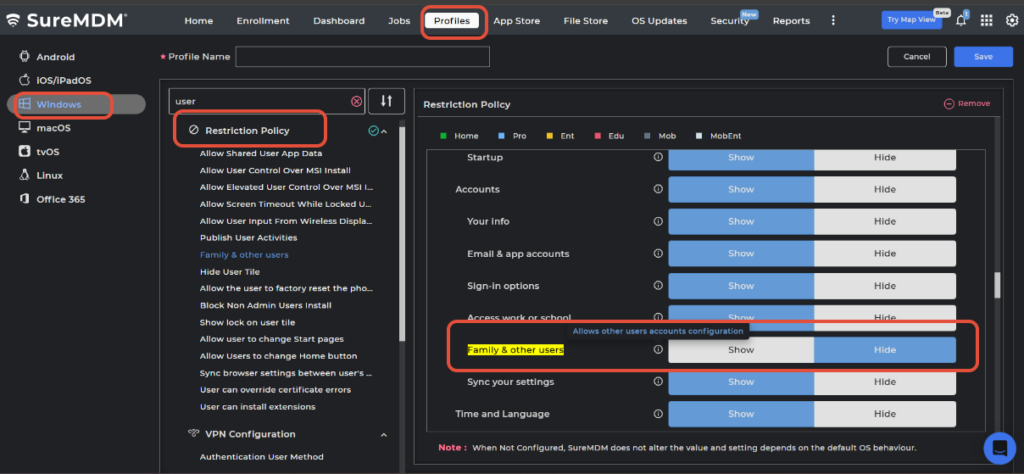
- Navigate to Profiles
- Click on Restriction policy
- Click on Configure
- Expand Control Panel Settings
- Search for Family & other Users Under Accounts
- Click on Hide
- Click on Save and Apply on the device.
Conclusion:
By configuring the above settings through SureMDM, administrators can prevent end users from adding unauthorized user accounts on Windows devices. This improves organizational security, maintains device compliance, and reduces the risk of unauthorized access or policy violations.
Need more help? Here’s how to get help from our experts.
Was this helpful?
YesNo