
Purpose
This article explains how to schedule reports in SureMDM Hub. Using the Schedule Reports feature, administrators can automatically generate and receive System Log Reports and License Reports through email at predefined intervals, improving monitoring and report management efficiency.
Prerequisites
- Access to the SureMDM Hub console
- Valid administrator or authorized user credentials
- Email addresses available for report delivery
Steps
- Login to the SureMDM Hub console.
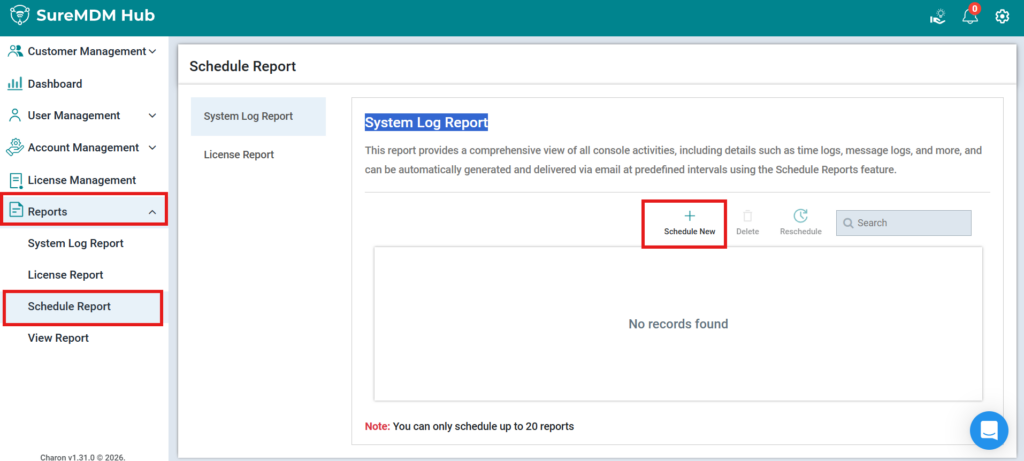
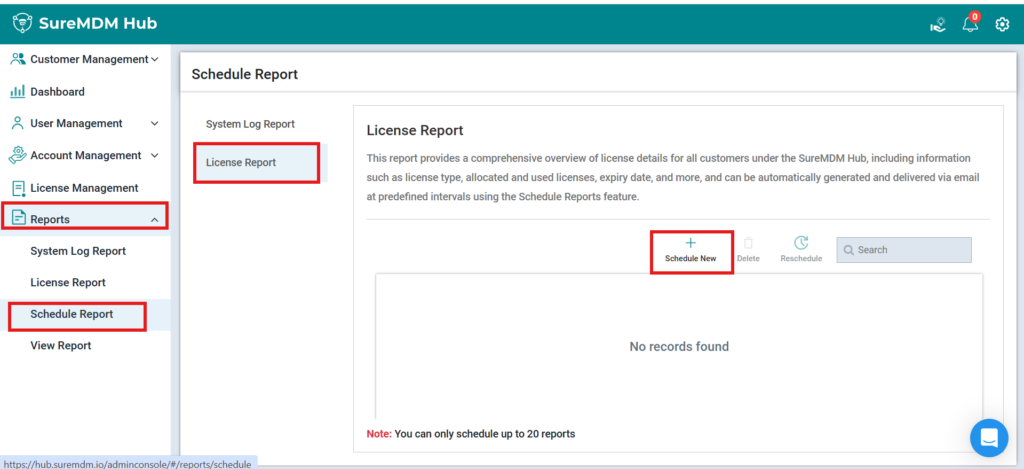
- Navigate to Reports > Schedule Report.
- Select either:
- System Log Report
- License Report
- Click Schedule New.
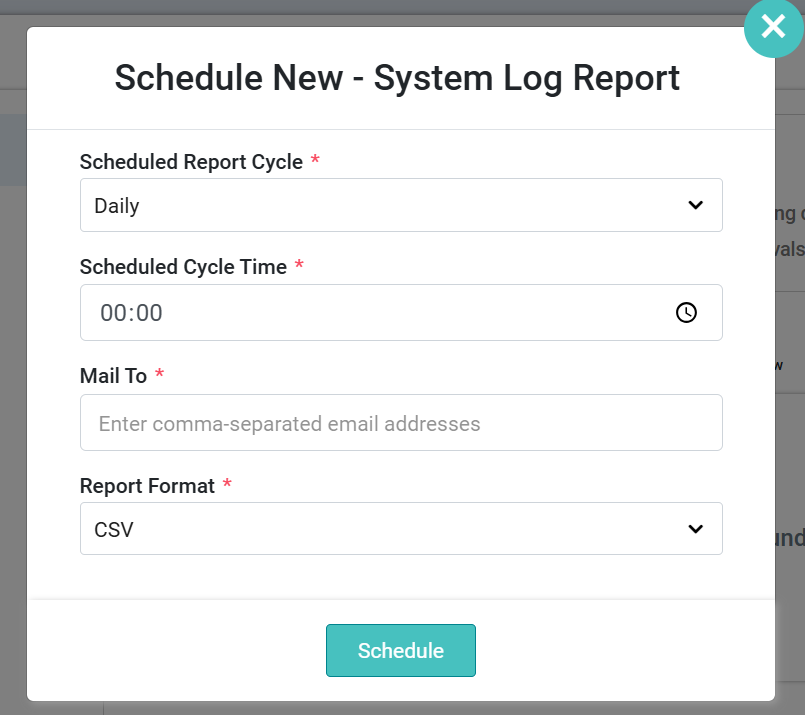
- Select the report cycle:
- Daily
- Weekly
- Monthly
- Enter recipient email addresses.
- Select the required report details for the License report details such as show (All license, device license, Things license, VR license), This helps filter and generate the exact license report required based on your use case.
- Choose the report format (CSV and XLSX).
- Click Schedule to save the configuration.
Note: Maximum 20 reports can be scheduled.
For System Log Report:
For License Report:
Conclusion:
The Schedule Reports feature in SureMDM Hub helps administrators automate report generation and delivery for both System Log Reports and License Reports. This reduces manual effort, improves operational visibility, and ensures timely access to important monitoring and licensing information.
Need more help? Here’s how to get help from our experts.
Was this helpful?
YesNo