
This article is intended to help IT administrators block all storage devices, preventing data transfer to external media such as SD cards, USB devices, and similar storage options.
Prerequisite
Windows – Dual-enrolled
Steps
- Devices must be enrolled in the console using Dual Enrollment.
- Go to Profiles > Windows in the SureMDM console.
- Create a new profile or modify an existing profile already deployed to the device.
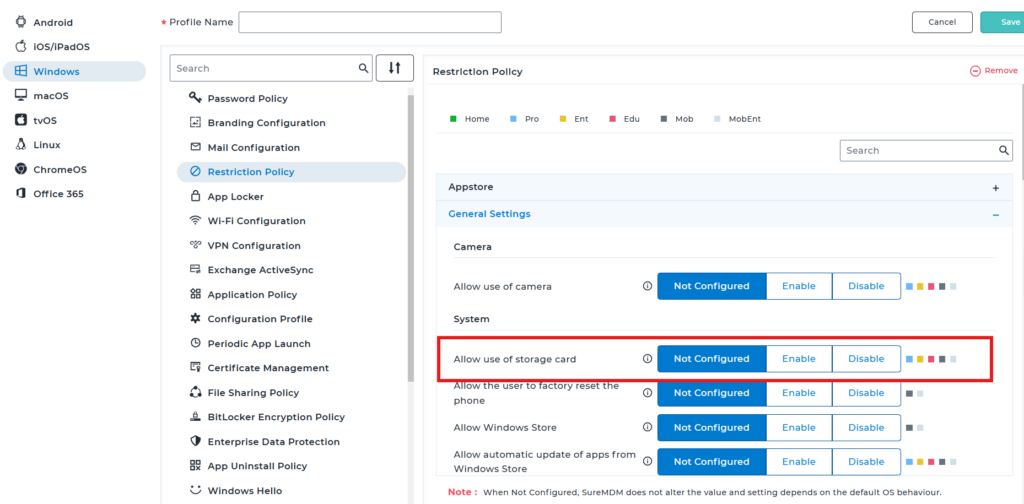
- Open the profile and configure the Restriction policy.
- Expand General Settings.
- Locate Allow use of storage card and select one of the following options:
- Not Configured – No changes will be applied to the device.
- Enable – Allows access to storage devices (USB, SD cards, etc.).
- Disable – Blocks access to all external storage devices.
- Set the option to Disable to restrict storage device usage.
- Save and deploy the profile to the target devices.
Conclusion
IT administrators can toggle this setting (Enable/Disable) as needed by updating and redeploying the profile, allowing temporary access when required.
Need more help? Here’s how to get help from our experts.
Was this helpful?
YesNo