
Purpose
The Disable Proceeding from the Safe Browsing Warning Page option in SureMDM allows administrators to control whether users can bypass Google Chrome Safe Browsing warnings. When enabled, users are prevented from accessing websites identified as malicious, phishing, or unsafe. When disabled, Chrome continues to display the Safe Browsing warning page, but users can choose to proceed and access the website. This helps organizations balance security requirements with business needs while managing browsing policies across Windows devices.
Prerequisites
N/A
Steps
1: Go to the profile section from the top navigation bar.
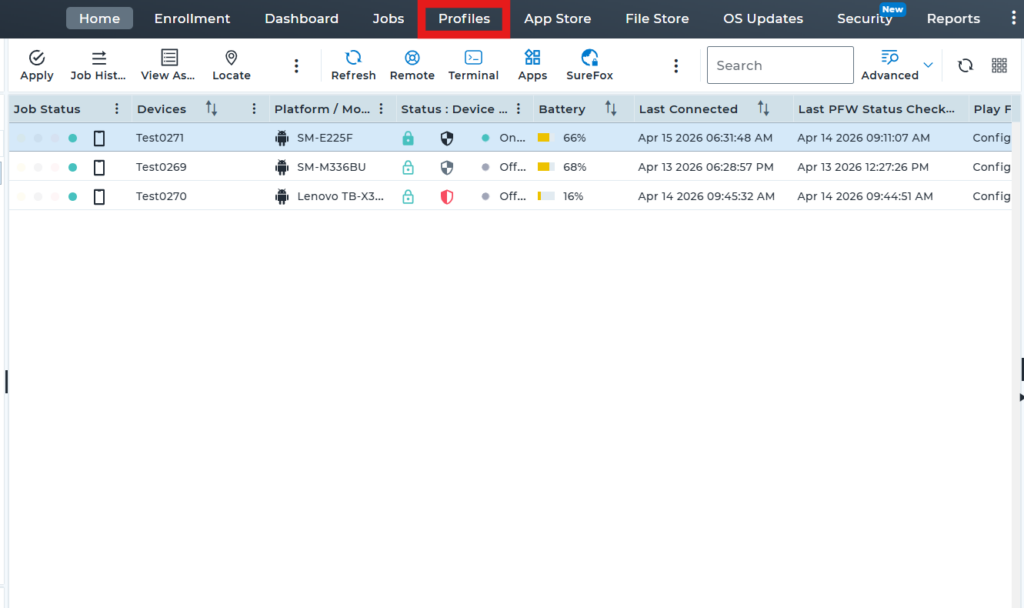
2: Select the option to create a new profile to set up the new profile
3: Scroll down and click on “Browser Management“. Under Browser Management, select Google Chrome, then click on “Configure”.
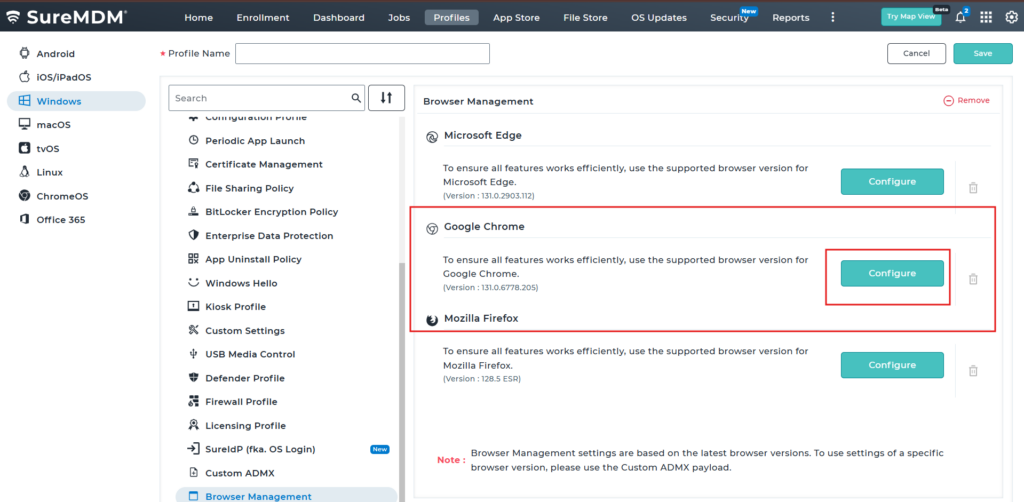
4. Under Google Chrome, use the search bar to search for “Safe Browsing”. Then locate “Disable proceeding from the Safe Browsing warning page “ and configure with Enable or disable .
Enable:
A Safe Browsing warning is displayed, and users are prevented from accessing the flagged website.
Disable:
A Safe Browsing warning may still be displayed, but users can proceed and access the flagged website.
5.Save the profile and deploy it to the device. Once the profile is successfully deployed, the Safe Browsing Warning Page behavior will be applied based on the configured setting. If Disable Proceeding from the Safe Browsing Warning Page is enabled, users will not be able to bypass the warning and access unsafe websites.
If the setting is disabled, users will continue to see the Safe Browsing warning page but will have the option to proceed to the website. Safe Browsing protection will remain active and continue to detect and warn users about malicious, phishing, and unsafe websites.
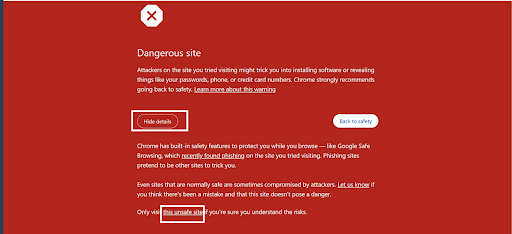
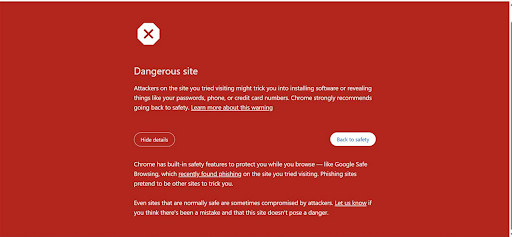
Profile configured with Disable
When you click Hide Details, an option labeled “Visit this unsafe site” is displayed. Clicking this option allows the user to bypass the Safe Browsing warning and navigate to the website that has been flagged as unsafe or potentially malicious.
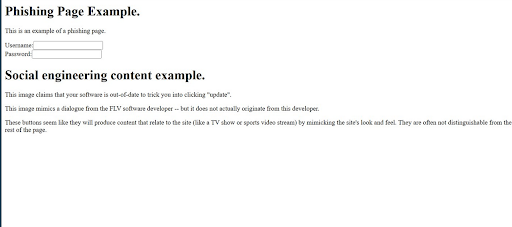
Profile configured with Enable
An error message is displayed indicating that the website has been flagged as unsafe, and no option is provided to bypass the warning or navigate to the flagged webpage.
Conclusion
The Disable Proceeding from the Safe Browsing Warning Page setting in SureMDM helps administrators manage how users interact with unsafe websites. When enabled, access to flagged websites is blocked. When disabled, users can proceed after viewing the warning. This provides flexibility to balance organizational security requirements and user accessibility.
Need more help? Here’s how to get help from our experts.