
Purpose
This article explains how to configure a Custom Lock Screen Wallpaper for Android devices using the Lost Mode job in SureMDM. This feature allows administrators to display a custom image on the device screen when Lost Mode is activated.
Prerequisites
- Android devices enrolled in SureMDM.
- Device enrolled under Android Enterprise.
- SureMDM administrator access.
- Custom wallpaper image ready for use.
Steps:
Step 1: Create a Lost Mode Job
- Log in to the SureMDM Console.
- Navigate to Jobs.
- Click Create Job [Android].
- Select Lost Mode from the available job types.
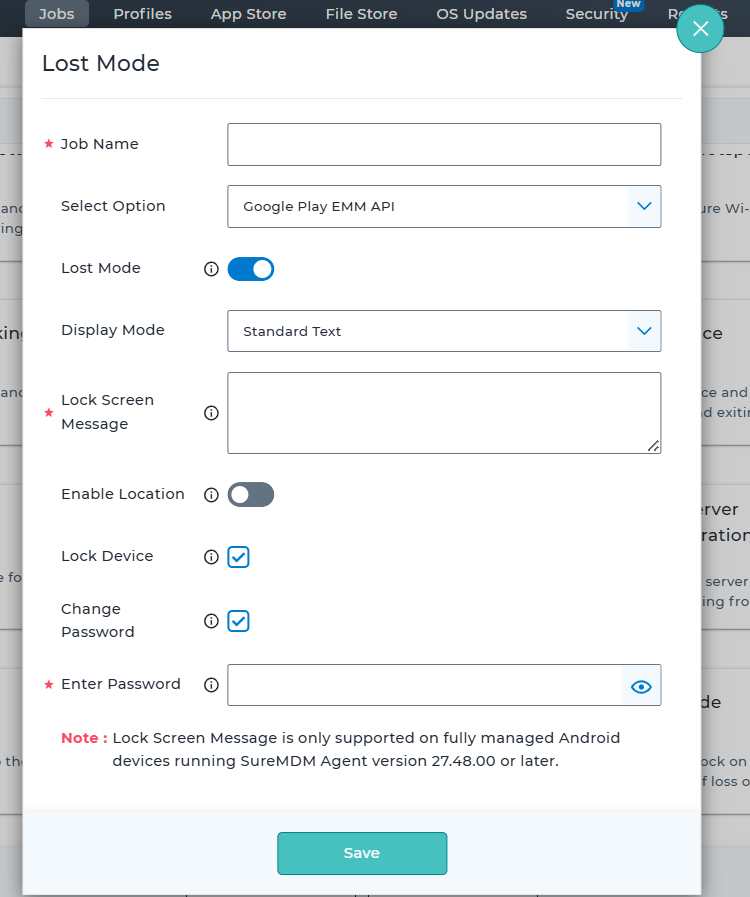
Step 2: Configure Lost Mode
- Enter a Job Name.
- Under Select Option, choose the required management method (for example, Google Play EMM API).
- Enable the Lost Mode toggle.
Step 3: Select Custom Lock Screen Wallpaper
- Under Display Mode, click the drop-down menu.
- Select Custom Lock Screen Wallpaper.
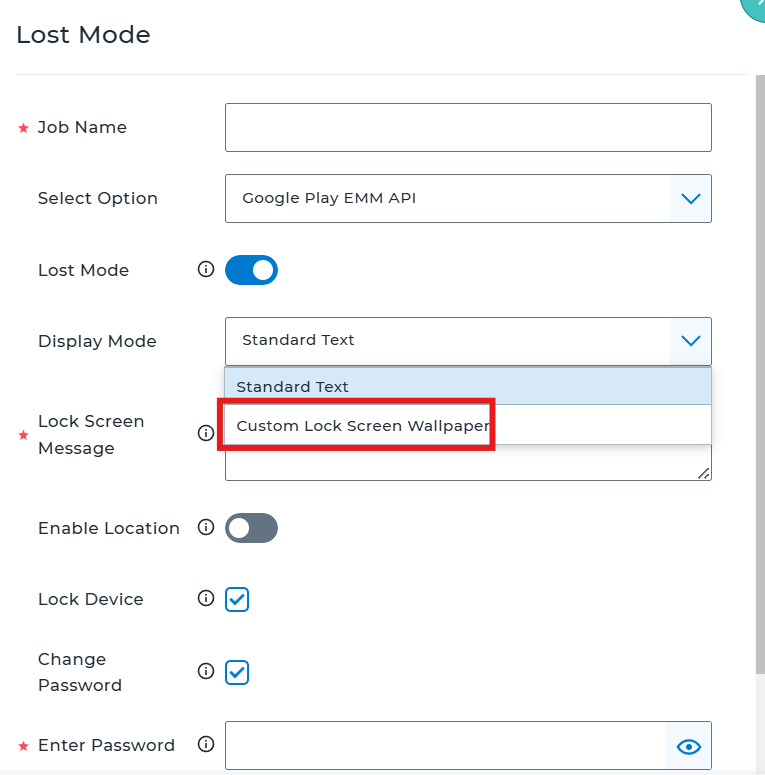
Step 4: Upload the Wallpaper
- After selecting Custom Lock Screen Wallpaper, upload the desired image.
- Configure additional Lost Mode settings as required:
- Enable Location (optional)
- Lock Device
- Change Password
- Enter Password
- Save the job.
Step 5: Apply the Job
- Select the target Android device(s) from the SureMDM Device Grid.
- Apply the newly created Lost Mode job.
- The device will enter Lost Mode and display the configured custom wallpaper on the lock screen.
Conclusion
The Custom Lock Screen Wallpaper option in Android Lost Mode allows administrators to display a customized image when a device is reported lost or misplaced. This can be used to show ownership information, recovery instructions, or company branding while keeping the device secured.
Need more help? Here’s how to get help from our experts.
Was this helpful?
YesNo