
Purpose
This article explains how to configure a custom data usage limit on Zebra Android devices using the OEM Config application through SureMDM.
Prerequisites
- Zebra Android device enrolled in SureMDM.
- Android Enterprise configured in SureMDM.
- Zebra OEM Config application installed on the device.
- Supported from: MX 6.3
Steps
- Log in to the SureMDM Console.
- Navigate to Profiles and select Android.
- Click New Profile or edit an existing Android profile.
- Go to OEM Config.
- Select Zebra OEM Config from the available OEM Config applications.
- Expand All option
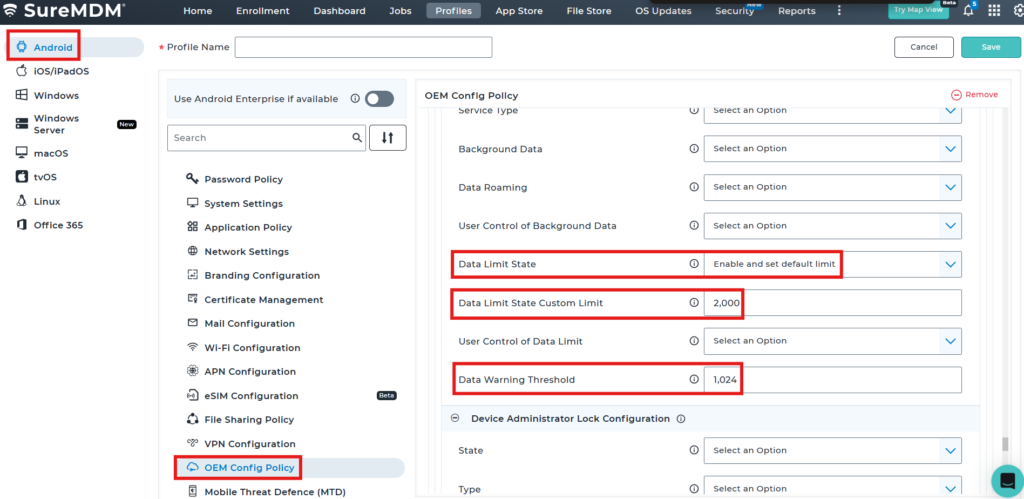
- Navigate to Data Limit State settings.
- Configure the required parameters:
- Data Limit State – Enable this option.
- Data Limit State Custom Limit – Specify the maximum mobile data usage limit (MB).
- Data Warning Threshold – Set the data limit warning (MB).
- Click Save to save the OEM Config settings.
- Save the profile.
- Apply the profile to the target Zebra device(s) or device group(s).
- Wait for the profile to be synchronized on the device.
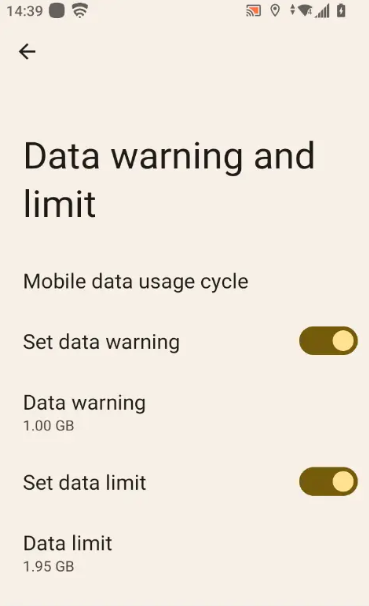
- Verify on the device that the configured data limit has been applied successfully.
Mx Config Run Script:
<wap-provisioningdoc>
<characteristic version=”10.0″ type=”CellularMgr”>
<parm name=”CellularDataWarning” value=”1″/>
<parm name=”CellularDataWarningValue” value=”1024″/>
<parm name=”CellularDataLimitUsage” value=”1″/>
<parm name=”DAAdvancedFeatures” value=”false”/>
<parm name=”MNOAdvancedFeatures” value=”false”/>
<parm name=”SvcAdvancedFeatures” value=”false”/>
<parm name=”DSDSFeatures” value=”false”/>
<parm name=”eSIMFeatures” value=”false”/>
</characteristic>
</wap-provisioningdoc>
Note: Data Limit can only be enabled using the script.
Conclusion
Using Zebra OEM Config through SureMDM, administrators can configure custom mobile data usage limits on Zebra Android devices. This helps control cellular data consumption and prevent excessive data usage across managed devices.
Need more help? Here’s how to get help from our experts.