
Overview
By default, Android’s Data Saver mode restricts background data usage for applications in order to conserve data and battery life. In enterprise environments, certain critical applications may require Unrestricted Data Usage permissions to function properly even when Data Saver mode is enabled.
This guide explains how to enable the Unrestricted Data Usage permission remotely through SureMDM or through SureLock settings (if enabled).
Prerequisite
- Devices must be enrolled in Device Owner (DO) or Profile Owner (PO) mode.
- Supports on Android 7.0 (Nougat) and above.
- SureMDM Nix Agent and SureLock should be of version v27.21.18 or later.
- This is basically supported to Platform Signed or EA installed devices.
Steps
To configure the same without SureLock enabled:
1. Log in to the SureMDM Console.
2. Navigate to Jobs > New Job > Android > Application Permissions.
3. Click on Add and select the required application name.
4. Scroll down to Special App Access > Unrestricted Data and select “Grant”
5. Provide a job name and deploy the job to the device.
To configure the same with SureLock enabled:
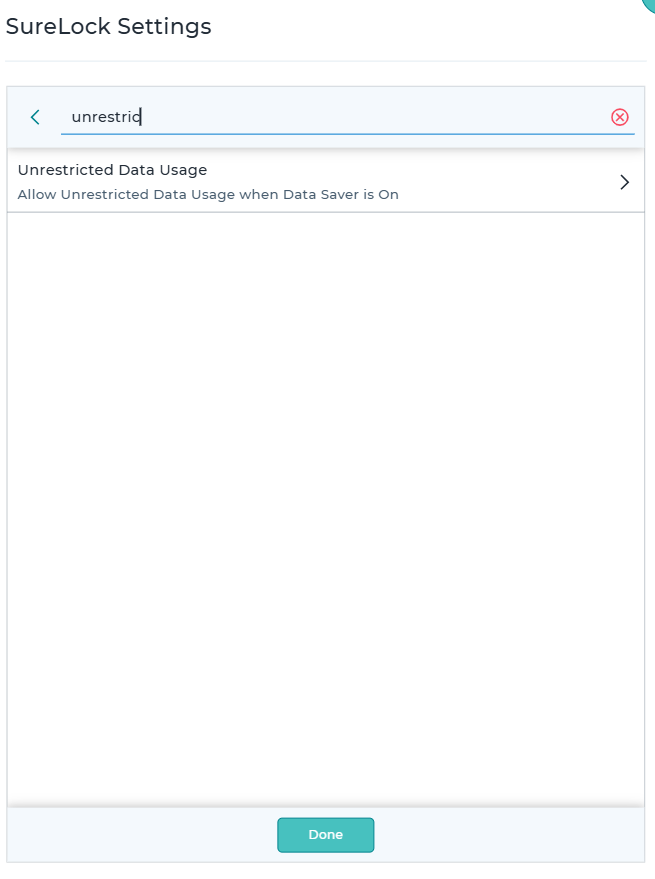
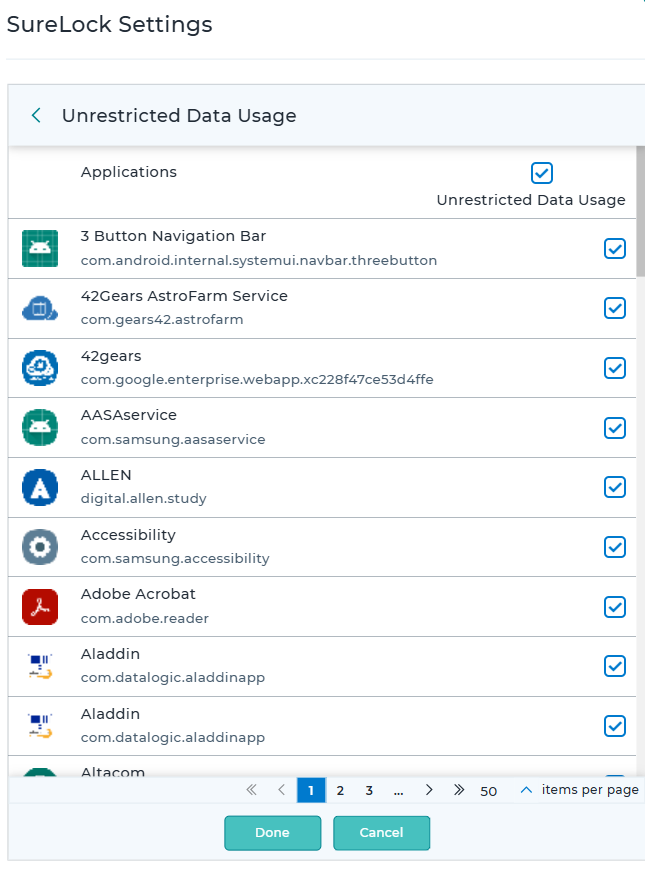
1. Navigate to: SureLock Admin Settings > SureLock Settings > Unrestricted Data Usage
2. Select the application from the list for which unrestricted data usage should be enabled.
To verify whether the option is enabled on the device, navigate to: Settings > Apps > Special App Access (you may need to tap General or Advanced first, depending on the device) > Unrestricted Data (or Unrestricted Mobile Data). Scroll to find the required application. If the toggle next to the application is enabled, then unrestricted data usage is active for that application.
Results
Once the Unrestricted Data Usage permission is successfully granted via SureMDM or SureLock,The selected applications will continue to send and receive data in the background even when the device’s system-wide Data Saver mode is active. Mission-critical processes such as real-time GPS tracking, database synchronization, and push notifications will remain functional without being “paused” by the OS. Upon manual inspection of the device’s Special App Access menu, the toggle for the specific application will be locked in the ON position, preventing end-users from disabling it.
Conclusion
Enabling unrestricted data usage helps critical enterprise applications stay connected and synchronized even when Android Data Saver is enabled. For best results, it is recommended to also whitelist the application from Battery Optimization to prevent it from being put into sleep mode. Always test the configuration on a sample device before deploying it across all devices.
Need more help? Here’s how to get help from our experts.
CONTACT US