
Purpose
This feature allows users to access Wi-Fi settings within SureLock, addressing the limitation of Wi-Fi center plugins that depend on specific Android versions. Since those plugins are only compatible with Android 13 and above, this alternative can be used for devices running lower Android versions.
Prerequisites
N/A
Steps
1. Navigate to SureLock admin settings and select Manage shortcuts.
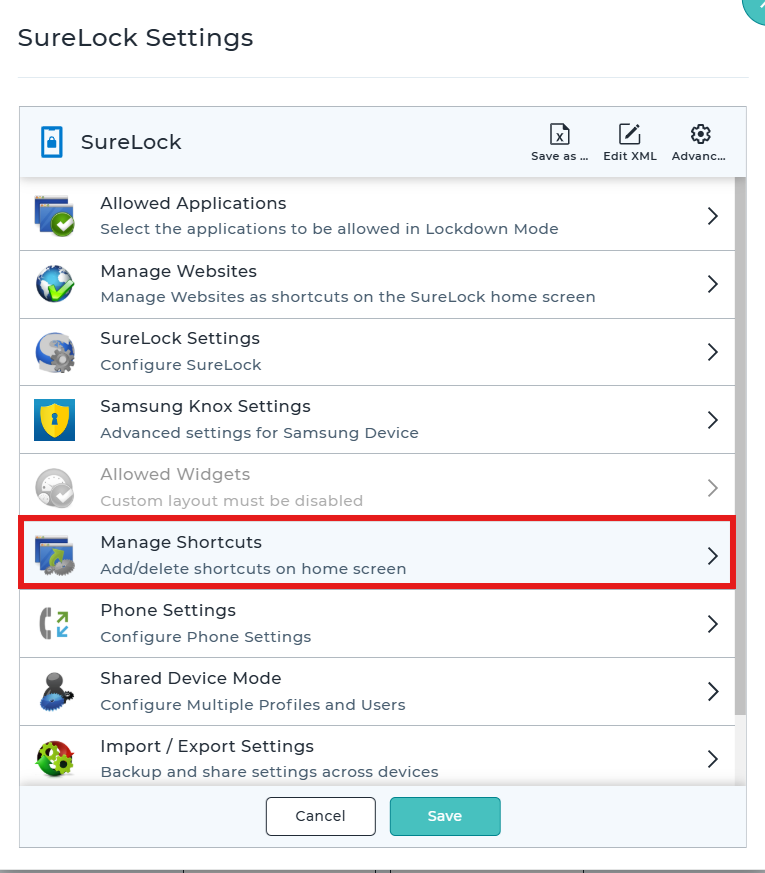
2: Select “Manage Shortcuts”
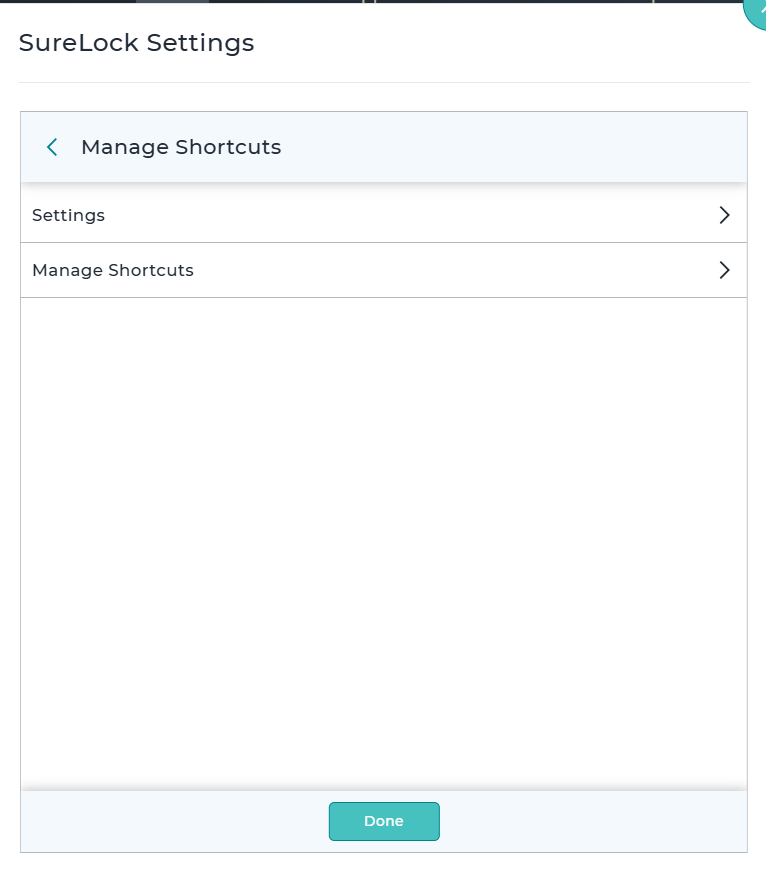
3: Select “ADD shortcut”
4:Select Add new Key
5: Shortcuts name :Type the shortcuts name of your choosing
Intent:android.settings.panel.action.INTERNET_CONNECTIVITY
Shortcut Id :1
After saving the shortcut the customer will be able to open the Wi-Fi settings without the need of the Wi-Fi center plugin.

Conclusion
By configuring a custom shortcut in SureLock with the specified intent, users can directly access the Wi-Fi settings even on devices running Android versions lower than 13. This workaround eliminates the dependency on the Wi-Fi Center plugin and ensures consistent connectivity management across supported devices.
Need more help? Here’s how to get help from our experts.
CONTACT US