
Purpose
AirPlay is Apple’s wireless streaming feature that lets you send video, audio, photos, or your entire screen from an iPhone or iPad to compatible devices such as Apple TV 4K, AirPlay-enabled smart TVs, speakers, and some Macs.
With SureMDM, Admin can enable or disable AirPlay functionality on the devices enrolled.
Prerequisites
1. Start Airplay Mirroring is supported on the device(s) with iOS version 7.0 and above
2. Both the devices(host and mirror device) should be on the same Wi-Fi network
3. Ensure the receiving device supports AirPlay.
Steps
1. Login to SureMDM console.
2. Go to Jobs -> New Job -> iOS/iPadOS -> Select AirPlay Mirroring
3. If Start AirPlay Mirroring is selected, then the below fields will be displayed dynamically:
- Destination Name
Info: The name of the AirPlay Mirroring destination.
- Password
Info: The screen-sharing password that the device uses when connecting to the destination.
- Scan Time (increment / decrement field)
Info: The number of seconds, from 10 to 300, for the device to spend searching for the destination.
Default value is 30.
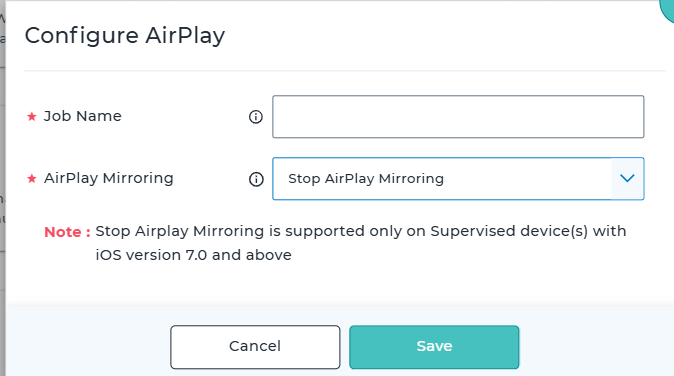
If Stop AirPlay Mirroring is selected, then the fields would be hidden and user can disconnect the AirPlay Session
Conclusion
By using the AirPlay Mirroring job in SureMDM, administrators can remotely start or stop AirPlay sessions on supervised iOS/iPadOS devices. Configuring the destination name, password, and scan time ensures a secure and reliable connection to the intended AirPlay receiver. This enables seamless screen sharing for presentations, demonstrations, training sessions, and remote assistance while maintaining centralized management and control through SureMDM.
Need more help? Here’s how to get help from our experts.
CONTACT US