
Purpose
To enable users to navigate between approved websites while the Windows device remains in SureLock Kiosk mode. To provide access to browser navigation controls, such as Back, Forward, and Tabs, without exiting the kiosk session. To improve the browsing experience while maintaining the security and restrictions enforced by SureLock.
Prerequisites
Windows Dual Enrolled Mode
Steps
- Navigate to Job Creation: Log in to your SureMDM Web Console. Go to Jobs > New Job > Windows > SureLock Settings.
- SureLock Settings → Browser Settings → Enable Toolbar
- Under Browser Preferences, enabled the following options:
- Allow Tabbed Browsing
- Save Password
- Deployed the SureLock Settings job to the device.
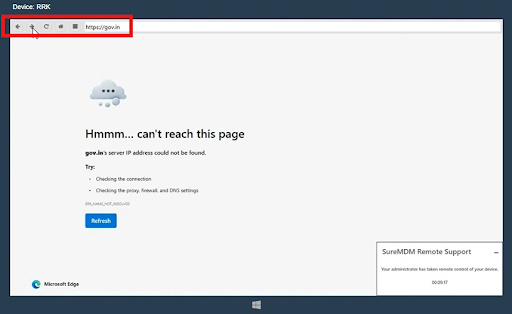
Post deployment of the above settings, now the end users would be able to access the navigation button on the allowed website.
Conclusion
By enabling the Toolbar, Tabbed Browsing, and Save Password options in SureLock Browser Settings and deploying the updated SureLock Settings job, users can conveniently navigate between the approved websites configured in SureLock while the Windows device remains in Kiosk mode. This provides a controlled browsing experience, allowing users to use the navigation buttons to move back, forward, or switch between permitted websites without compromising the security and restrictions of the kiosk environment.
Need more help? Here’s how to get help from our experts.
CONTACT US