
Overview
This article provides step-by-step instructions for downloading, installing, and initializing the ProGlove INSIGHT Mobile application on an Android device using the ProGlove INSIGHT Portal.
Prerequisites
- A registered ProGlove INSIGHT account.
- An Android device with internet connectivity and permission to install applications from unknown sources (if installing directly via APK).
- Web browser access.
Installation Procedure
1. Log in to the ProGlove INSIGHT Portal
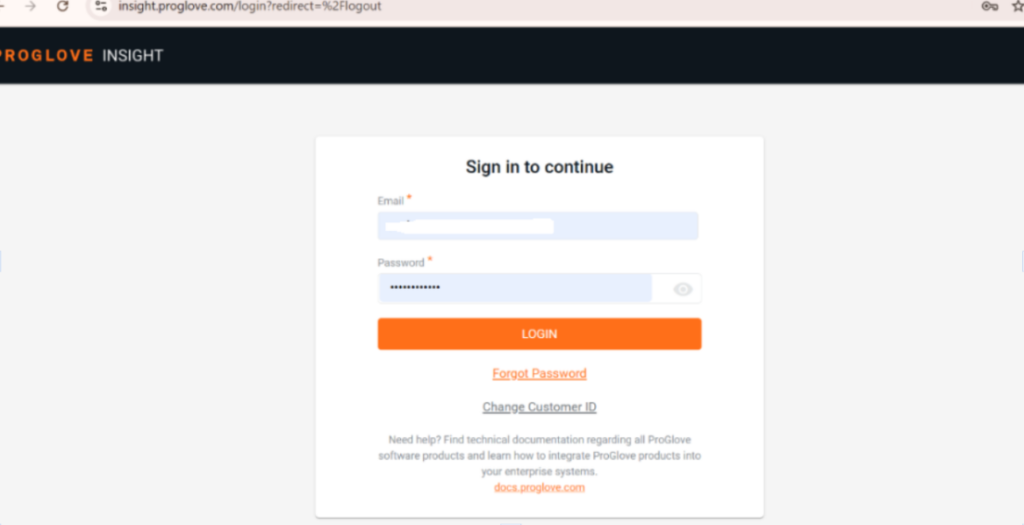
i) Open your web browser and go to the ProGlove INSIGHT Portal Login Page.
ii) Enter your registered Email and Password, and click LOGIN to access the ProGlove INSIGHT Portal.
2. Download the INSIGHT Mobile (Android) Application
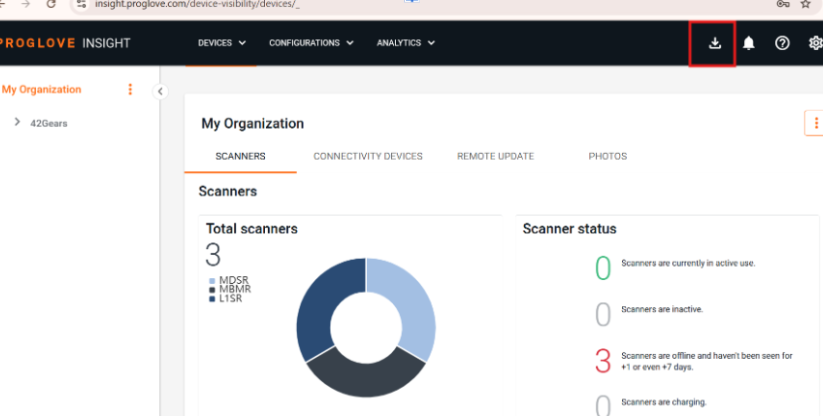
i) After logging in to the insight portal, click the Download icon in the upper-right corner on the primary navigation menu
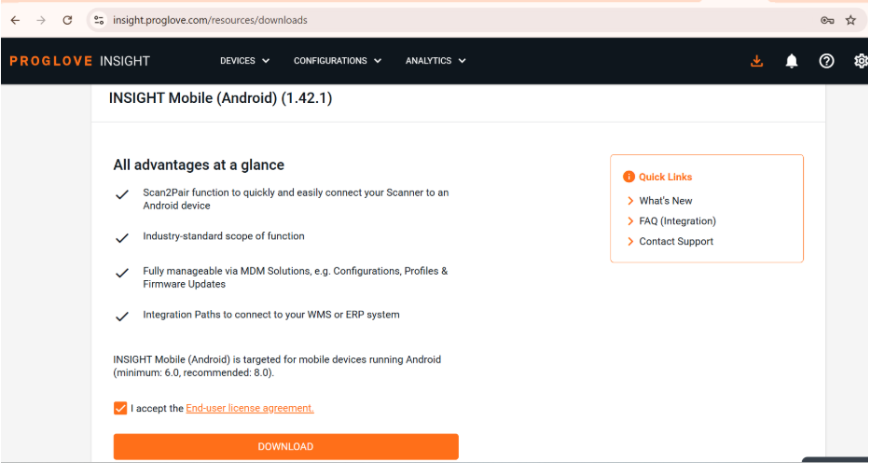
ii) Scroll down to the INSIGHT Mobile (Android) section and review the application details and supported Android version requirements.
iii) Select the checkbox to accept the End-user License Agreement (EULA).
iv) Click ‘DOWNLOAD’ to download the .apk file to your device.
3. Install the INSIGHT Mobile Application on Your Android Device
i) Locate the downloaded .apk file in your device’s Downloads folder or notification panel.
ii) Tap the .apk file to start the installation.
iii) If prompted, enable Allow installation from unknown sources in your device settings.
iv) Tap Install and wait for the installation to complete.
4. Launch and Set Up the INSIGHT Mobile Application
i) Open the INSIGHT Mobile app from your device’s app drawer and sign in using your ProGlove INSIGHT account credentials.
ii) Once signed in, the setup is completed, and the application is ready to pair with your ProGlove scanners and the SureMDM Console.
Conclusion
Installing the ProGlove INSIGHT Mobile app helps establish a link between your Android devices, wearable scanners, INSIGHT Portal and the SureMDM Console. Completing the APK setup and authentication ensures your scanners are immediately ready for pairing, deployment, and centralized management through SureMDM Console.
Need more help? Here’s how to get help from our experts.