
Overview
This guide explains how to capture, display, and monitor the SIM card MCC (Mobile Country Code) and MNC (Mobile Network Code) values in the SureMDM console using Script-Based Custom Device Properties. This functionality is useful for managing dual-SIM devices, tracking carrier changes, and ensuring compliance across managed Android devices.
Prerequisites
Before proceeding, ensure that the following prerequisites are met:
- The Android device is enrolled using Device Owner or Fully Managed enrollment.
- The SureMDM Agent version is v28.59.53 or later.
- Ensure that the SureMDM Agent has been granted Phone (Telephony) permission on the device.
- Verify that the MCC/MNC information is available under Device Info > Network Information on the SureMDM console before configuring the custom property.
Steps
Creating Script-Based Custom Device Properties
- Log in to the SureMDM Console.
- Navigate to:
Account Settings → Device Properties → Properties → Custom Device Properties - Click Add New Property.
- Select Platform as Android.
- Enter the desired Property Key.
- Select Data Type as String.
- Enable Retrieve Value Using Script.
- Enter one of the following scripts based on the required value.
- Configure the Frequency to Retrieve the Value according to your requirements.
- Click Save.
Script to Retrieve the MNC Value
function assignValue(){
var finalValue = suremdmjs.getMccMncValue(“mnc”,0);
return finalValue;
}
Script to Retrieve the MCC Value
function assignValue(){
var finalValue = suremdmjs.getMccMncValue(“mcc”,0);
return finalValue;
}
Note:
- Use 0 to retrieve values from SIM Slot 1.
- Use 1 to retrieve values from SIM Slot 2.
Important:
- Values are retrieved only if a SIM card is present in the specified slot.
- If no SIM is detected, the property displays N/A.
- The values are refreshed automatically based on the configured retrieval frequency.
Assigning the Custom Properties to Devices or Groups
- Log in to the SureMDM Console.
- Navigate to Group Properties > Device Properties.
- Select the custom property created in the previous section.
- Click Assign to apply the property to the required device group.
Note: When a script-based custom property is assigned to a parent group, it is automatically inherited by all child groups. Inherited properties cannot be unassigned from individual subgroups unless they are removed from the parent group.
Please refer the below picture:
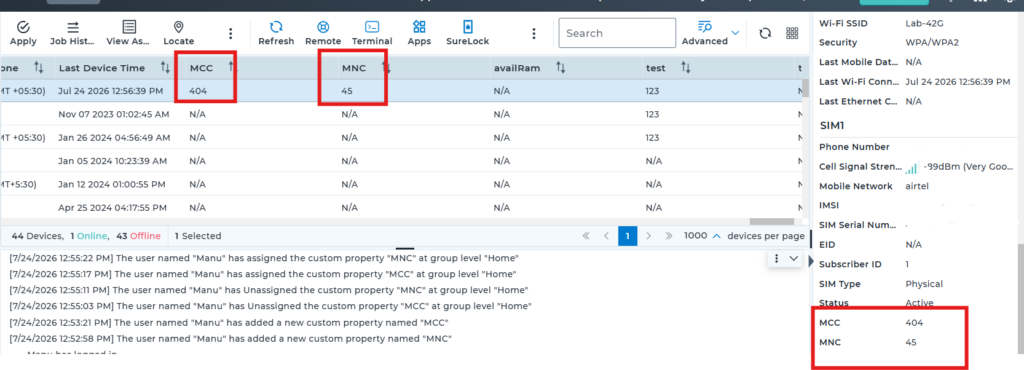
Results
After the custom property is assigned and the script executes successfully:
- The configured MCC and MNC values are retrieved from the specified SIM slot.
- The values are displayed as Custom Device Properties in the SureMDM console.
- The properties are updated automatically based on the configured retrieval frequency.
- If the specified SIM slot does not contain a SIM card, the property displays N/A.
- These values can be used for monitoring, reporting, automation, and identifying the carrier information of managed devices.
Conclusion
By configuring Script-Based Custom Device Properties, administrators can efficiently capture and monitor SIM card MCC and MNC values directly from managed Android devices. This provides greater visibility into carrier information, simplifies fleet management for single and dual-SIM devices, and enables automated reporting and compliance monitoring within the SureMDM console.
Need more help? Here’s how to get help from our experts.
CONTACT US