
Purpose
The purpose of this knowledge article is to guide administrators on muting the microphone notification sound in SureLock for Android devices. This configuration helps provide a distraction-free user experience in environments where microphone access is required while ensuring the device continues to operate as intended within SureLock.
Prerequisites
- SureLock configured on the device.
- Access to SureLock Admin Settings
- Access to SureMDM console.
Steps
- Launch SureLock on the Android device.
- Access SureLock Admin Settings.
- Navigate to SureLock Settings.
- Check on Volume Settings.
- Select Set Volume Level
- Ringtone and Media to be set to 0%
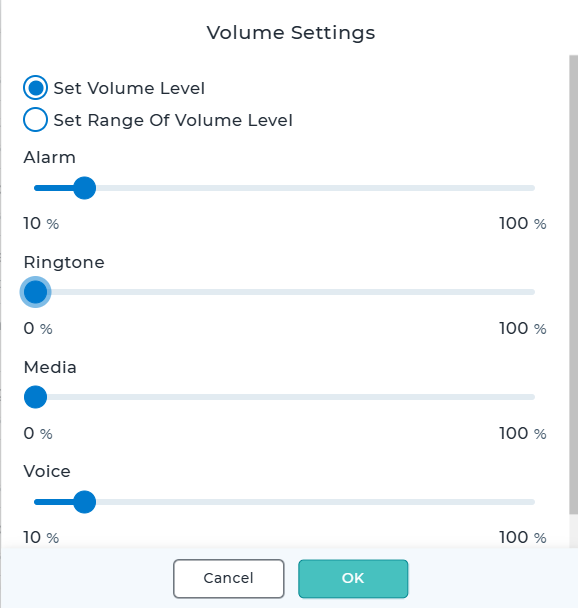
- Click on OK
- Click on Done
Conclusion:
By muting the microphone notification sound in SureLock for Android, administrators can provide a quieter and less disruptive user experience while maintaining the required microphone functionality. This configuration is especially useful in kiosk deployments where minimizing unnecessary notification sounds helps ensure a seamless and focused device operation.
Need more help? Here’s how to get help from our experts.
CONTACT US