
Purpose
This article explains how to enable or disable a user in the SureMDM Hub console. Administrators can use this feature to control user access by temporarily disabling user accounts without deleting them. Disabled users cannot access the SureMDM Hub console until they are re-enabled.
Prerequisites
- Valid SureMDM Hub account with Administrator privileges.
- Ability to sign in to the SureMDM Hub console.
- At least one user account available under User Management.
Steps
- Log in to the SureMDM Hub console.
- From the left navigation pane, click User Management.
- Select Admin Users.
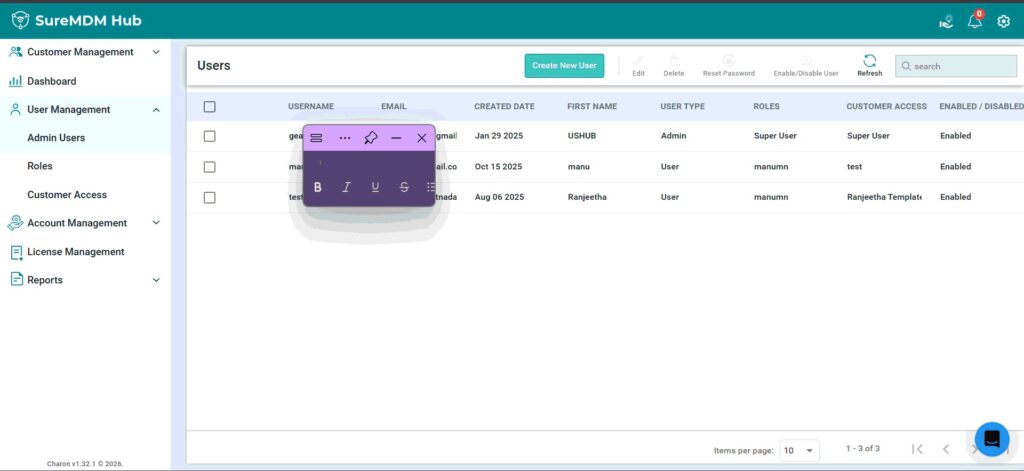
- The Admin Users page displays the list of all Users.
- Select the desired user by clicking the corresponding checkbox.
- Click Enable User or Disable User located in the top-right corner of the page.
- If the selected user is currently Enabled, clicking Disable User will disable the account.
- If the selected user is currently Disabled, clicking Enable User will enable the account.
- Click on YES
- Upon clicking YES, you will get an Alert Message in SureMDM Hub HomePage saying “User Enabled Successfully” or “User Disabled Successfully” accordingly.
Expected Result
The selected user’s status is updated successfully. The user is either enabled or disabled based on the action performed, and their access to the SureMDM Hub console is updated accordingly.
Conclusion
The Enable/Disable User feature allows administrators to efficiently manage user access in SureMDM Hub by temporarily granting or restricting access without permanently removing user accounts.
Need more help? Here’s how to get help from our experts.
CONTACT US
Was this helpful?
YesNo