
Purpose
This article explains how to remotely simulate hardware key presses on Android devices using the Run Script feature in SureMDM. This allows administrators to perform actions such as pressing the Home, Back, Power, or Volume buttons without physically accessing the device.
Prerequisites
- Access to the SureMDM Console and Android device(s) enrolled in SureMDM.
- Permission to use the Run Script feature.
- Knowledge of the required Android KeyEvent integer value.
Steps
Steps to Execute a Remote Key Event
- On the SureMDM Console -> click on Jobs -> New Job -> Select Android OS
- Click on Run Script -> Enter the Job Name and the following script:
!#suremdm
pressKey(CONSTANT_VALUE) - Replace CONSTANT_VALUE with the required Android KeyEvent integer and Click on Save.
Example Script 1 – Press the Home Button
!#suremdm
pressKey(3)
Example Script 2 – Press the Back Button
!#suremdm
pressKey(4)
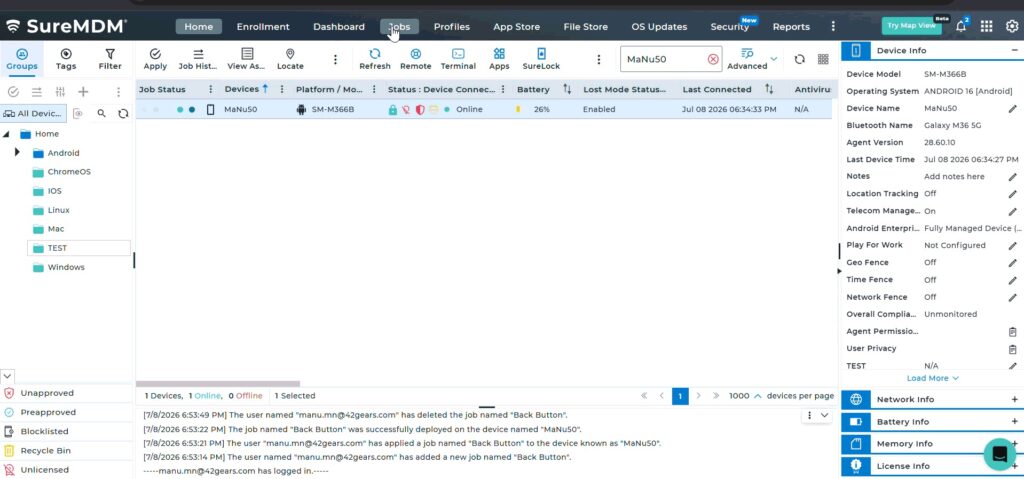
Common Android KeyEvent Values
| Key | Value |
| Home | 3 |
| Back | 4 |
| Call | 5 |
| End Call | 6 |
| Volume Up | 24 |
| Volume Down | 25 |
| Power | 26 |
| Camera | 27 |
| Menu | 82 |
| Search | 84 |
| App Switch (Recent Apps) | 187 |
Expected Result
- The selected key event is executed on the Android device.
- The device behaves as though the corresponding physical button was pressed.
- Administrators can remotely navigate the device interface or perform troubleshooting tasks without physical interaction.
Conclusion
The Remote Key Event Execution feature in SureMDM enables administrators to simulate hardware button presses on managed Android devices. This capability is useful for remote troubleshooting, kiosk management, automation workflows, and general device administration.
Need more help? Here’s how to get help from our experts.
CONTACT US