
Purpose
This knowledge base explains how to create and deploy a Lost Mode job in the SureMDM Console to remotely secure lost or stolen Android devices. Lost Mode allows administrators to lock devices, display recovery information, enable location tracking, and protect sensitive data.
Prerequisites
- Access to the SureMDM Web Console.
- Permission to create and deploy Jobs.
- Android devices enrolled in SureMDM.
- Devices managed using either Google Play EMM API or Android Management API (AMA).
- For Google Play EMM API, Lock Screen Message is supported only on Fully Managed devices.
- Device must be running SureMDM Agent version 27.48.00 or later.
Steps
Steps to Create a Lost Mode Job in Google Play EMM API
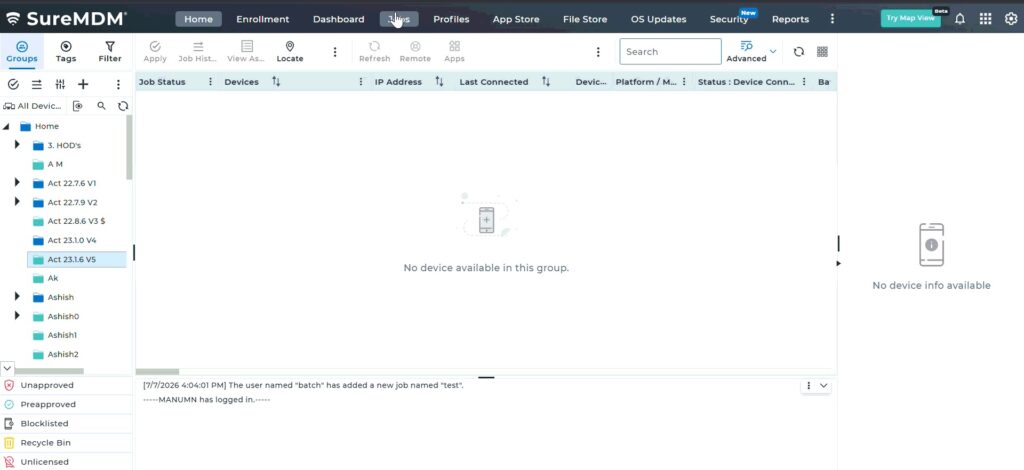
1. Log in to the SureMDM Web Console -> Navigate to Jobs > New Job > Android
2. Select Lost Mode Job and Configure the Job
3. Enter the Job Name. and Select Google Play EMM API as the Management Type.
| Lost Mode | Enable to activate Lost Mode. |
| Display Mode | Select Standard Text or Custom Lock Screen Wallpaper. |
| Lock Screen Message | Enter the message to display on the lock screen. (Available when Display Mode is Standard Text ) |
| Upload Image | Upload a JPG, JPEG, or PNG image (maximum size 20 MB). (Available when Display Mode is Custom Lock Screen Wallpaper) |
| Enable Location | Enables location tracking. |
| Lock Device | Lock the device immediately. |
| Change Password | Enables setting a new device password. |
| Enter Device Password | Specify the password to be applied. |
4. Click on Save
Steps to Create a Lost Mode Job in Android Management API
1. Log in to the SureMDM Web Console -> Navigate to Jobs > New Job > Android
2. Select Lost Mode Job and Configure the Job
3. Enter the Job Name. and Select Android Management API as the Management Type.
| Lost Mode | Enable to activate Lost Mode. |
| Message | Enter the message to display on the lock screen. |
| Organization Name | Enter the organization name. |
| Phone Number | Enter the contact phone number. |
| E-Mail Address | Enter the contact email address. |
| Street Address | Enter the organization street address. |
4. Click on Save.
Expected Result
The selected Android device(s) enter Lost Mode. Depending on the selected management type, the device displays the configured recovery information, locks the device, and applies the configured security settings. For Google Play EMM API, administrators can additionally enable location tracking, enforce a password, and choose between displaying a custom lock screen message or a custom lock screen wallpaper.
Conclusion
The Lost Mode job in SureMDM enables administrators to quickly secure lost or stolen Android devices. By using either Google Play EMM API or Android Management API, organizations can remotely lock devices, display recovery information, and help protect sensitive corporate data while improving the chances of device recovery.
Need more help? Here’s how to get help from our experts.
CONTACT US