
Purpose
This feature allows administrators to restrict or control access to specific websites on Windows devices by configuring the URL Block List for Mozilla Firefox through the SureMDM Console.
Prerequisites
- None
Steps
- Log in to the SureMDM Console.
- Navigate to Profiles.
- Select Windows as the platform.
- Click New Profile, or edit an existing profile.
- Select Browser Management.
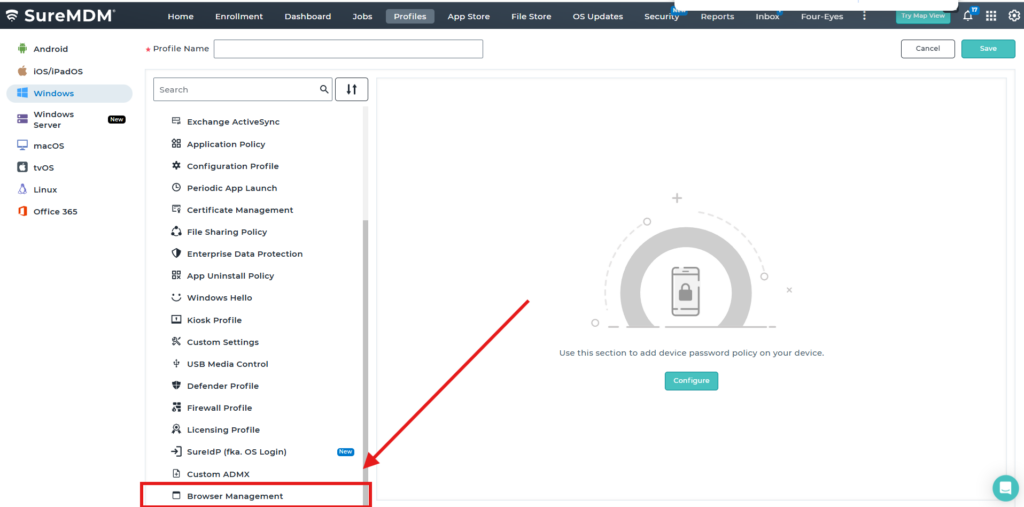
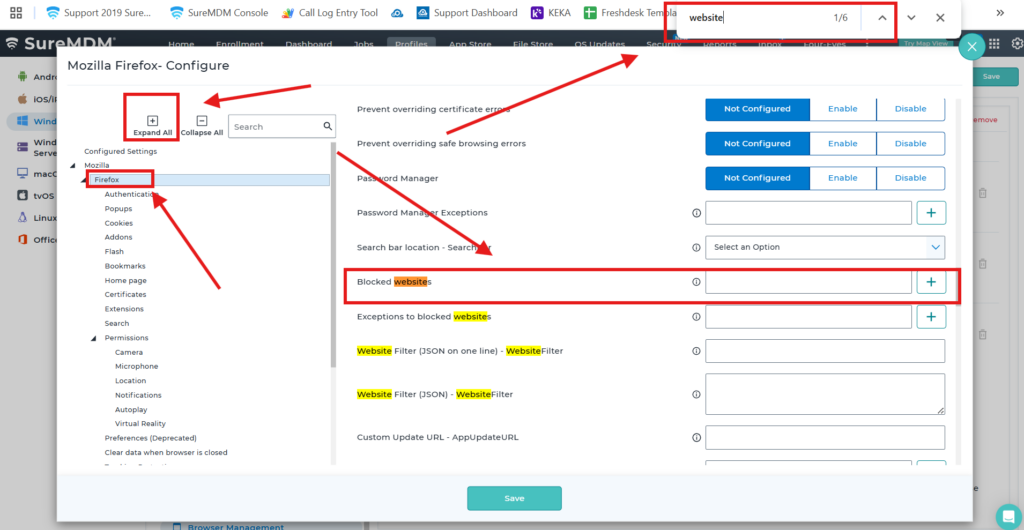
- Under Browser Management, click Configure for Mozilla Firefox.
- Click Expand All.
- Press Ctrl + F, search for URL, and locate the Blocked Websites setting.
- Under Blocked Websites, enter the complete website URL.
- Click the + icon to add the URL to the Block List , as required
- Save the profile and deploy it to the target Windows devices.
Conclusion
Configuring URL restrictions for Mozilla Firefox through SureMDM enables organizations to centrally manage website access on Windows devices. This helps improve security, enforce organizational browsing policies, maintain compliance, and promote safe and controlled internet usage across all managed systems.
Result
Need more help? Here’s how to get help from our experts.
CONTACT US
Was this helpful?
YesNo