
Overview
This article explains how to create an application shortcut on the SureLock home screen using the Manage Shortcuts feature. This allows administrators to manually create shortcuts for applications by specifying the required application details, ensuring quick and convenient access from the SureLock home screen.
Purpose
To provide administrators with the steps required to create an application shortcut on the SureLock home screen using the Manage Shortcuts feature.
Note: The Manage Shortcuts feature is useful when an application has already been added to the SureLock home screen through the Allowed Applications list, but we also need the same application to appear inside a folder. Since SureLock does not allow the same application to be added multiple times through the Allowed Applications list, we can create an application shortcut using Manage Shortcuts and then add that shortcut to the required folder. This allows the application to be accessed both from the home screen and from within the folder without duplicating the original application entry.
Scope
This article applies to:
- Android devices running SureLock.
- Devices managed with SureLock.
- Administrators who need to create custom application shortcuts.
- Scenarios where application shortcuts need to be manually configured.
Prerequisites
- SureLock must be installed and configured on the device.
- Administrator access to SureLock Settings.
- The target application must be installed on the device.
- Application should be allowed in allowed application
- The application package name and class name must be available.
Configuration Steps
Step 1: Navigate to Manage Shortcuts
- Open SureLock Settings.
- Navigate to Manage Shortcuts.
- Select Manage Shortcuts.
- Click Add Shortcut.
- Click Add.
Step 2: Configure the Shortcut
- Enter the Shortcut Name.
- In the Action field, enter:
android.intent.action.MAIN - Enter the Application Package Name.
- Enter the Class Name.
Note: The Class Name is displayed when the application is added to the Allowed Applications section in SureLock.
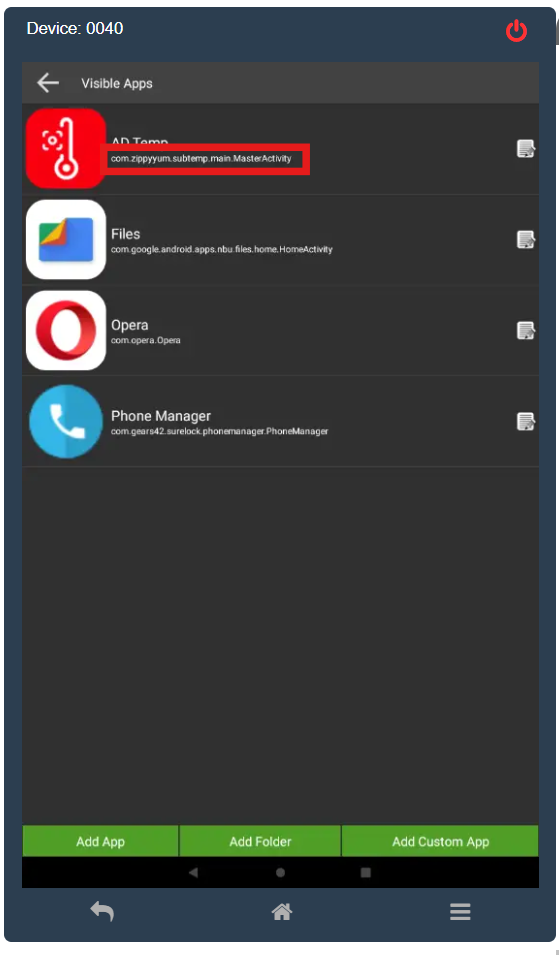
- If required, modify the Current Path.
- Click Save to create the shortcut.
Verification
- Return to the SureLock home screen.
- Verify that the newly created application shortcut is displayed.
- Tap the shortcut and confirm that it launches the intended application successfully.
Result
The application shortcut is successfully created and displayed on the SureLock home screen, allowing users to quickly launch the specified application.
Conclusion
By using the Manage Shortcuts feature in SureLock, administrators can manually create application shortcuts by specifying the application action, package name, class name, and path (if required). This provides greater flexibility when configuring the SureLock home screen and ensures users have quick access to the required applications.