
This article explains how to enable the Content Blocking feature in SureLock and SureFox. Content Blocking allows administrators to restrict access to websites that contain specific keywords, helping enforce organizational browsing policies and prevent access to unwanted content.
Purpose
This article provides a step-by-step guide on how to enable Content Blocking in SureLock/SureFox
Prerequisites
NA
Steps
- Open SureLock/SureFox Admin Settings.
- Navigate to Manage Websites.
- Select Browser Preferences.
- Open Advanced Settings.
- Enable the Content Blocking option.
- Tap Add Keywords to Block.
- Enter the keywords that should trigger content blocking. Multiple keywords should be separated by commas.
- Example: games, gambling, social media
- Configure the Match Whole Word Only option:
- Enabled: SureLock/SureFox blocks the webpage only when the exact keyword is found.
- Example: If the keyword is game, only the word game is matched.
- Disabled: SureLock/SureFox also matches partial words or related occurrences.
- Example: If the keyword is game, words such as games, gaming, or gameplay may also trigger content blocking.
- Enabled: SureLock/SureFox blocks the webpage only when the exact keyword is found.
- Save the settings.
- Deploy the updated SureLock/SureFox configuration to the target devices.
Conclusion
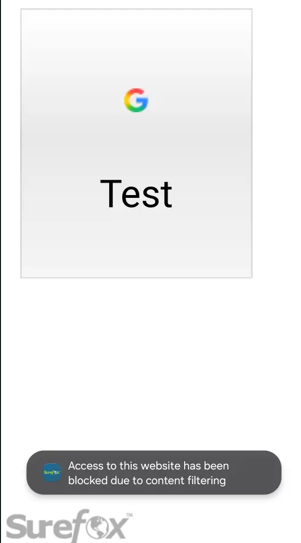
When Content Blocking is enabled, SureLock/SureFox scans the content of websites that are allowed under Manage Websites. If any of the configured blocked keywords are found on the webpage, access to that website is blocked. This ensures that users cannot access web pages containing restricted content, even if the website itself is included in the allowed websites list.
Need more help? Here’s how to get help from our experts.