
SureMDM allows IT administrators to configure a list of applications that are permitted to use Autonomous Single App Mode on supervised iOS/iPadOS devices. This can be configured through an iOS/iPadOS device profile in the SureMDM console.
Prerequisites
- The iOS/iPadOS device must be supervised.
- The required applications should be available on the device.
Steps
- Log in to the SureMDM Admin Console.
- Navigate to Profiles.
- Select iOS/iPadOS from the left pane.
- Create a new profile or select an existing iOS/iPadOS profile.
- Navigate to Device Configuration & Management > Device Restrictions.
- Select the Apps tab.
- Locate Permitted Apps for Autonomous Single App Mode.
- Click Choose App and select the required application.
- Click the + icon to add the application to the permitted apps list.
- Repeat the above steps to add multiple applications, if required.
- Click Save to save the profile.
- Apply the profile to the required supervised iOS/iPadOS devices.
Note
- To remove an application from the permitted list, click the – icon next to the application.
Conclusion
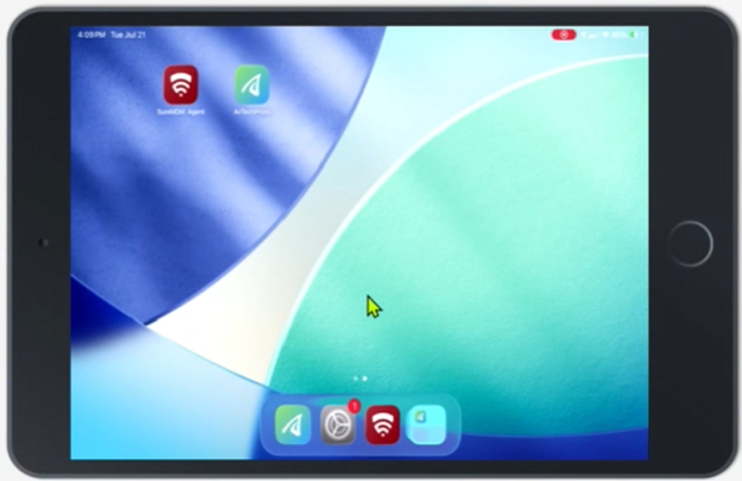
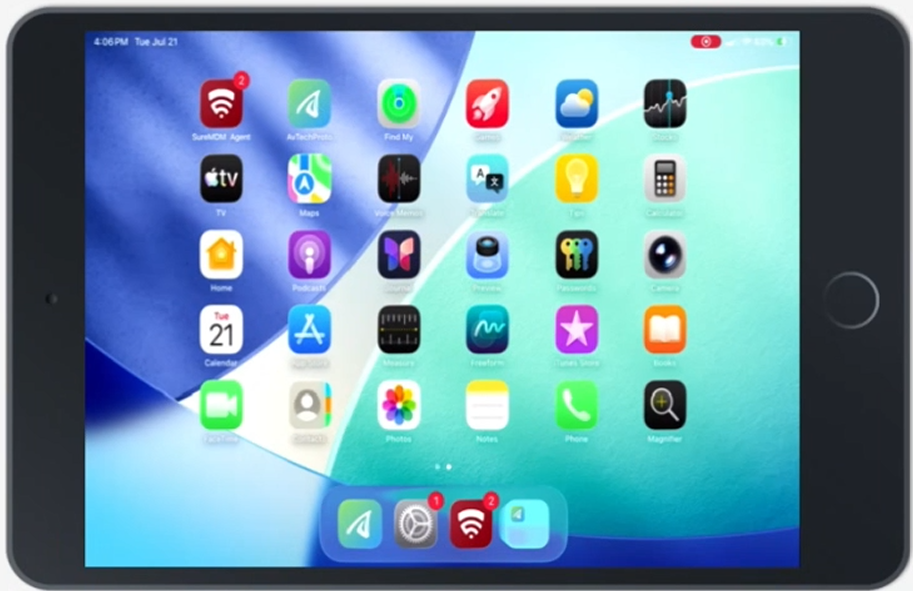
Once the profile is applied, the configured applications will be permitted to use Autonomous Single App Mode on the supervised iOS/iPadOS devices.
Need more help? Here’s how to get help from our experts.
Was this helpful?
YesNo